

- Logs every call in Odoo. Each finished TalkChief call is added as a note in the chatter of the matching Odoo lead, opportunity or contact, with the result, the agent, talk time and a link to the recording.
- Puts TalkChief in Odoo’s top bar. With the TalkChief app installed in Odoo, agents click a phone number in Odoo, check it in the TalkChief panel and select Call. Incoming calls show the caller and their lead or contact in the same panel.
yourcompany.odoo.com), version 18, 19 or 20.
Get TalkChief Phone on the Odoo Apps store
What the integration does
- Logs every external call: inbound and outbound calls are added as a note in the record’s chatter. Calls between two TalkChief extensions are not logged.
- Finds the right record: TalkChief looks for an open lead or opportunity with exactly the caller’s number (or the number you dialed), then for a contact. Formats such as
+15551234567,+1 555-123-4567and a local number in the caller’s country match. - Shows who handled the call: the note’s author is the agent’s Odoo user when their email matches their TalkChief email, otherwise the record’s salesperson, otherwise the Odoo user whose API key you connected.
- Can create leads for new numbers: when you turn on Create leads for new numbers, TalkChief creates a lead with the number and the caller ID name, assigned to the agent. It is off for new connections.
- Links the recording: when the call was recorded, the note links to the recording.
- Adds the agent’s note and outcome: after a call, the agent can add a note and an outcome in the TalkChief panel. They’re added to the same call note.
- Adds the AI call summary, if you want: with AI transcription on, TalkChief can add the call’s AI summary to the same note once it’s ready, with a link to the full transcript. This is off until you turn it on.
- Calls from Odoo’s top bar: click a phone number in Odoo and it goes into the TalkChief dial pad. Make and answer calls through your computer or your TalkChief phone. See Call from Odoo.
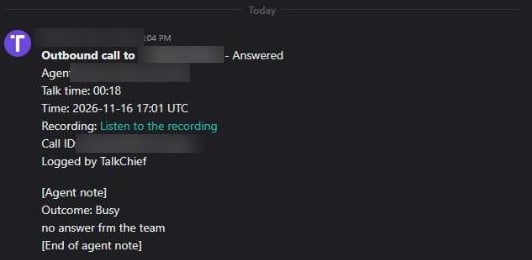
A call logged by TalkChief, with the agent's note and outcome
Before you start
- You are a company admin in TalkChief.
- Your Odoo database runs on Odoo Online (
yourcompany.odoo.com), version 18 or later, with the CRM app. - You can sign in to Odoo as an administrator. You need it to install the TalkChief app and to create an API key that doesn’t expire.
- Each agent who calls from Odoo has a TalkChief phone line.
- One Odoo database can be connected to one TalkChief company.
Install the TalkChief app in Odoo
The TalkChief app adds TalkChief to Odoo’s top bar. It’s free, contains no Python code and stores nothing in Odoo.
Turn on developer mode in Odoo
Import the app
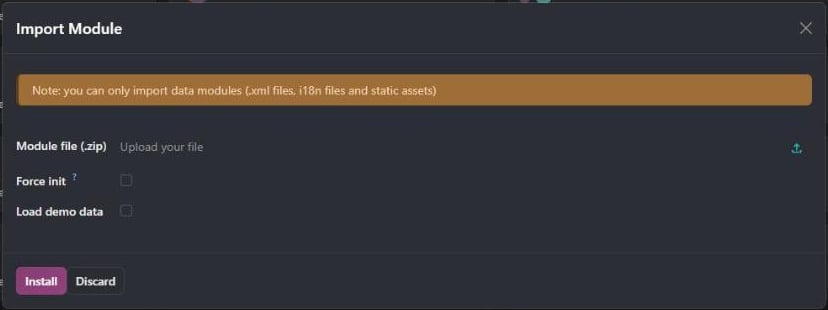
Reload Odoo
yourcompany.odoo.com) only, for both call logging and the top-bar panel.Connect Odoo in TalkChief
Create an API key in Odoo
Open your preferences
Create the key
Copy the key
Connect Odoo
Open Integrations in TalkChief
Start the connection
Enter your Odoo address and key
yourcompany.odoo.com; you can paste the address from your browser) and paste the API key, then select Connect.Odoo 18 only: enter the login
Check the connection
Choose what gets logged
On the connected Odoo card in Integrations, select the settings (gear) icon. The Odoo settings window shows the connected account and switches you can change at any time. Each change applies to calls that end afterwards.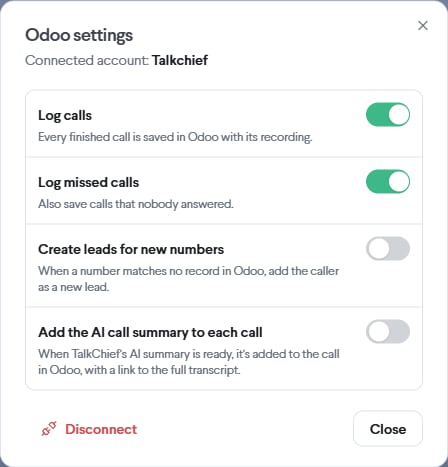
Call from Odoo
The TalkChief panel opens from Odoo’s top bar, so each agent can make and answer TalkChief calls without leaving Odoo.Open TalkChief from the top bar
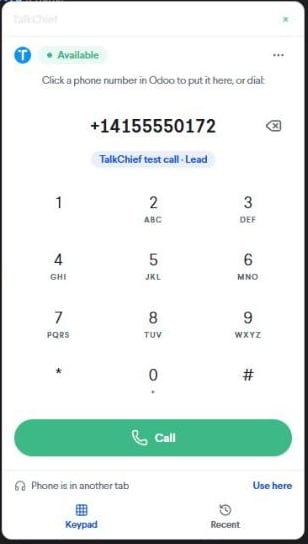
Sign in to TalkChief
Choose where calls ring
Place a call
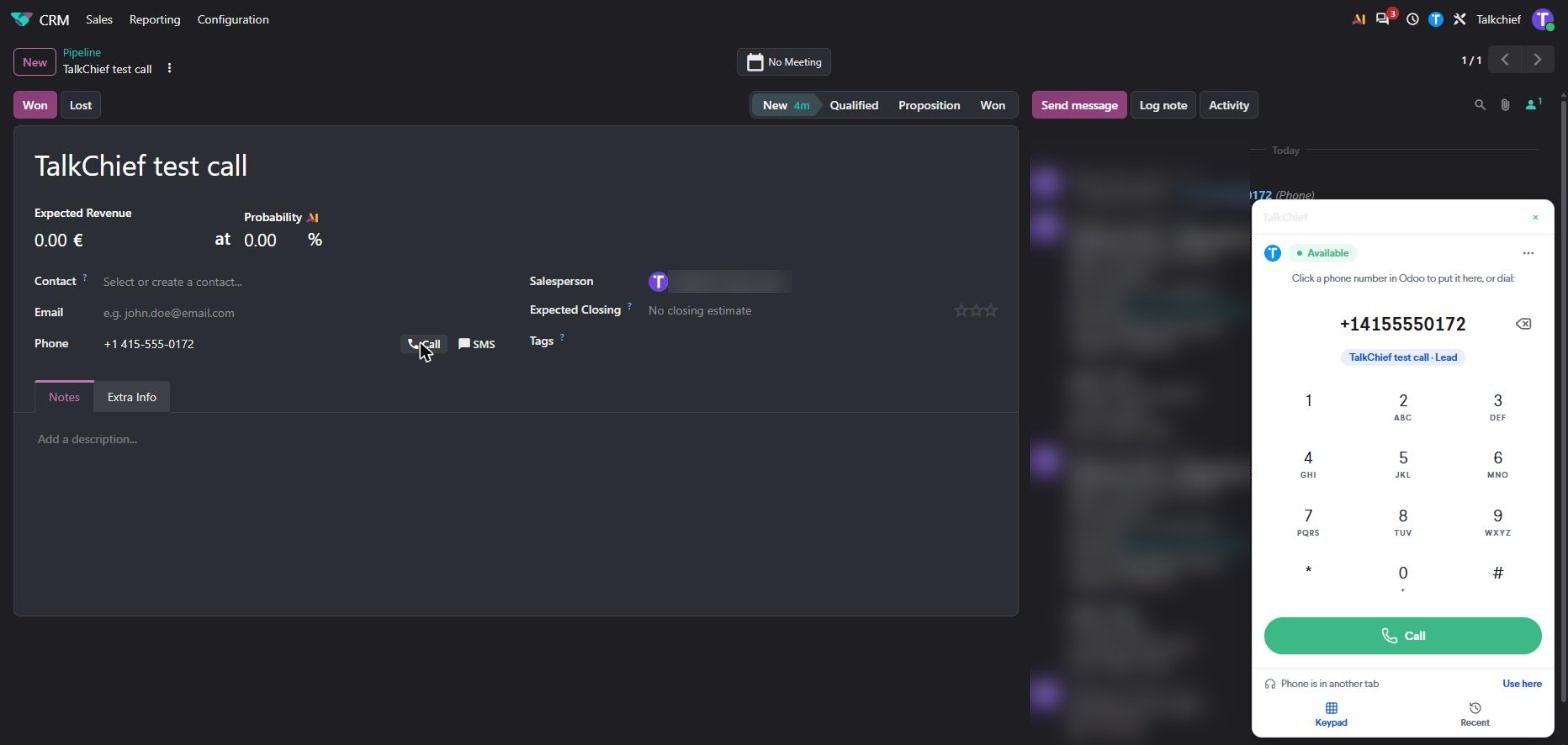
Receive a call
Add a note and an outcome
Data TalkChief uses in Odoo
With your API key, TalkChief:Disconnect Odoo
To stop logging calls, open Integrations in TalkChief and select the trash icon on the Odoo card (or Disconnect in the Odoo settings window), then confirm. When you disconnect:- Calls are no longer logged in Odoo. Calls that were waiting to be logged are dropped.
- TalkChief deletes the API key it stored.
- Notes and leads already in Odoo stay there. Nothing is deleted from Odoo.
Uninstall the app from Odoo
To remove TalkChief from Odoo’s top bar, open Apps in Odoo, search for TalkChief Phone (remove the Apps filter in the search bar), open it and select Uninstall. Uninstalling the app doesn’t disconnect call logging; disconnect in TalkChief as well if you want logging to stop.Troubleshooting
This is not an Odoo address
This is not an Odoo address
yourcompany.odoo.com. Databases hosted on Odoo.sh or on your own servers are not supported yet.Odoo did not accept this API key
Odoo did not accept this API key
Odoo refused API access
Odoo refused API access
This Odoo version is not supported
This Odoo version is not supported
The Odoo card asks me to reconnect
The Odoo card asks me to reconnect
Calls cannot be logged because of the key user's rights
Calls cannot be logged because of the key user's rights
A call is not on the lead or contact
A call is not on the lead or contact
There is no TalkChief icon in Odoo's top bar
There is no TalkChief icon in Odoo's top bar
Odoo shows an error when I select the TalkChief icon
Odoo shows an error when I select the TalkChief icon
Clicking a number in Odoo does nothing
Clicking a number in Odoo does nothing
;ext=12) are left to your browser; type them in the panel instead.The panel shows Wrong account
The panel shows Wrong account
The microphone is blocked
The microphone is blocked
app.talkchief.io in your browser, or open the panel’s menu (⋯) and select Open in its own window. Calls then ring in that window.A call has no recording link
A call has no recording link