

Channels and messages
Talk in channels, direct messages, group messages, and threads.
Calls and meetings
Start group calls with screen sharing, and make phone calls from CoWork.
Escalation alerts in CoWork
Post AI-detected escalated calls to a CoWork channel.
Transcripts and summaries
Read the transcript and AI summary of a call in TalkChief.
What you can do in CoWork
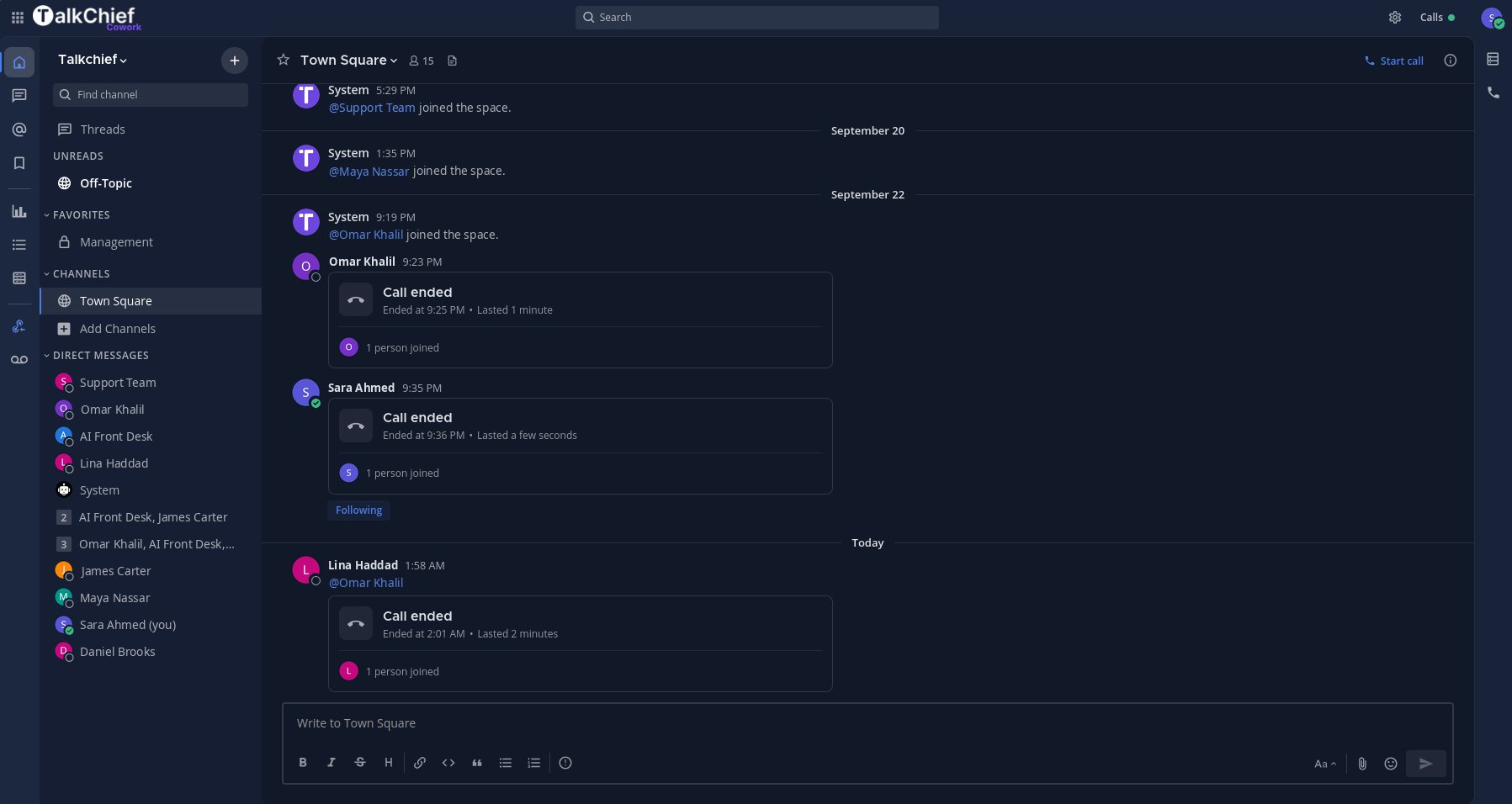
- Chat with your team in public and private channels, direct messages, and group messages. Reply in threads to keep a topic together.
- Start a group call from a channel or message, add people while the call runs, and share your screen.
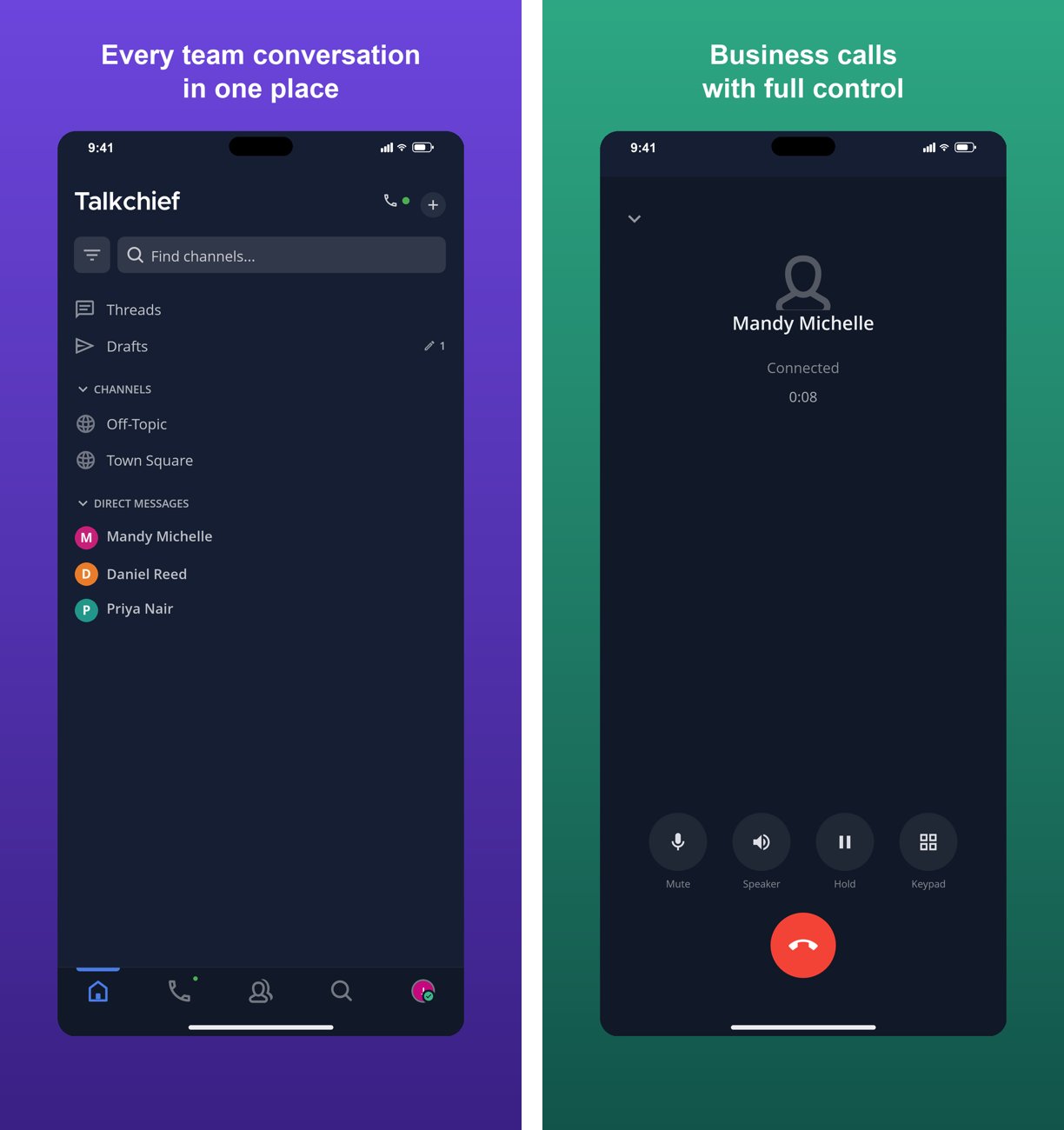
- Use your business phone: open the Dialer to call any number, keep an Address Book of contacts, and answer incoming phone calls in the same app.
- Get escalation alerts: AI transcription can post escalated calls to a CoWork channel, with the call summary when it is ready. See Escalations.
- See dashboards: admins and supervisors can open Dashboards in CoWork, with Outbound, Inbound, Queues, Billing, and AI insights tabs.
What each plan includes
Escalation alerts also need the AI transcription add-on. See Escalations.
Essential and Growth: the phone in the desktop app
On Essential and Growth, CoWork opens as a compact phone window on Windows and macOS. It has the Dialer, Address Book, Recents, and Voicemail, and it shows incoming and active calls. Team chat, channels, meetings, and chat notifications are not available, and colleagues can’t start a chat with you. If your company changes plan while you are signed in, CoWork switches to the matching layout as soon as the change reaches your device. You don’t need to sign out. Moving up to Professional turns on chat. Moving down to Essential or Growth turns it off and signs you out of the web and mobile apps. Nothing is deleted, and your channels and messages are back as before if you upgrade again.Professional: the full workspace
Professional members get channels, direct messages, group calls, and everything else on this page. In the desktop app you can switch between the compact phone window and the full workspace. CoWork also runs on the web and on iOS and Android.Who can use CoWork
CoWork is included in every TalkChief plan. A Professional trial includes the full workspace. Each company has one CoWork workspace.- A TalkChief admin creates the workspace the first time they sign in to CoWork.
- After that, other members of the company join the same workspace when they first sign in.
- Only workspace admins can invite people to the workspace.
Get the apps
CoWork runs on:- Desktop: Windows and macOS, on every plan
- Web: cowork.talkchief.io, no installation needed, on the Professional plan
- Mobile: iOS and Android, on the Professional plan

Sign in to CoWork
1
Open CoWork
Open the desktop app. On the Professional plan you can also go to cowork.talkchief.io or open the mobile app.
2
Enter your workspace name
In Workspace name, enter your company’s workspace name. If you don’t know it, select Dont know your workspace Name? and use Find workspace name with your TalkChief email or username and password.
3
Enter your TalkChief login
Enter the email or username and password you use for TalkChief, then select Log in.
4
Create the workspace (first admin only)
If your company has no workspace yet and you are a TalkChief admin, CoWork shows Create your Cowork workspace. Check your email and workspace name, then select Create workspace.
Troubleshooting
"Talkchief Cowork in the browser is included with the Professional plan. Use the Talkchief desktop app, or ask your admin to upgrade."
"Talkchief Cowork in the browser is included with the Professional plan. Use the Talkchief desktop app, or ask your admin to upgrade."
Your company is on Essential or Growth. These plans use the CoWork desktop app only. Download Windows · MSI or macOS from the TalkChief CoWork card on your TalkChief dashboard, or ask your admin to upgrade to Professional.
"The TalkChief Cowork mobile app is included with the Professional plan. Use the desktop app, or ask your admin to upgrade."
"The TalkChief Cowork mobile app is included with the Professional plan. Use the desktop app, or ask your admin to upgrade."
The iOS and Android apps are part of Professional. Use the desktop app for calls, or ask your admin to upgrade.
I don't see channels or chat in CoWork
I don't see channels or chat in CoWork
Team chat is part of the Professional plan. On Essential and Growth, CoWork shows only the phone: Dialer, Address Book, Recents, and Voicemail. See What each plan includes.
CoWork keeps messages and files for 180 days. Older messages and files are deleted permanently and can’t be restored.