

AI insights need AI transcription. Admins see the whole company. Supervisors see their own teams.
Open AI insights
1
Open Dashboards
Go to Insights > Dashboards and select the AI insights tab. The page title changes to AI Call Insights.
2
Set the filters
Choose a date Range, or set From and To. Optionally pick a Team and a Member.
3
Apply
Select Apply. Select Reset to go back to the defaults.
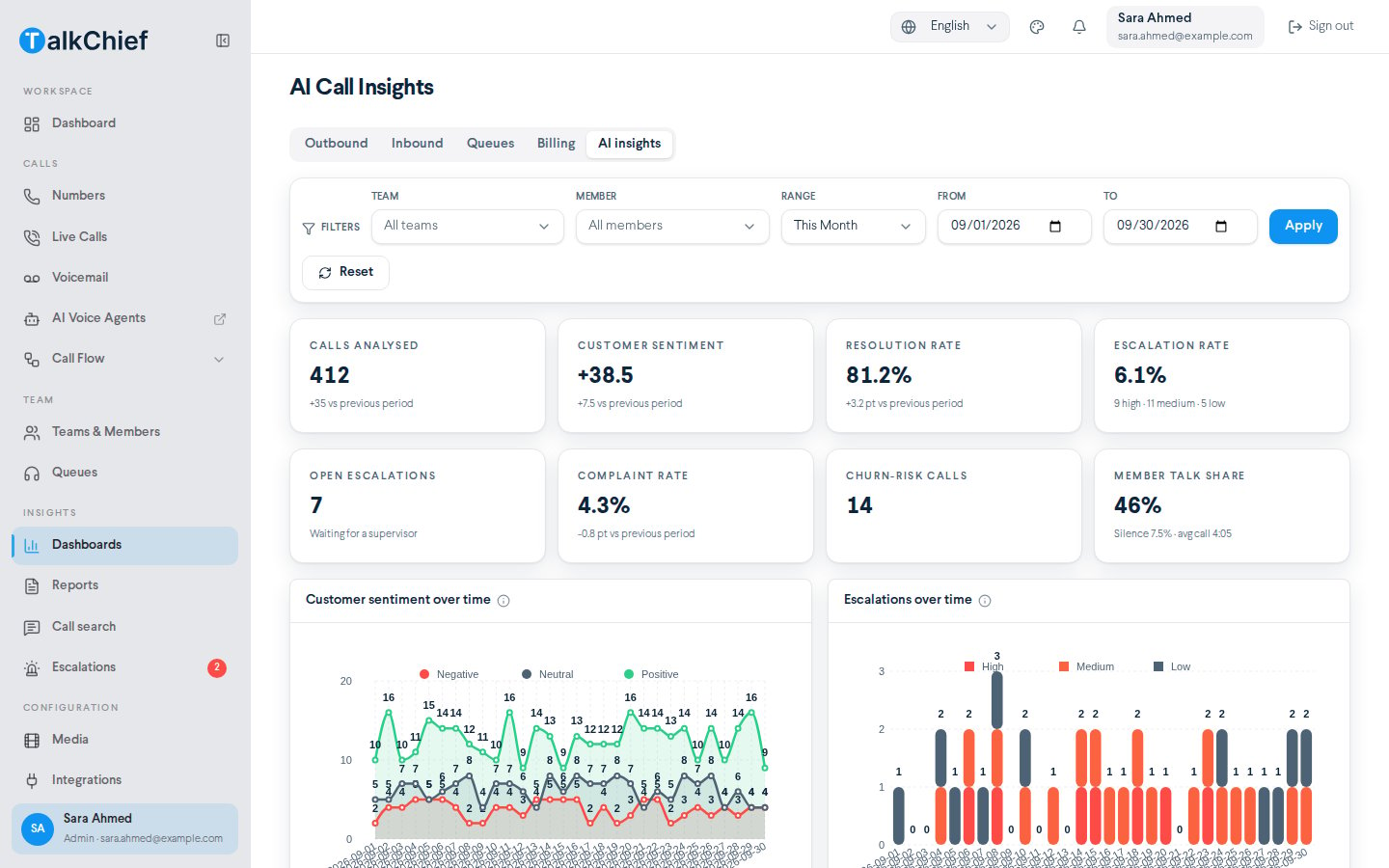
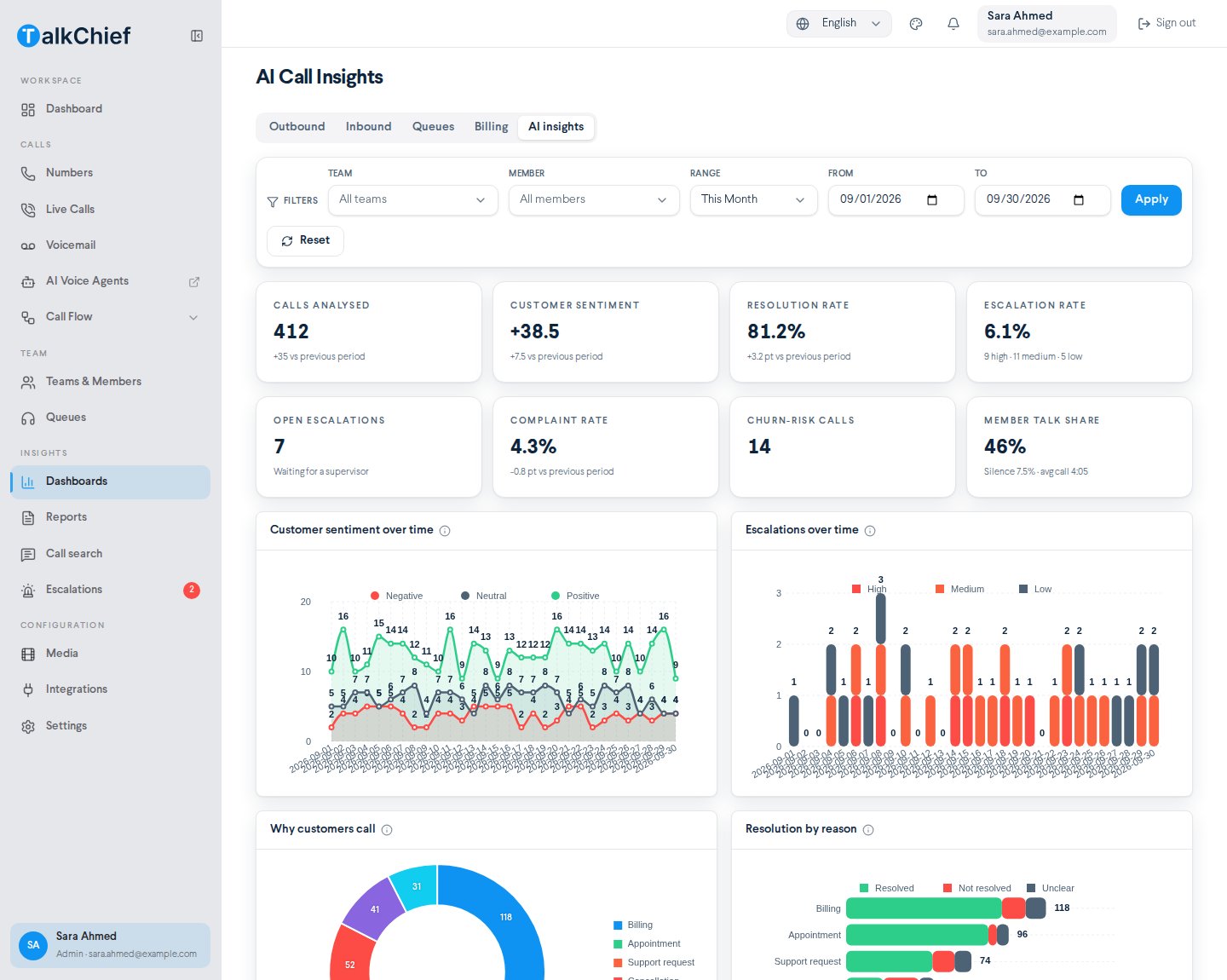
Key numbers
The cards at the top summarize the selected period. Where earlier data exists, each card compares with the previous period of the same length.Charts
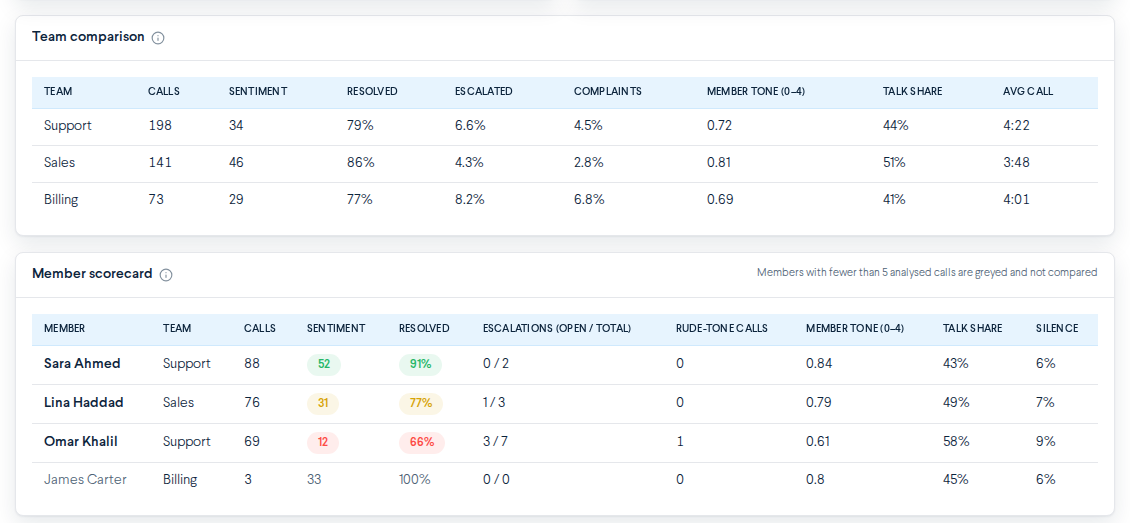
Team and member scorecards
Team comparison shows quality per team for the selected period:- Calls, Sentiment, Resolved, Escalated, Complaints
- Member tone (0–4), Talk share, Avg call
- Member, Team, Calls, Sentiment, Resolved
- Escalations (open / total), Rude-tone calls, Member tone (0–4), Talk share, Silence
- Green: at or above the average.
- Amber: within 10% below.
- Red: more than 10% below.
Troubleshooting
"No analyzed calls yet"
"No analyzed calls yet"
AI insights appear once AI transcription is on and calls in the period have been processed. Select Open AI transcription settings to check coverage, or pick a longer range.
A member is missing from the scorecard
A member is missing from the scorecard
The member had no analyzed calls in the period, or is outside your teams if you are a supervisor.
Related
Escalations
Review and acknowledge escalated calls.
Call search
Find the calls behind a trend.
Reports and dashboards
Call volume, queues, and billing dashboards.
AI transcription setup
Choose which calls are analyzed.