

Deep Insights is available when AI transcription is on for your company, a team, or a member. It is included with AI transcription at no extra cost. Admins see the whole company. Supervisors see only their own teams. Agents don’t see the tab.
How it works
After a call is transcribed, TalkChief records the call reason and outcome. For calls with at least 30 seconds of audio and at least four turns of conversation, it also picks out the issues the customer raised, the products they were about, any competitors mentioned, and commitments your member made. The same issue said in different words, or in another language, is grouped under one English label, so trends add up across Arabic, Hebrew, English, and the other supported languages. TalkChief is designed to keep personal names, phone numbers, and email addresses out of topic labels. Repeat callers appear only as Caller #1, Caller #2, and so on; their numbers are never shown.Open Deep Insights
1
Open Dashboards
Go to Insights > Dashboards and select the Deep Insights tab, next to AI insights.
2
Set the filters
Choose a date Range, or set From and To. The default is the last 90 days; a range can cover up to 180 days. Optionally pick a Team and a Member.
3
Apply
Select Apply. Reset clears the Team and Member filters and sets the Range back to This Month.
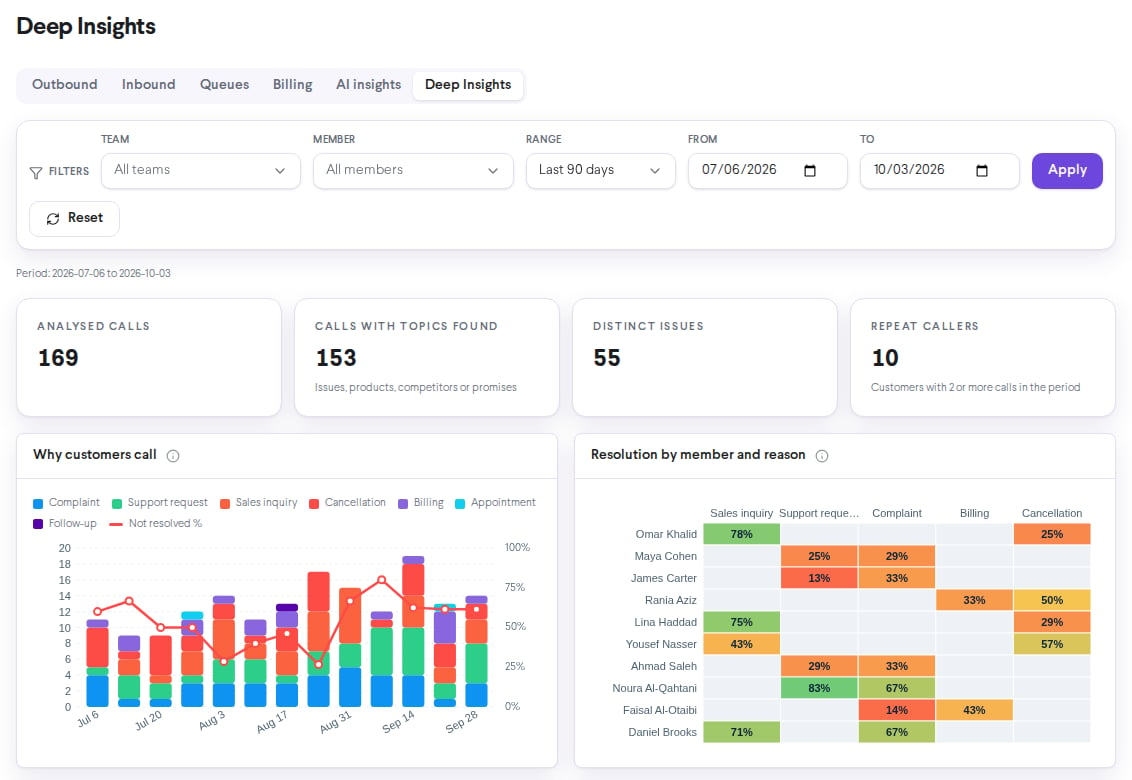
Key numbers
Charts
Hover over an issue, product, or competitor to see the customer’s original wording.
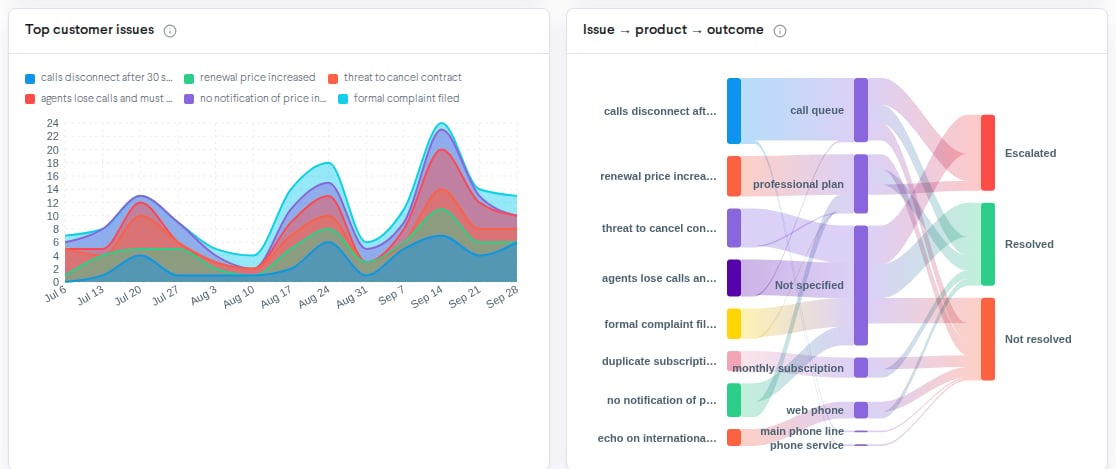
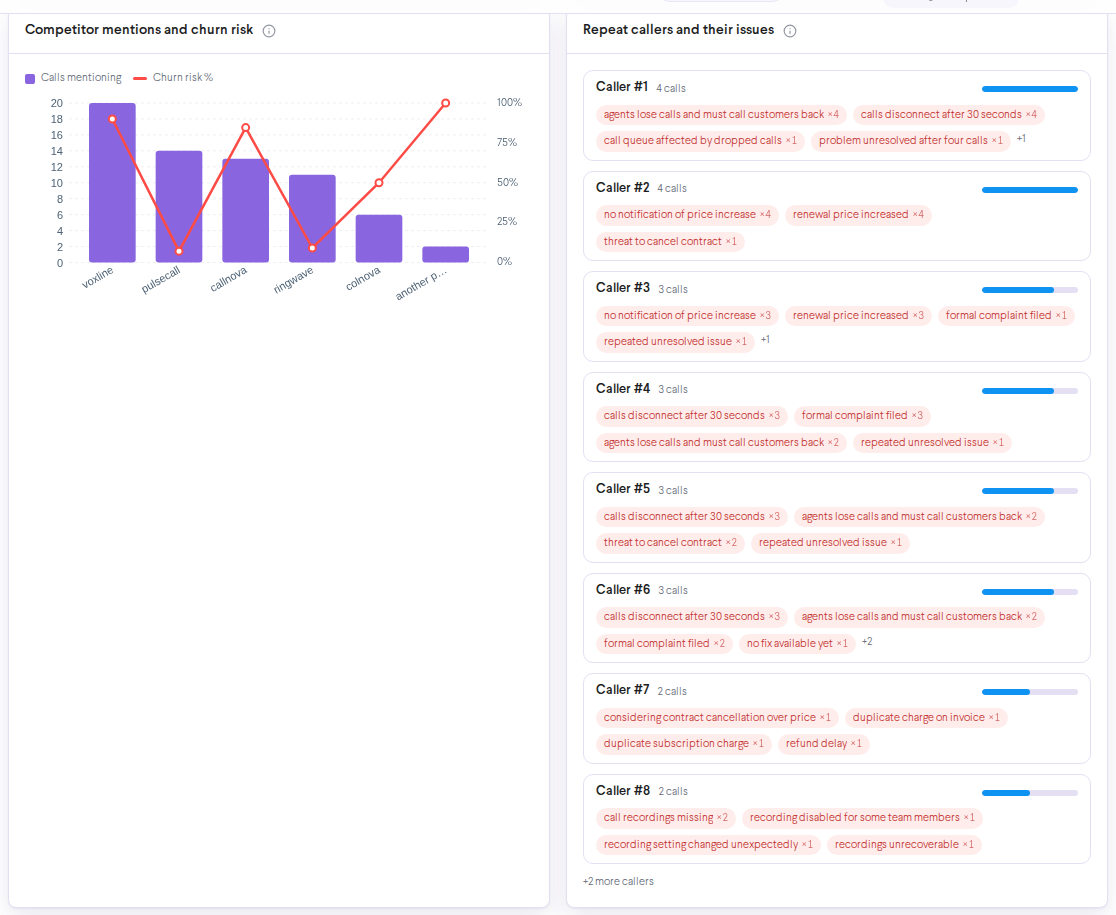
Chart explanations
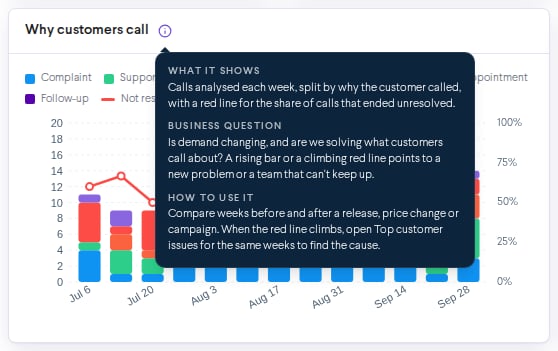
Every chart on the Deep Insights and AI insights tabs has an info button (i) next to its title. Hover over it, or tap it on a phone, to see three short sections:- What it shows: what the chart measures.
- Business question: the question the chart answers for your business.
- How to use it: what to look for and what to do next.
On a phone
Deep Insights works on phones and tablets. Charts with many columns, such as Resolution by member and reason and Issue → product → outcome, show Swipe sideways to see the whole chart: swipe left or right inside the chart to see the rest.Who sees what
Troubleshooting
I don't see the Deep Insights tab
I don't see the Deep Insights tab
AI transcription is off for your whole company, or you are signed in as an agent. Turn on AI transcription for at least one team or member, and the tab appears within a few minutes.
"Deep Insights builds up as calls are transcribed"
"Deep Insights builds up as calls are transcribed"
No calls in the period have been analyzed yet. New calls appear within minutes after they are transcribed. Pick a longer range, or check AI transcription coverage.
"Not enough calls yet (5 per cell needed)"
"Not enough calls yet (5 per cell needed)"
The member and reason grid needs at least 5 calls with a clear outcome in a cell before it shows a rate. Pick a longer range or fewer filters.
Related
AI insights
Sentiment, resolution, escalations, and scorecards.
Call search
Find the calls behind an issue.
Escalations
Review and acknowledge escalated calls.
AI transcription setup
Choose which calls are analyzed.