

What agents see
When an agent signs in, TalkChief opens their Dashboard. The sidebar has:
The Web Phone button sits in the bottom-right corner of every page.
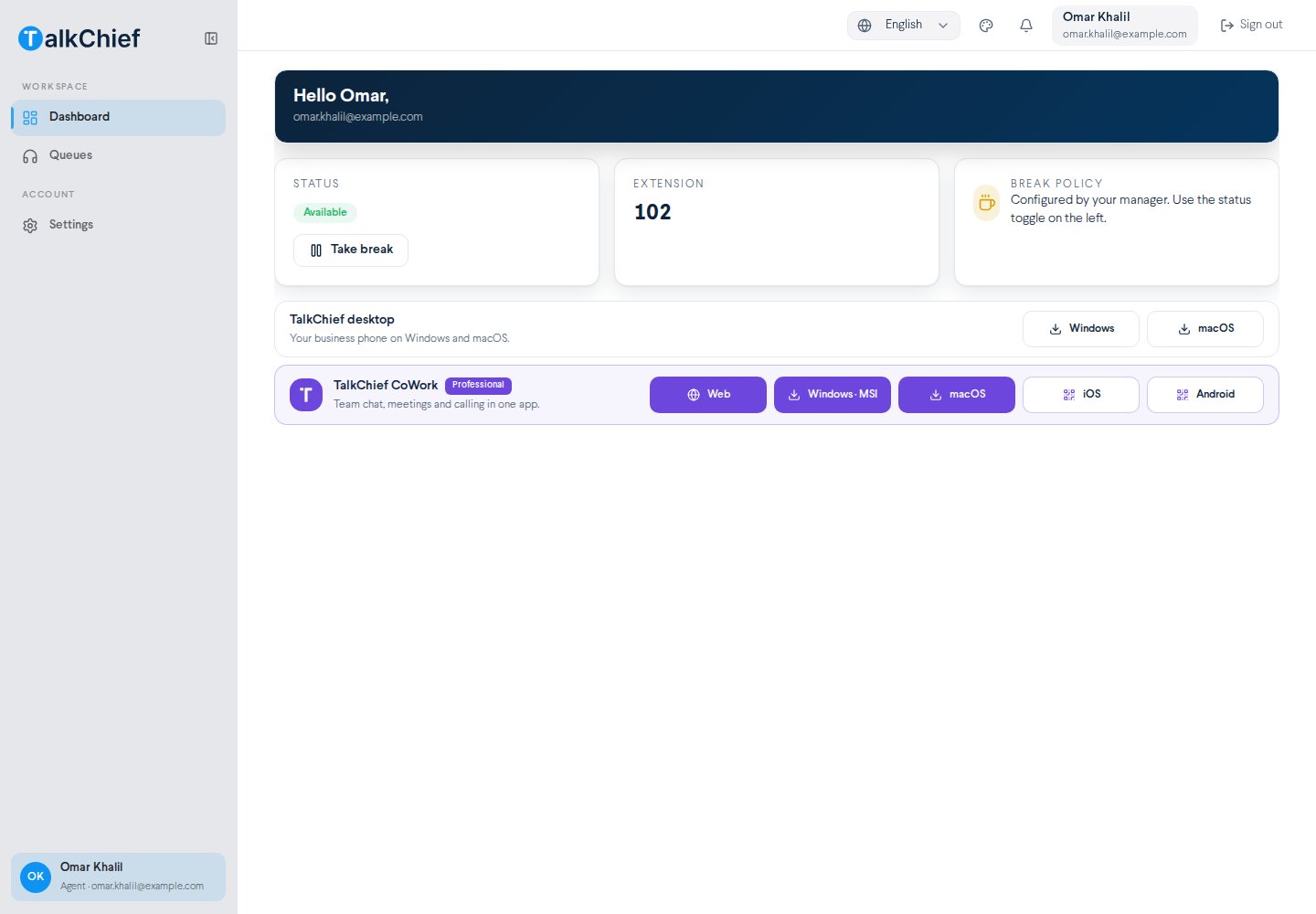
Agent dashboard
The dashboard greets you by name and shows your email. Below that are three cards:- Status: shows Available or On break, with the button to change it.
- Extension: your own extension number. Teammates can dial it to reach you.
- Break policy: a reminder that your manager configures breaks.
Take a break
1
Start the break
On the Status card, select Take break. The status changes to On break and you see Break started.
2
Come back
Select Resume work. The status changes back to Available and you see Back online.
Your queues
Go to Workspace → Queues to open My queues. It lists every queue you belong to, with its ring strategy. Each queue shows a Logged in badge. The badge is always shown, so it does not tell you whether you are on a break or currently receiving queue calls. If the page says Not in any queue, ask your manager to add you. Admins and supervisors add agents with Manage Agents on the queue card in Team → Queues. See Call routing.Your settings
Go to Account → Settings to open Agent settings. It shows your device, extension, and follow-me preferences. You can’t edit them here. Ask an admin to change your extension, call forwarding, or voicemail. Admins do this on your member settings page. See Teams and members.Set up break statuses (admins)
Admins define the break statuses agents can use on the Agent breaks page.Agent breaks has no sidebar link. To open it, add
/breaks to your TalkChief web app address.1
Add a status
Select New break status. Enter a Name, such as Lunch, Meeting, or Training, and an optional Icon key.
2
Save
Select Save. The status appears in the list with its Work break? value and Icon.
3
Remove a status
Select Delete on its row and confirm.
Frequently asked questions
Why can't I see Numbers, Call Flow, or Reports?
Why can't I see Numbers, Call Flow, or Reports?
Those pages are for admins and supervisors. Your sidebar shows only Dashboard, Queues, and Settings.
Calls aren't ringing for me
Calls aren't ringing for me
Open the Web Phone and check that the status badge says Online. If it says Other tab, select Use here. Also check that your Status isn’t On break.
Can I use TalkChief outside the browser?
Can I use TalkChief outside the browser?
Yes. Download the desktop app for Windows or macOS from your dashboard.
Related pages
Web Phone
Make, answer, and transfer calls in your browser.
Teams and members
How admins manage roles and member settings.
Queues and routing
How queues send calls to agents.