

Before you start
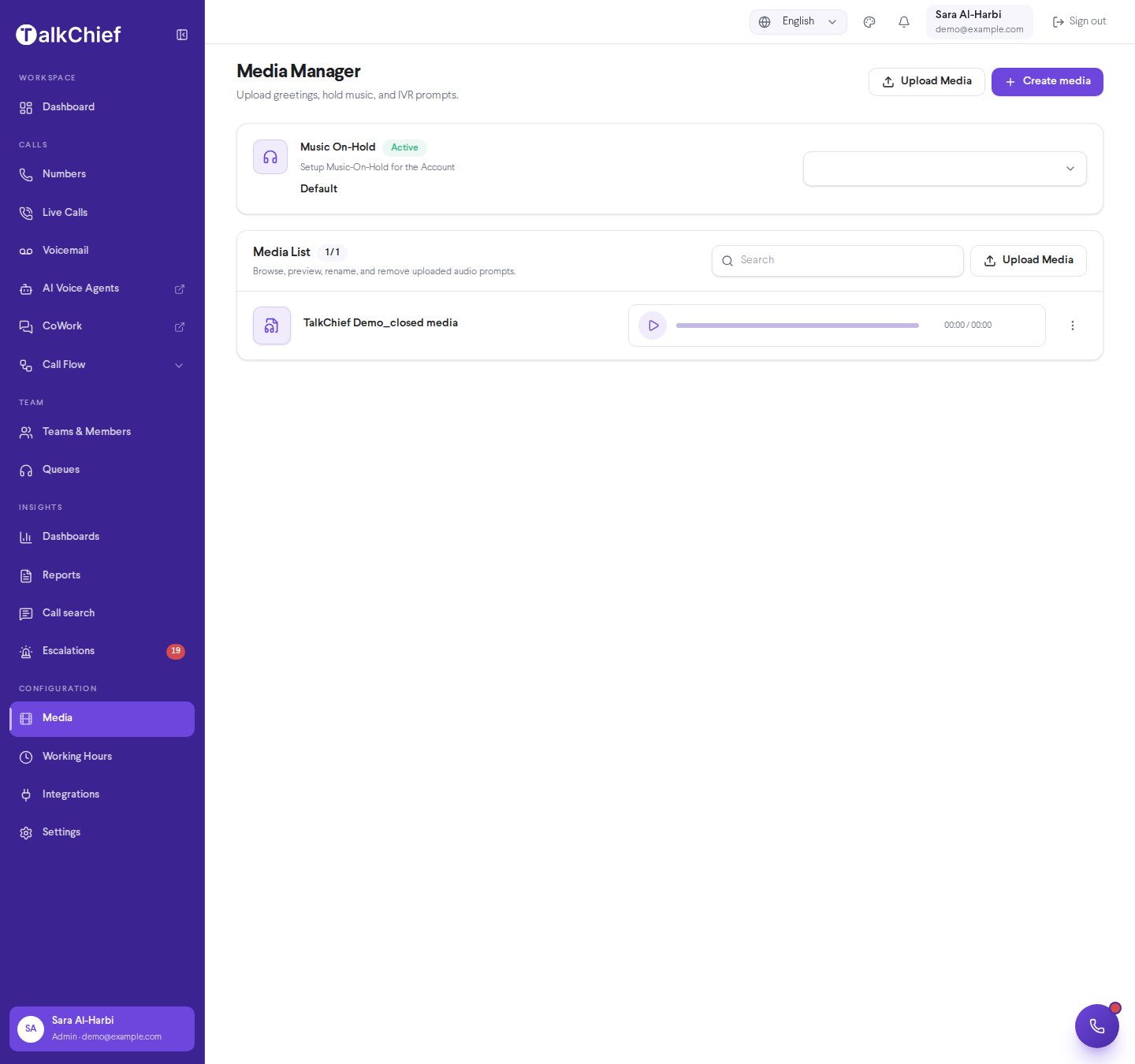
Go to Configuration → Media and select Create media. The window has two tabs: Record and AI voice.
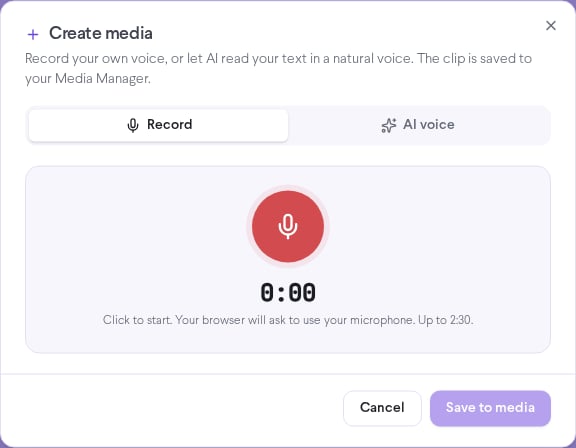
Record your own voice
1
Allow the microphone
Open the Record tab and select the red record button. Your browser asks to use your microphone. Select Allow.
2
Record
Speak your message. A level meter shows your voice is being picked up, and a timer shows the length. Select stop when you’re done. Recording stops by itself at 2:30.
3
Listen back
Play the recording to check it. Select Record again to start over.
4
Name and save
Enter a Media name, such as “Closed hours message”, and select Save to media.
Generate an AI voice clip
1
Choose a language
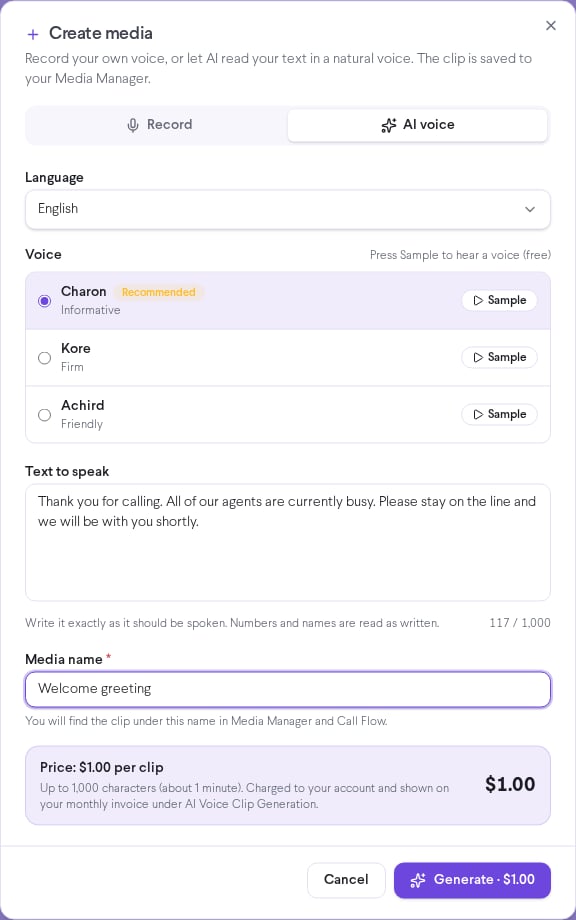
Open the AI voice tab and pick a Language. Arabic has four options: Levantine (Shami), Gulf, Egyptian, and Modern Standard (Fusha). Hebrew, English, and 25 other languages are also available.
2
Choose a voice
The voice marked Recommended is the one we tested as the most natural for that language. Select Sample to hear a voice before you choose. Samples are free.
3
Write the text
Type the words exactly as they should be spoken, up to 1,000 characters. Numbers and names are read as you write them.
4
Name the clip
Enter a Media name so you can find the clip later, such as “Welcome greeting – Arabic”.
5
Confirm the price and generate
The form shows Price: 1.00, check the summary, and select Confirm & generate · $1.00. The clip is usually ready in 5 to 15 seconds and is saved to the Media Manager automatically.
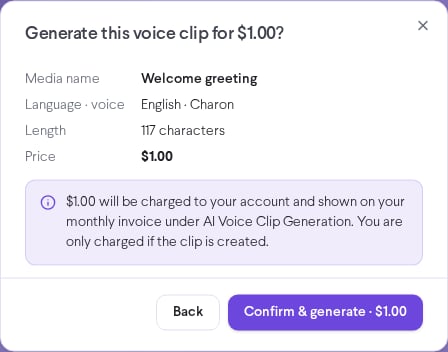
You’re charged only when the clip is created. Generating again with new text or a different voice is a new clip and costs another $1.00.
Billing
Each AI voice clip costs $1.00, charged to your account balance. Your monthly invoice lists the clips in their own section, AI Voice Clip Generation, with the number of clips and the total. Each charge in your account history shows the media name you gave the clip, so you can match every charge to a clip. Recording your own voice is free.Use your new clip
New clips appear in the Media List right away. Pick them wherever media is used:Frequently asked questions
My browser says the microphone is blocked. What do I do?
My browser says the microphone is blocked. What do I do?
Select the lock icon next to the address bar, set Microphone to Allow, and select Try again. You can also select Upload a file instead and upload an MP3.
Why can't I see the AI voice tab options?
Why can't I see the AI voice tab options?
Only account admins can generate AI voice clips, because each clip is charged to the account. Ask an admin, or use the Record tab.
It says my balance is too low.
It says my balance is too low.
You need at least $1.00 in your balance to generate a clip. Nothing was charged. Top up your balance and try again.
The clip was charged but not saved.
The clip was charged but not saved.
Select Retry save (no new charge). Retrying never charges you again. TalkChief also retries by itself, so the clip appears in the Media Manager within a few minutes.
Can I change the text of a clip after it's created?
Can I change the text of a clip after it's created?
No. Generate a new clip with the new text, then delete the old one from the Media List.
Related pages
Working hours and media
Upload files, set music on hold, and manage your media list.
Call flows
Play your new clips to callers.