

Limits: PDF, DOCX, or TXT files up to 3 MB each. A workspace holds up to 15 library documents. Each campaign can also have up to 2 private documents.
Upload a document
1
Open Knowledge
In the agents workspace sidebar, under Library, click Knowledge.
2
Add the file
Click Add document, then Choose a file or drop it here. Pick one PDF, DOCX, or TXT file.
3
Wait for indexing
The document appears in the Reference library with the status Preparing. When it is ready, the status changes to Smart search ready or Keyword search ready.
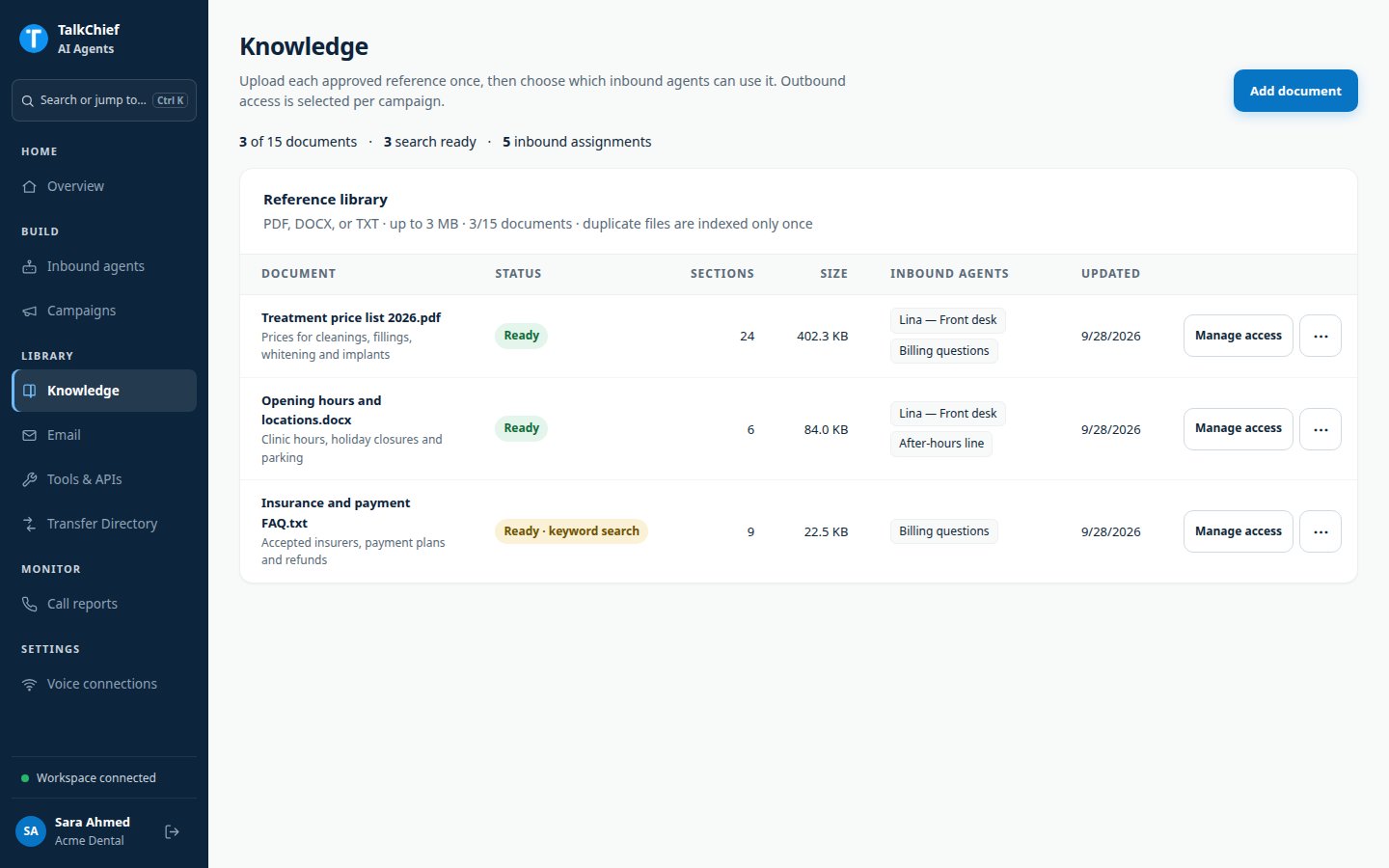
Document status
Help the agent pick the right document
Click Manage access on a document to edit its details. Clear details help the agent choose the right source.
Click Save document details.
Grant a document to an inbound agent
You can grant access from either place:- From the library: click Manage access on the document. Under Inbound agent access, turn on the switch for each agent, then click Done.
- From the agent: open the agent, go to Knowledge, and turn on the switch next to each document. The status changes from Not allowed to Allowed.
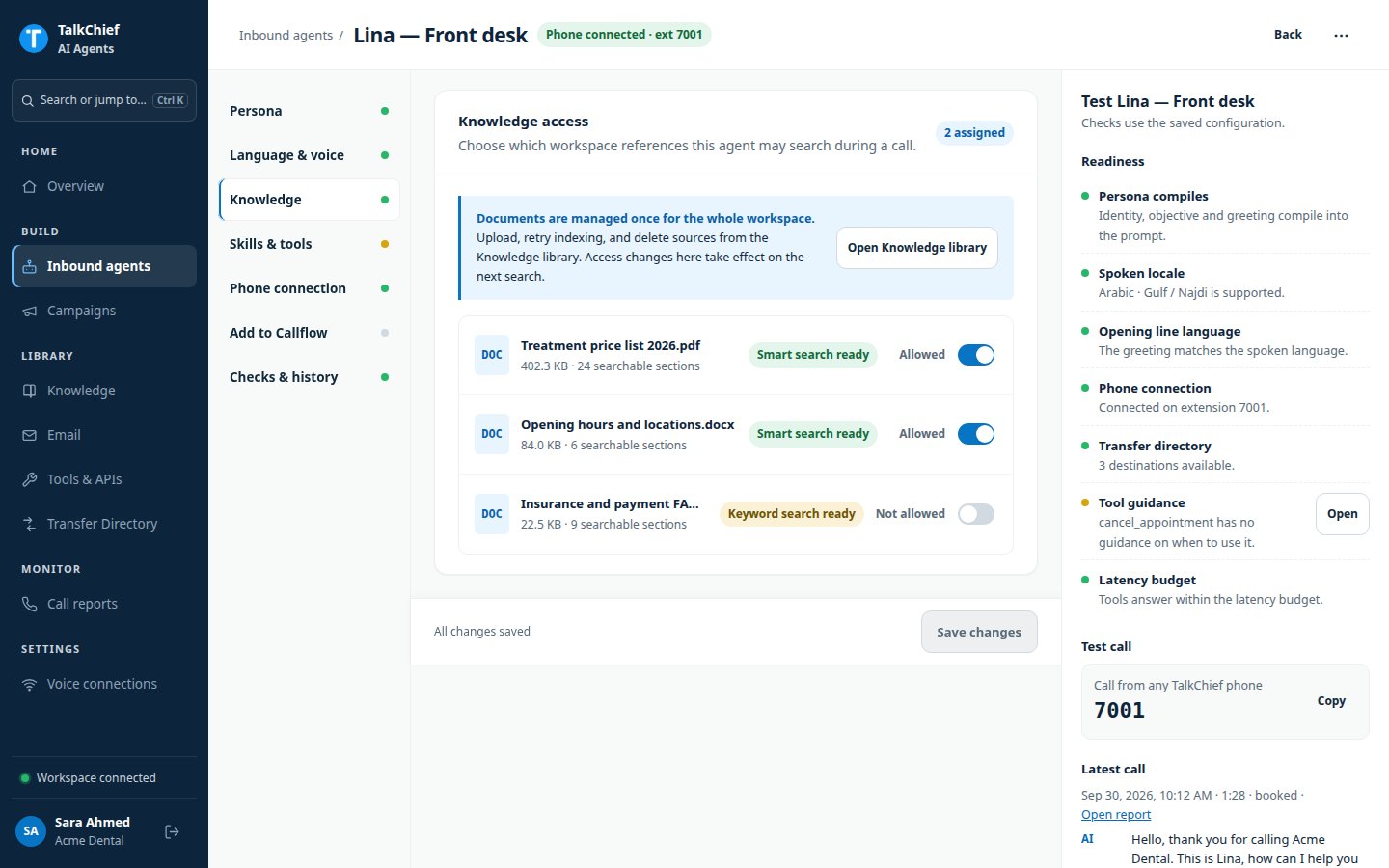
Add knowledge to a campaign
Outbound campaigns choose their own documents. Open the campaign, then go to Knowledge & actions.- To use a library document, pick it in Choose workspace knowledge… and click Add knowledge.
- To add a file only this campaign can use, click Upload campaign document. Each campaign can hold 2 private documents.
Delete a document
Open the ⋯ menu on the document and click Delete…, or click Delete document in Manage access. Every agent and campaign loses access to it.FAQ
What should I upload?
What should I upload?
Upload approved, current material: policies, service guides, price lists, opening hours, and processes. Short, well-structured documents work best.
Why can't I turn on access for a document?
Why can't I turn on access for a document?
The document is still preparing or needs attention. Wait for a ready status, or fix and re-upload the file.
Can callers make the agent ignore its instructions with document text?
Can callers make the agent ignore its instructions with document text?
No. The agent treats document content as reference material only. It cannot change the agent’s instructions.
I have more than 15 documents. What should I do?
I have more than 15 documents. What should I do?
Combine related short files into one document, up to 3 MB. Delete documents you no longer use.
Related pages
Create an agent
Set the agent’s persona and voice.
Tools and integrations
Connect business systems and email.