

You need a TalkChief phone user for the caller profile and at least $10 in your wallet. Each campaign places up to 5 calls at a time.
How a campaign works
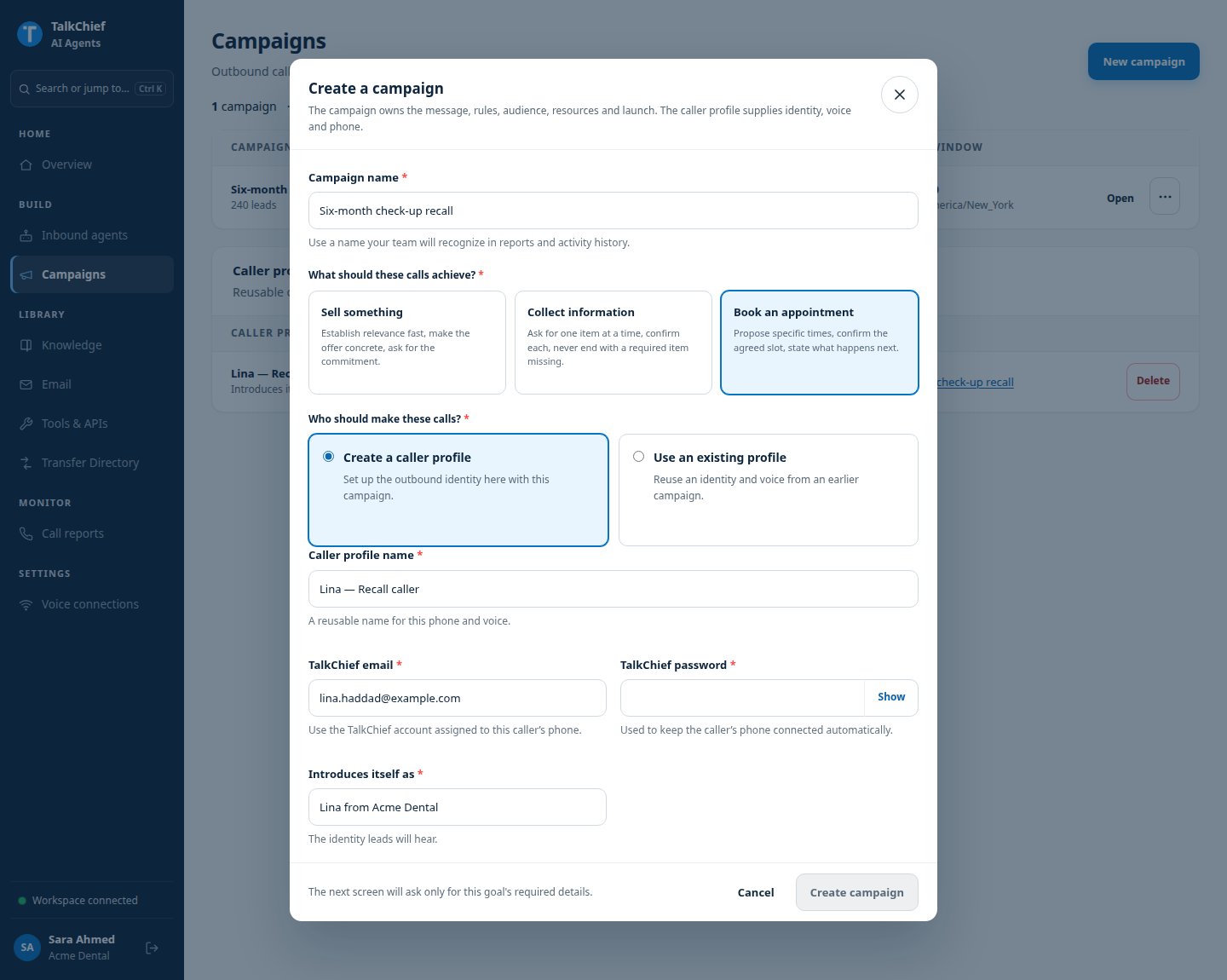
Step 1: Create the campaign
1
Start a campaign
In the agents workspace sidebar, click Campaigns, then New campaign.
2
Name it and pick a goal
Enter a Campaign name. Under What should these calls achieve?, choose Sell something, Collect information, or Book an appointment.
3
Choose who calls
Under Who should make these calls?, choose Create a caller profile or Use an existing profile.
4
Set up a new caller profile
Enter a Caller profile name, the TalkChief email and TalkChief password of the phone user it calls from, and Introduces itself as. TalkChief verifies the account and connects the phone. If verification fails, nothing is created.
5
Create
Click Create campaign. The campaign opens on Campaign setup.
Step 2: Write the call plan
Open Campaign setup.1
Call plan
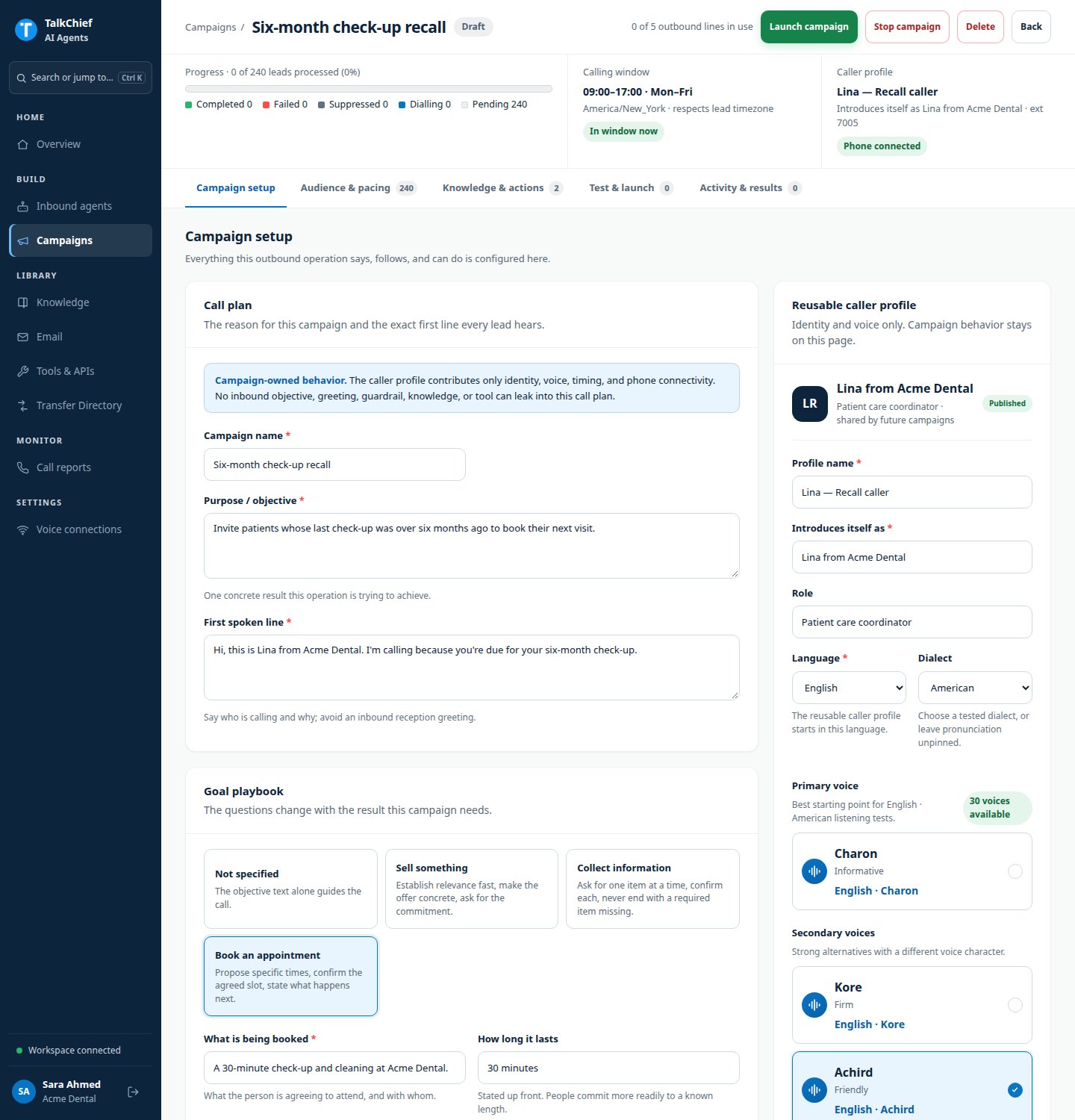
Fill in Purpose / objective and First spoken line. The first line should say who is calling and why.
2
Goal playbook
Answer the required questions for your goal. For example, Book an appointment asks what is booked, how long it lasts, the times you can offer, and what counts as booked.
3
Instructions and absolute boundaries
Add General guidelines, Never do rules, and Additional context as needed.
4
Conversation behavior
Choose Allow brief small talk, Allow the agent to end calls, and Allow phone-menu keypresses.
5
Save
Click Save campaign.
Step 3: Finish and publish the caller profile
The Reusable caller profile card on the same page controls how the caller sounds. It is separate from the campaign’s instructions.- Check Profile name, Introduces itself as, and Role.
- Choose the language, dialect, and Voice. Use Voice sample to listen.
- Set Tone, Pace, Response consistency, Let leads interrupt, and Listening pause.
- Click Save caller profile.
- Check that Outbound phone connection shows a connected phone with outbound calls enabled.
- Click Publish caller profile.
Step 4: Import leads
Open Audience & pacing.1
Choose the file
Under Import leads, click Choose or drop a lead CSV. Files can be up to 10 MB. Click Download template for an example.
2
Map the columns
Map Phone number (required). Contact name, Company, and Lead timezone are optional.
3
Import
Check the preview and click Import. The result shows how many leads were added and why any rows were skipped.
Step 5: Set the calling window and pacing
The campaign only dials inside the window, for leads not on the do-not-call list, with attempts left.
Step 6: Add knowledge and actions
Open Knowledge & actions to choose what this campaign can use.- Knowledge: add library documents, or upload up to 2 private campaign documents.
- Live transfer directory: add approved transfer destinations.
- Actions: attach workspace Business APIs, email, or MCP tools, or click Add a tool to create a private API for this campaign.
Step 7: Rehearse and launch
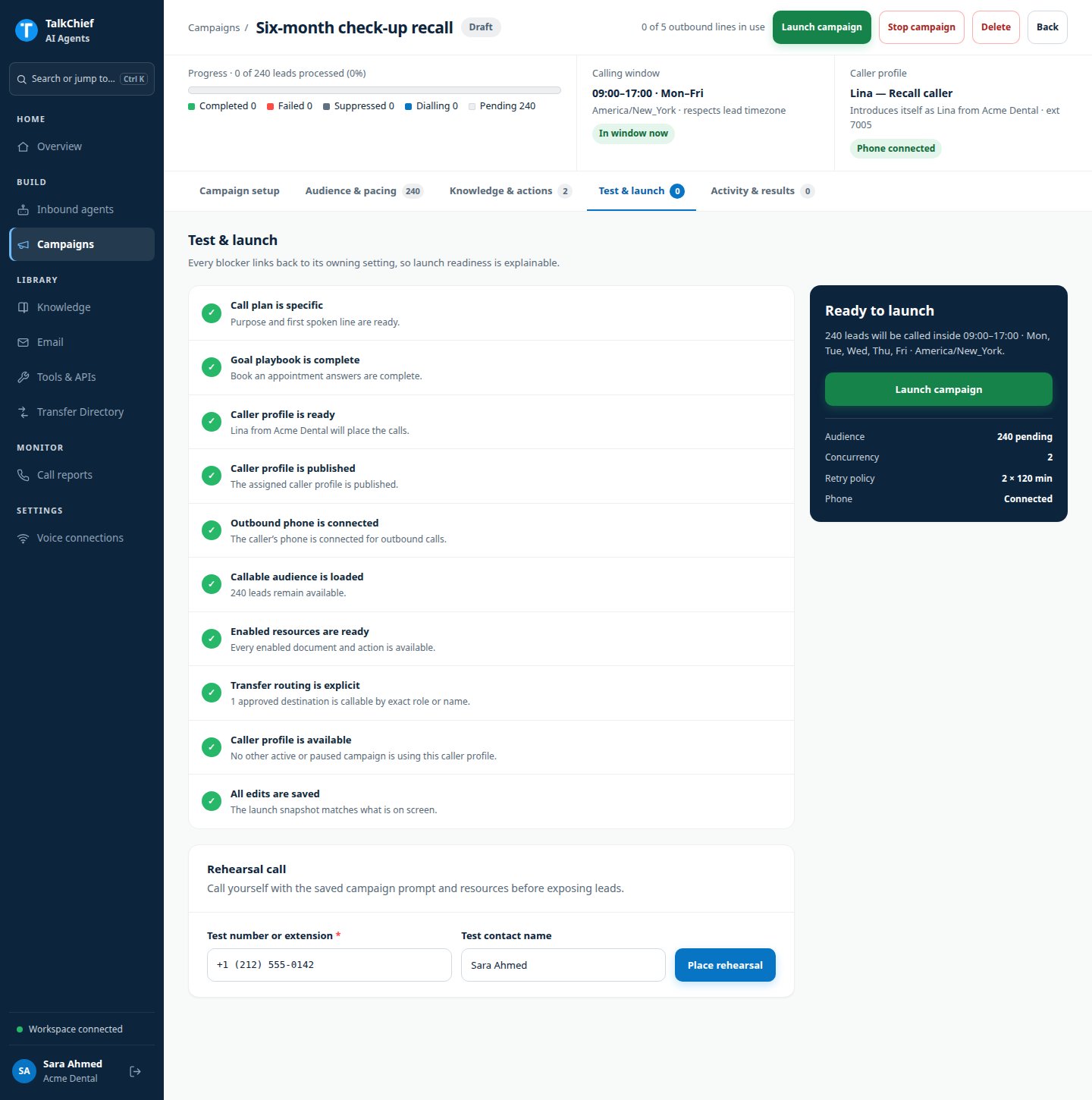
Open Test & launch. The checklist shows each requirement:- Call plan is specific: a campaign purpose and an opening line.
- Goal playbook is complete.
- Caller profile is ready and Caller profile is published.
- Outbound phone is connected, with outbound calls enabled.
- Callable audience is loaded: at least one lead to call.
- Enabled resources are ready, Caller profile is available, and All edits are saved.
1
Place a rehearsal
Under Rehearsal call, enter your Test number or extension and an optional Test contact name. Click Place rehearsal. The call uses the saved campaign, but does not touch your leads.
2
Review the rehearsal
Click Open rehearsal report. Rehearsal calls carry the Rehearsal label in Call reports.
3
Launch
When every check passes, click Launch campaign.
Monitor and control the campaign
The header shows progress and the lead outcome bar. Lead states are:
Activity & results shows the live call transcript, each call’s outcome, duration, and cost, and the configuration history. Click Inspect to open a call in Call reports.
- Pause safely stops new calls. Calls in progress can finish. Pause to edit the campaign.
- Stop campaign cancels the remaining leads. You cannot undo this.
- The campaign status changes to Completed when every lead is processed.
FAQ
Can I edit a running campaign?
Can I edit a running campaign?
No. Click Pause safely or Pause to edit, make your changes, save, and launch again.
Does the agent detect voicemail?
Does the agent detect voicemail?
No. Automated answer detection is not available. If a mailbox answers, the call is treated as answered.
Can I reuse a caller profile?
Can I reuse a caller profile?
Yes. Choose Use an existing profile when you create the next campaign. The profile stays available after a campaign ends or is deleted.
How much does a campaign cost?
How much does a campaign cost?
Each connected call costs $0.15 per minute, or the usage-based cost if higher. Unanswered and busy attempts have no per-minute charge.
Related pages
Call reports
Review campaign calls and charges.
Knowledge base
Add documents for campaigns.