

Meetings are part of the Professional plan at no extra cost. See What each plan includes.
Create a meeting
1
Open Create meeting
Open the Meetings panel in CoWork and select Create meeting.
2
Set it up
Enter a title and choose Start now or Schedule. Invite members from your workspace, and invite anyone else by email.
3
Share the link
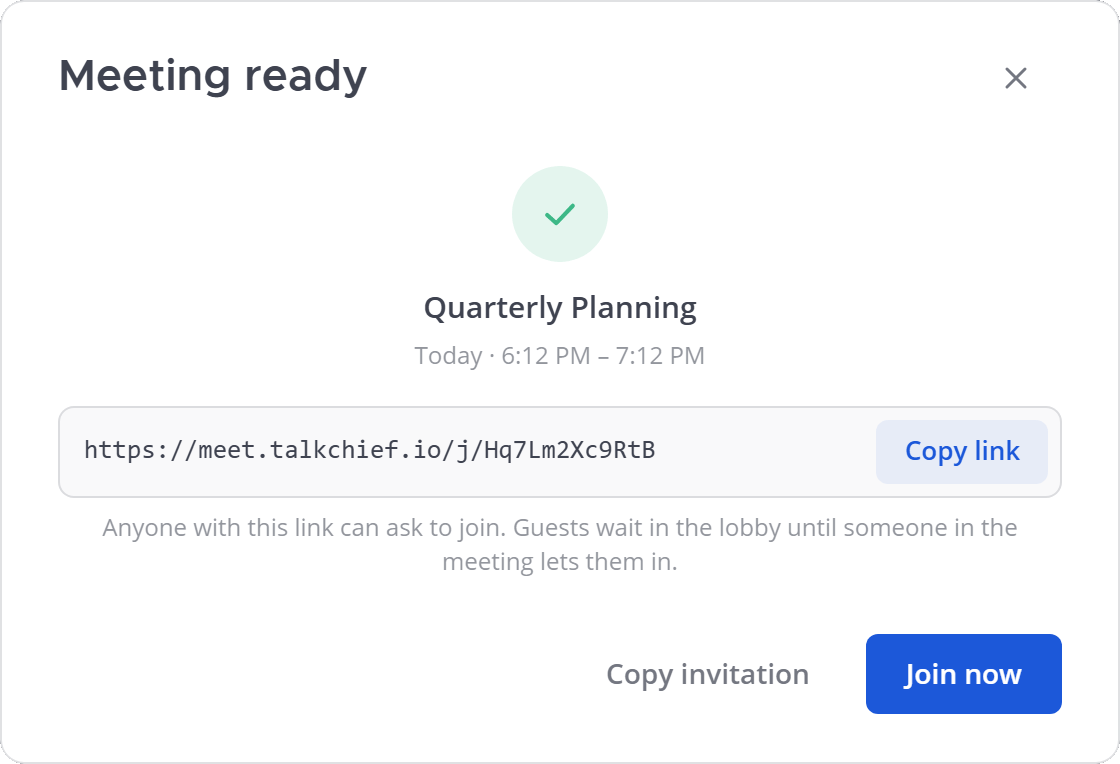
On Meeting ready, select Copy link or Copy invitation to share it, or Join now to go in.
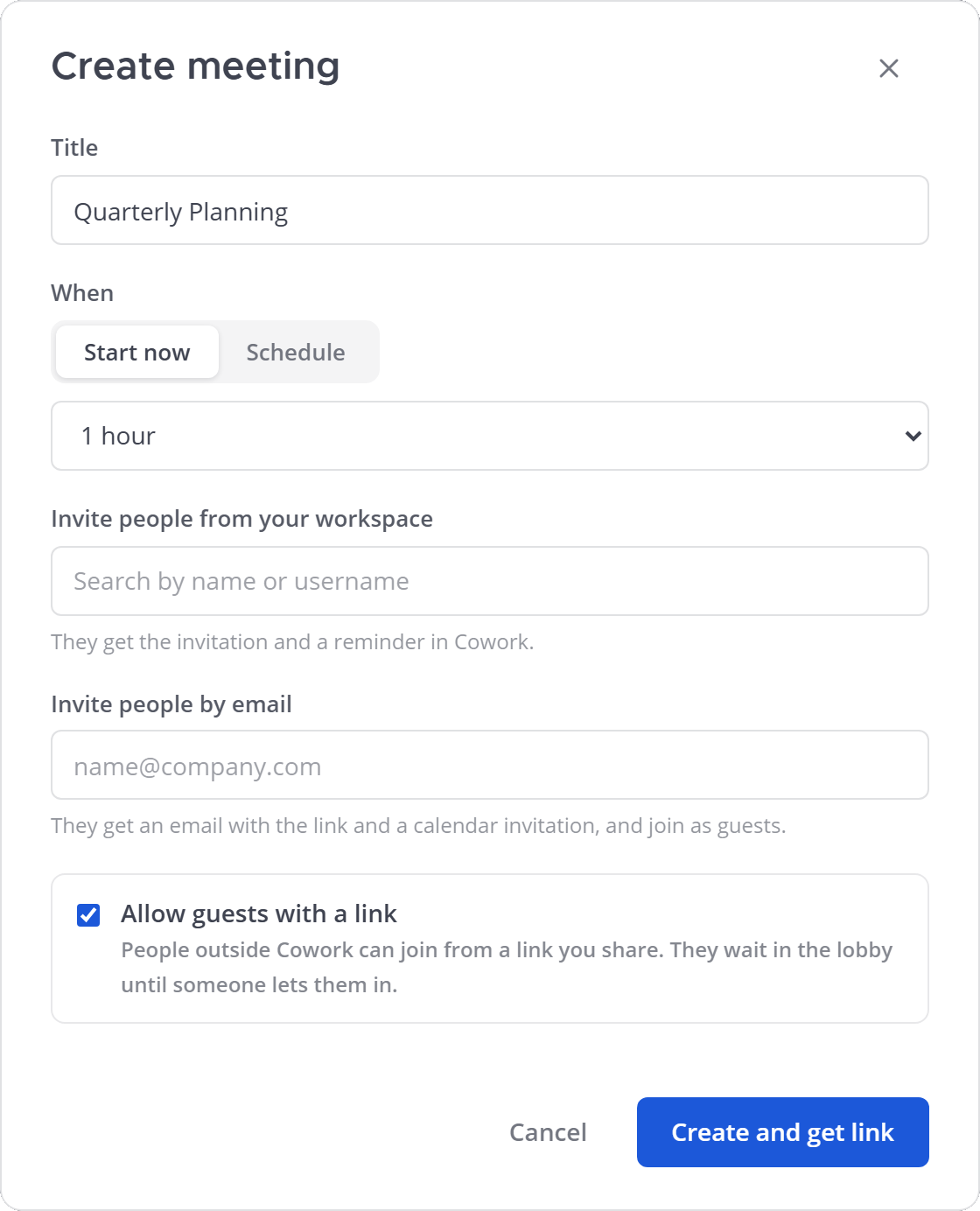
- Workspace members get the invitation and a reminder in CoWork.
- People invited by email get the link and a calendar invitation, and join as guests.
- Recurring calendar meetings keep the same link for every occurrence.
Join a meeting
- CoWork members
- Guests
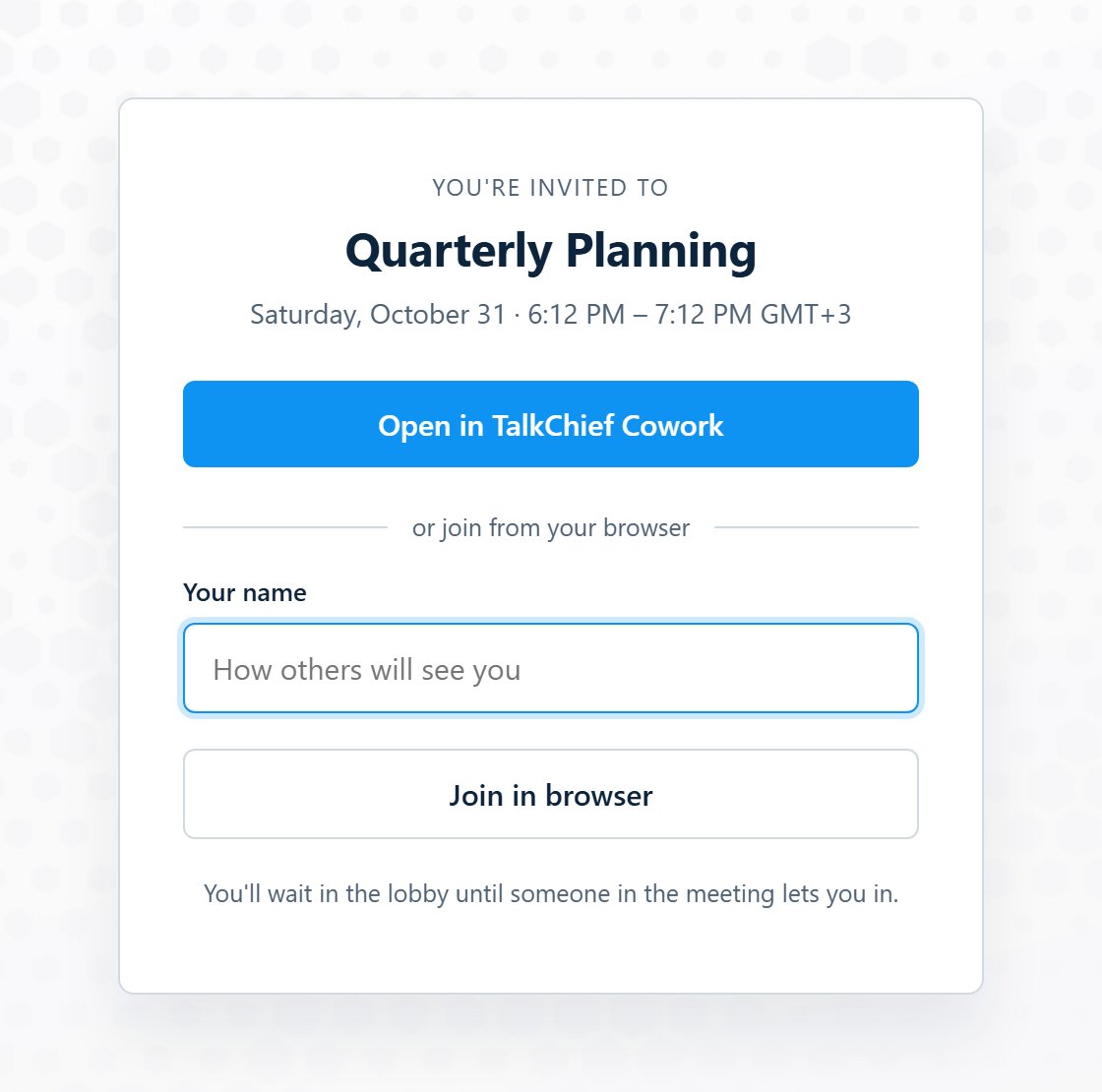
Join from CoWork on desktop or in the browser. You join with your CoWork name. On the join screen, check your microphone, camera and background, then select Join meeting.
Invite people during a meeting
Select More, then Invite people. Search your workspace to invite members, copy the meeting link, or share the invitation.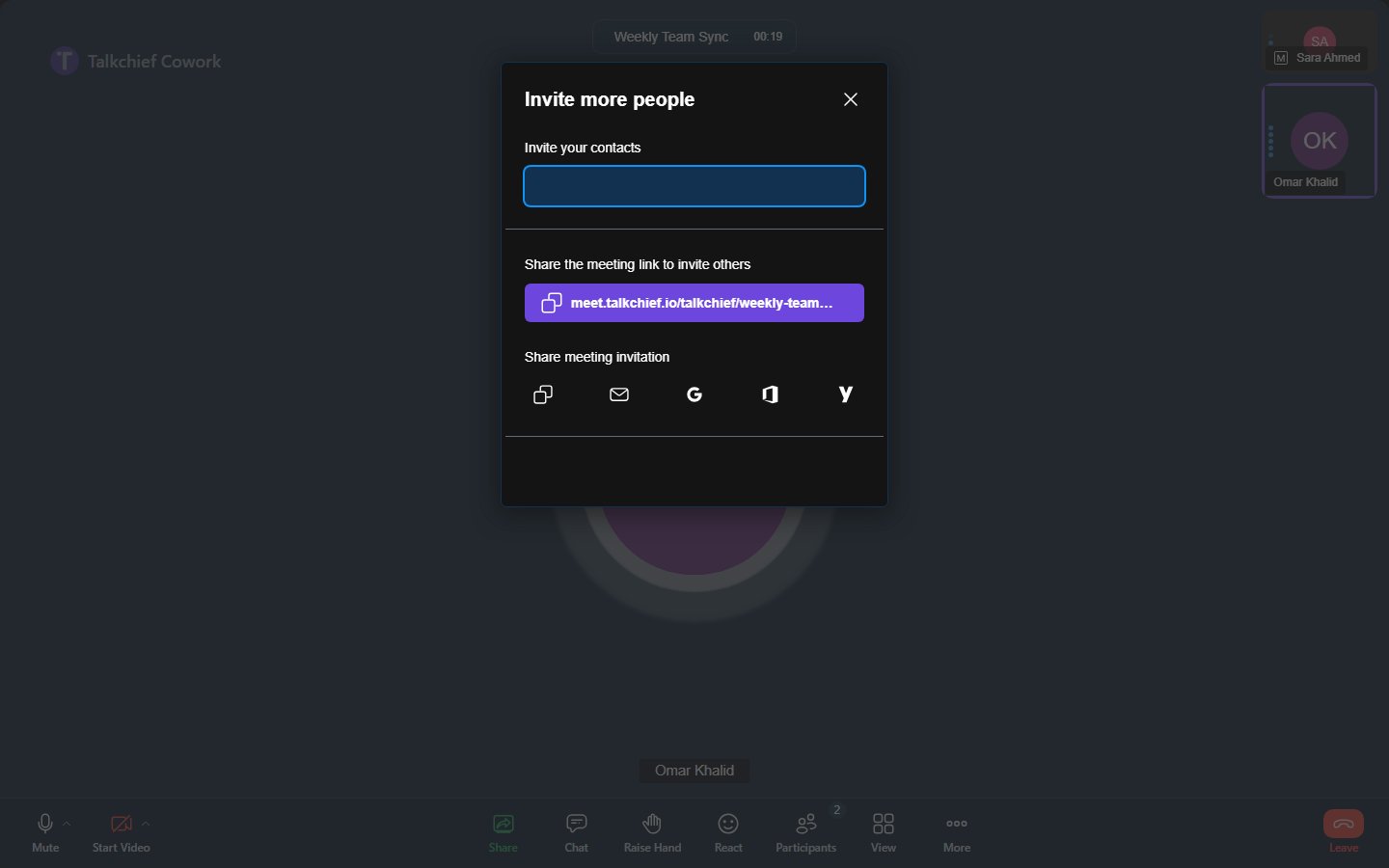
In the meeting
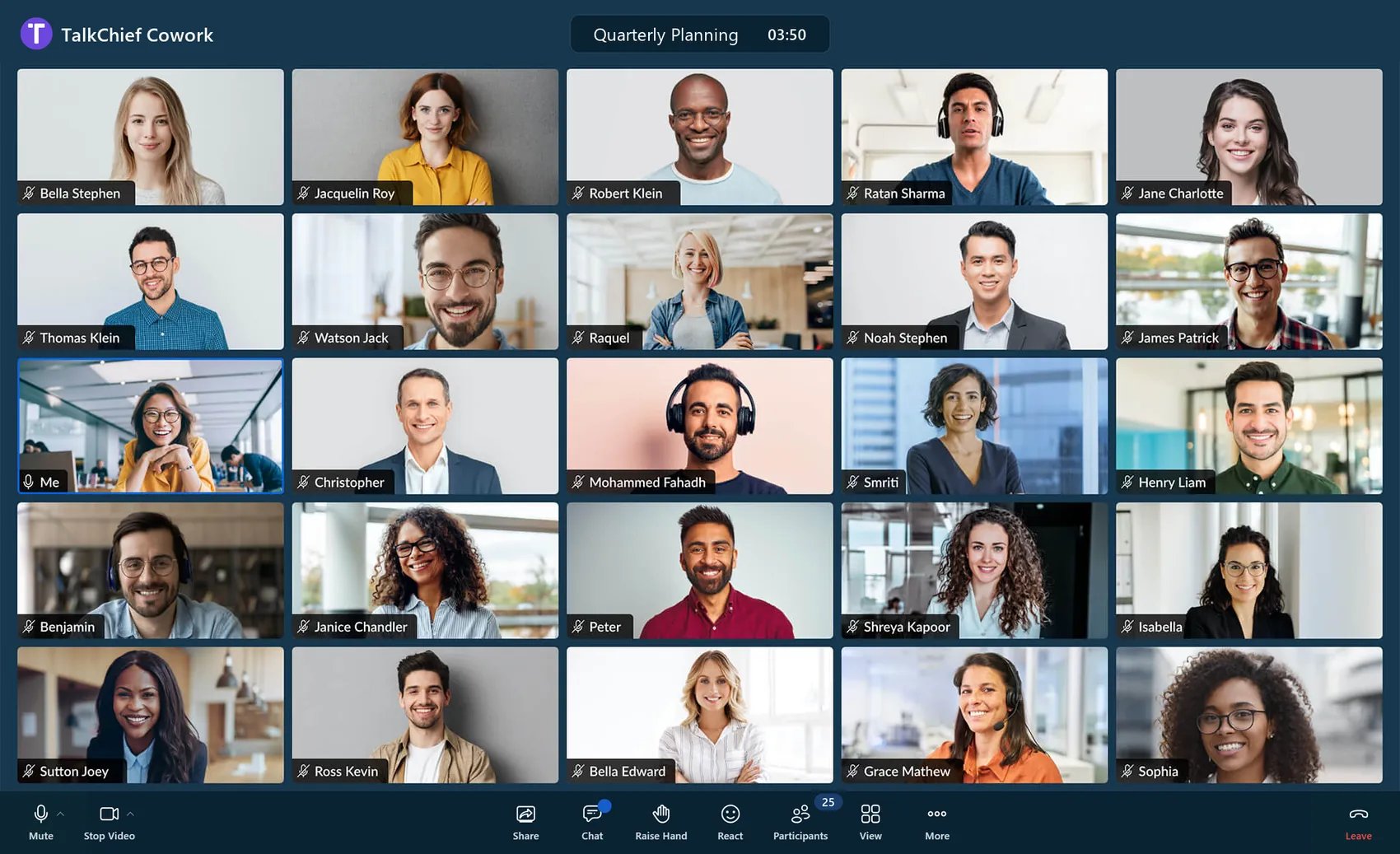
Meetings include screen sharing with sound, chat, raise hand, reactions, backgrounds and blur, and tile view.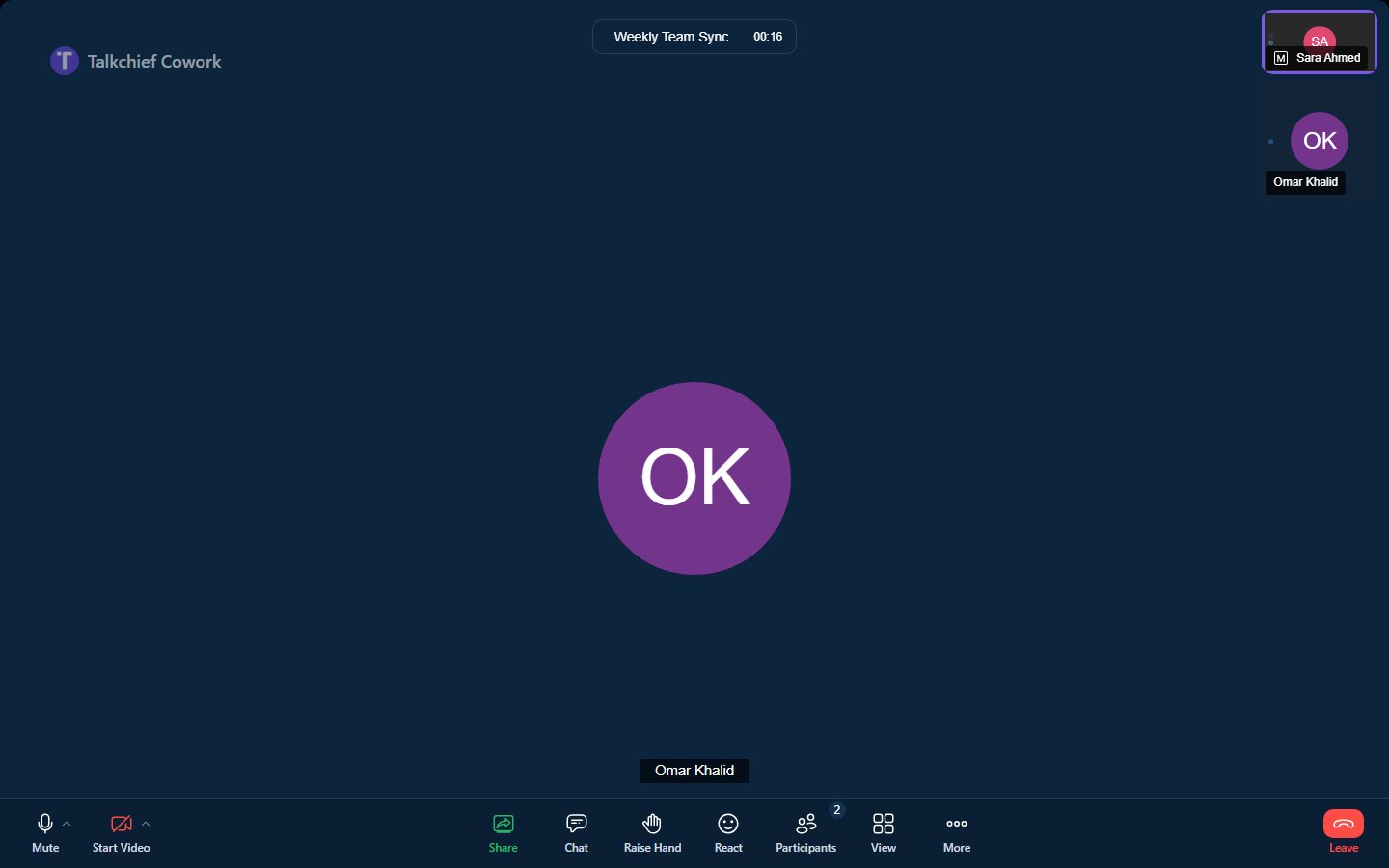
Share your screen
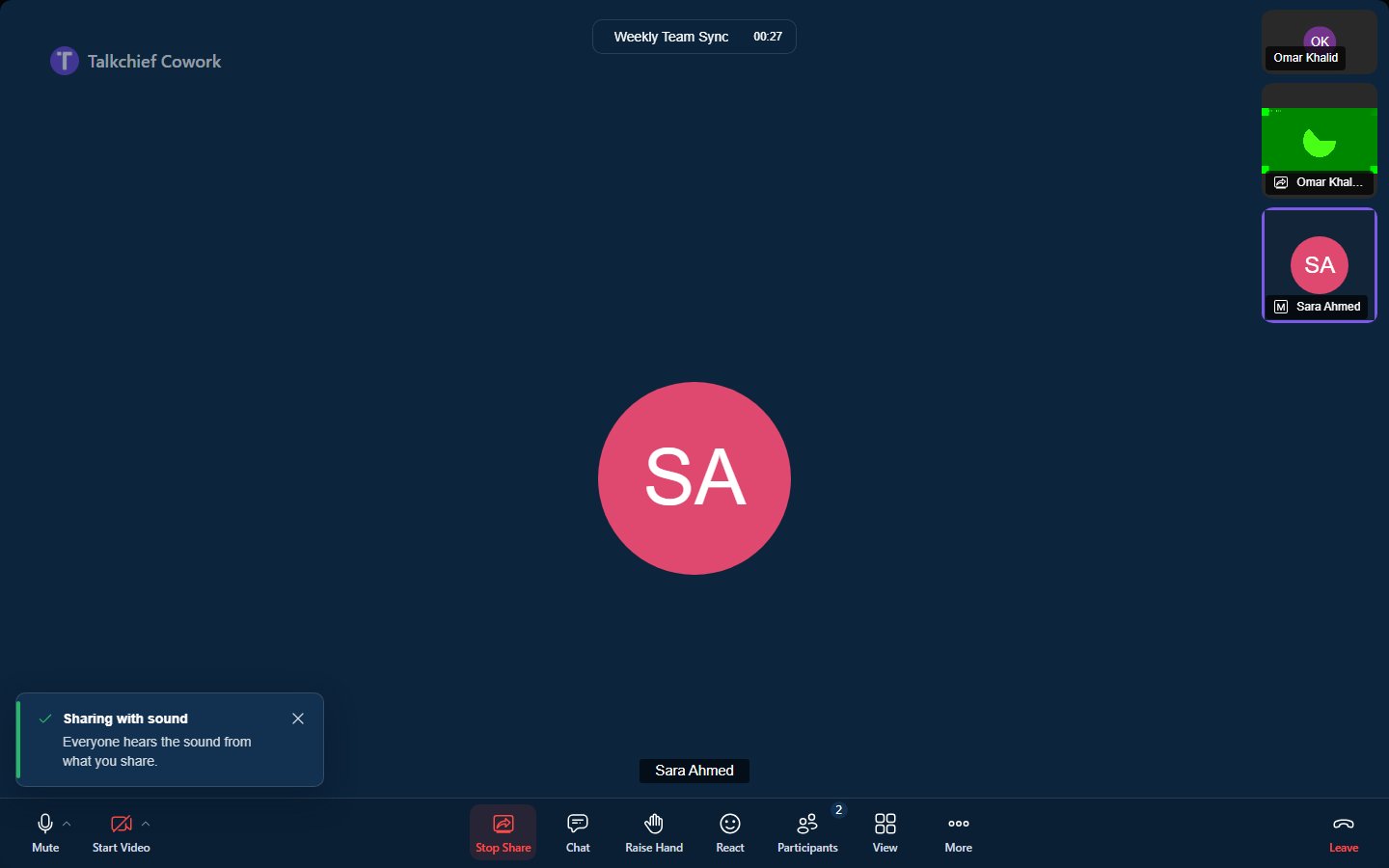
Select Share and choose what to share. Everyone else hears a short chime when you start. While you share, the button becomes a red Stop Share, and a note tells you whether the share includes sound.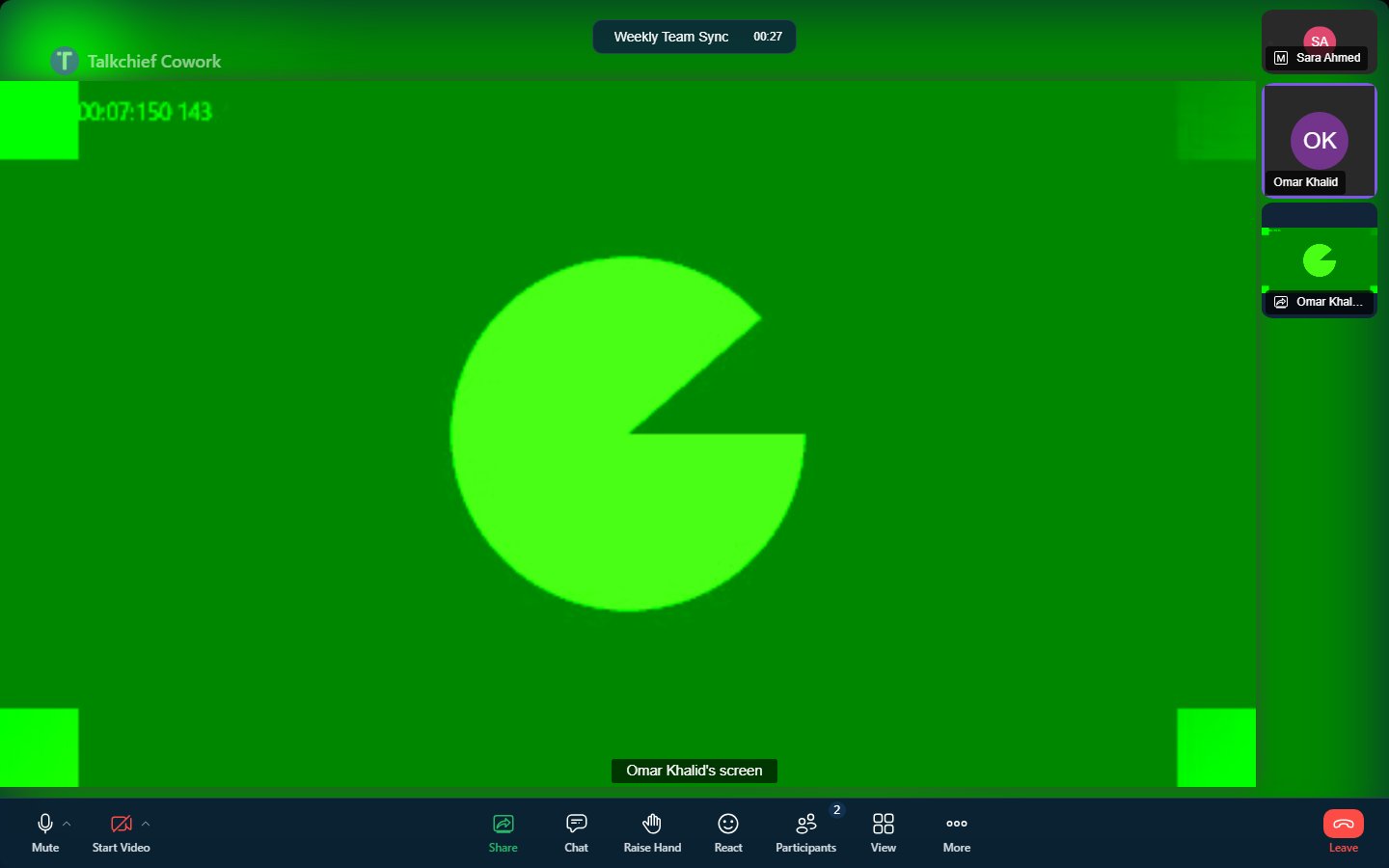
Change your background
Select More, then Select Background. Choose blur or a background image and check the live preview. If CoWork can’t use your camera, the tab says No camera access and offers Grant camera access.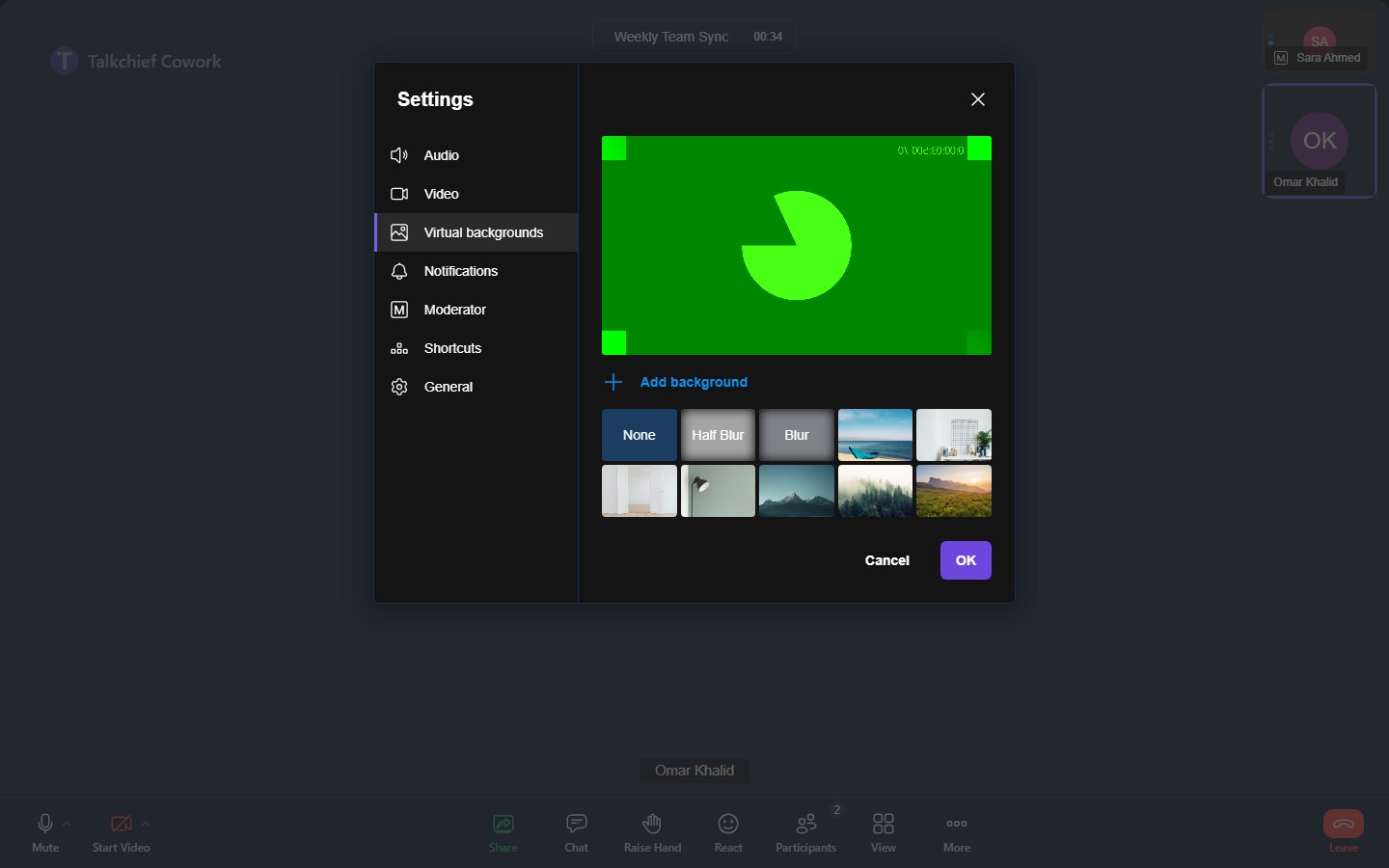
Leave or end a meeting
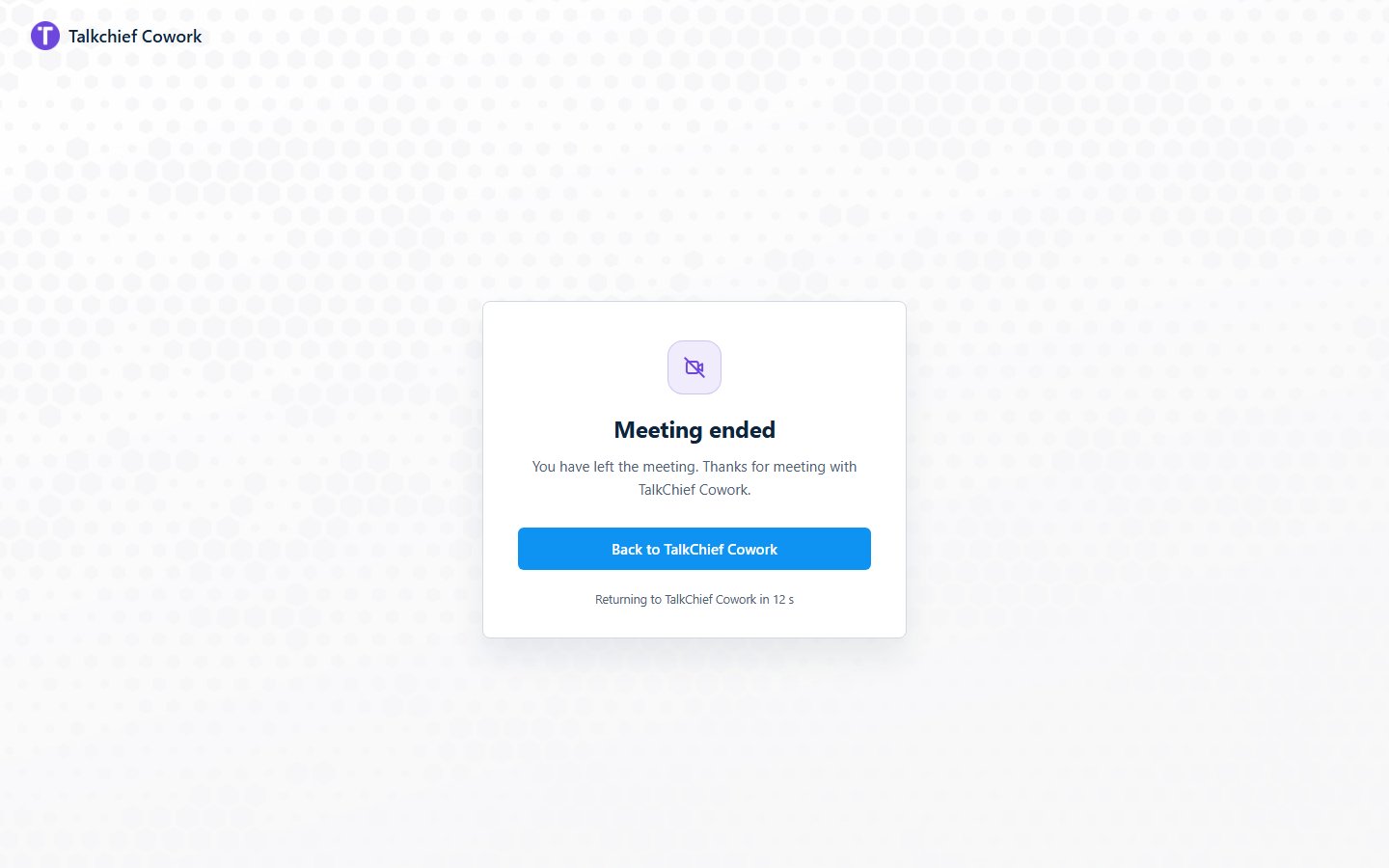
Select Leave to leave. The host can also choose End meeting for all. Members only see Leave. When the host ends the meeting, everyone sees Meeting ended.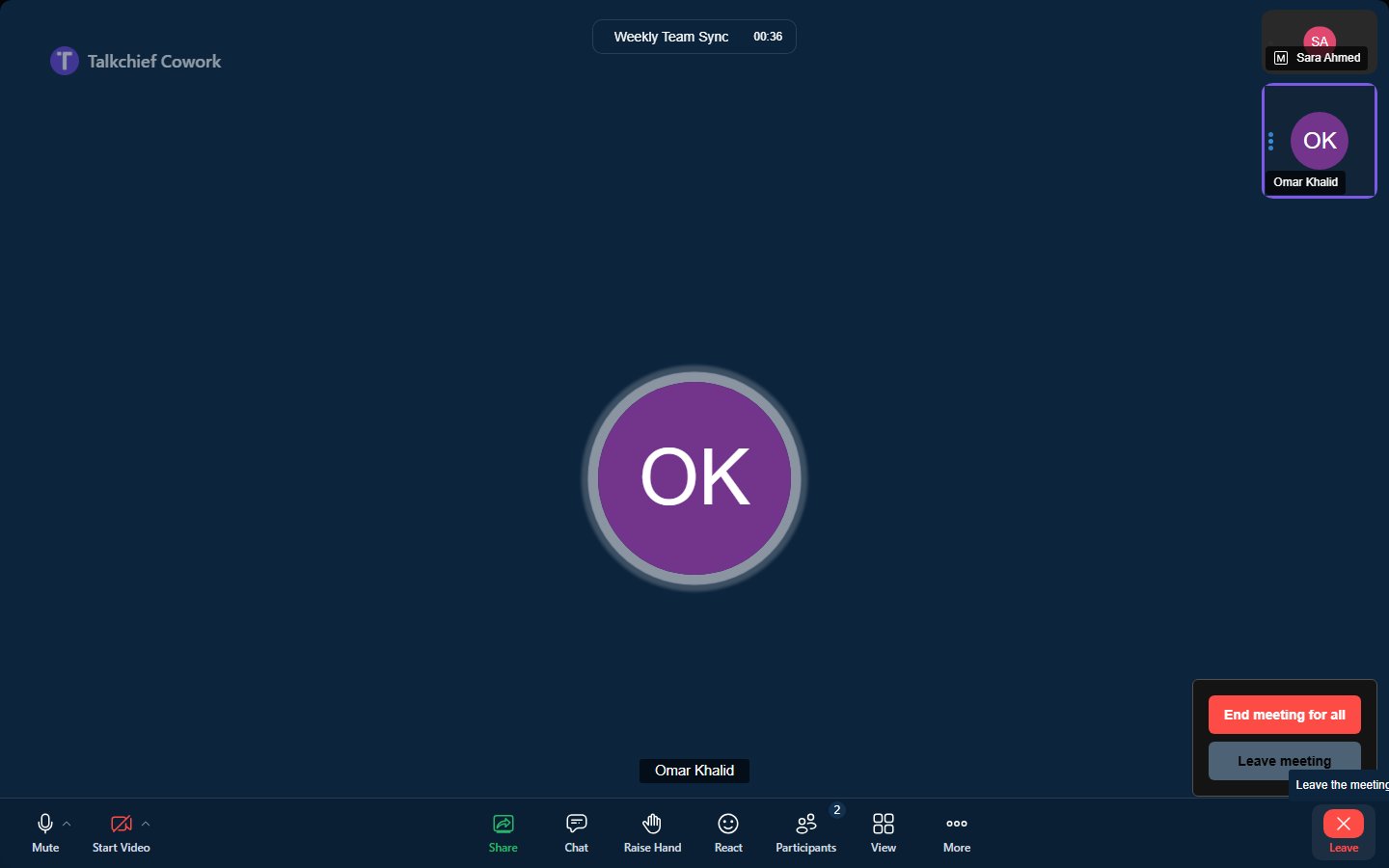
Related pages
Calls and phone
Group calls, screen sharing, and phone calls in CoWork.
CoWork overview
What CoWork includes on each plan.