> ## Documentation Index
> Fetch the complete documentation index at: https://docs.talkchief.io/llms.txt
> Use this file to discover all available pages before exploring further.
# Working Hours, Greetings, and Hold Music
> Set company and team working hours that drive your call flows, and upload MP3 greetings, IVR prompts, and music on hold in the TalkChief Media Manager.
Working hours tell TalkChief when each team takes calls. Media is the audio callers hear, such as greetings, menu prompts, and hold music. Both feed into your [call flows](/phone/call-flows).
## Working hours
Working hours exist at two levels:
* **Company default**: set in **Configuration** → **Settings** → **Account** under **Working Hours**, along with the **Company time zone**. Teams use these unless you change them.
* **Team**: set on each team's **Settings** tab. A **Time Condition** step in a call flow uses these hours.
### Set a team's working hours
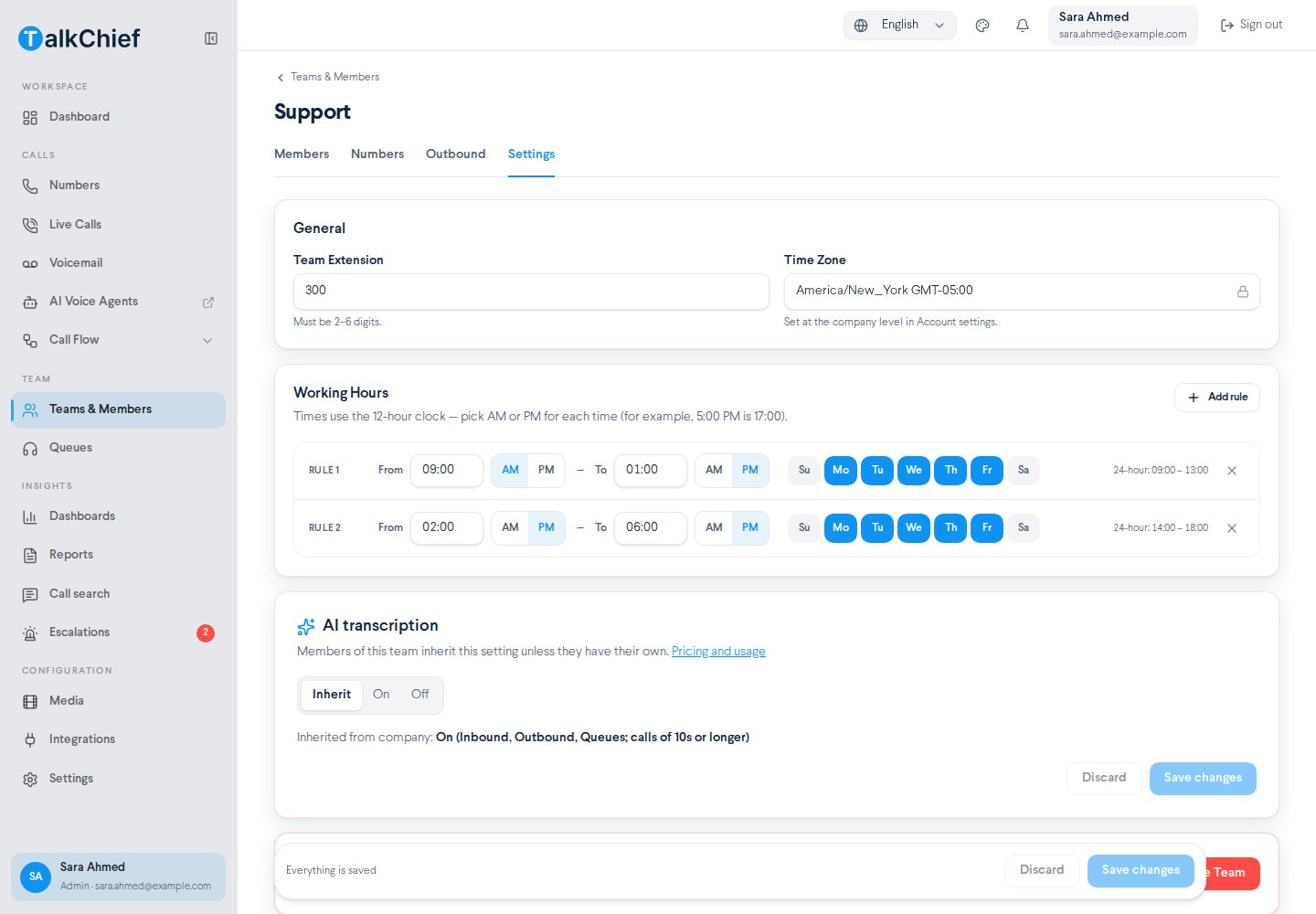
Go to **Team** → **Teams & Members**, select **Manage Team** on the team card, and open **Settings**.
Under **Working Hours**, select **Add rule**. Each rule has a **From** time, a **To** time, and **Working Days**.
Times use the 12-hour clock. Enter each time as hh:mm and pick AM or PM. For example, 5:00 PM is 17:00. The rule shows the 24-hour version so you can check it.
Select at least one working day for the rule.
Select **Save changes**. Select **Discard** to undo your edits.
Use more than one rule for split shifts. For example, add one rule for 9:00 AM–1:00 PM and another for 2:00 PM–6:00 PM on the same days.
The team's **Time Zone** comes from the company settings. If you see **This team has no timezone configured on the server**, ask an admin to fix it before saving.
 ### Fix overlapping rules
Two rules can't cover the same day and time. If they do, TalkChief highlights them and shows which rules overlap and when. Change the days or hours so only one rule applies at any time. You can't save until you fix it.
### Use working hours in a call flow
Add a **Time Condition** step and pick the team's working hours under **Search team working hours**. The flow then splits:
* **Open**: calls during working hours.
* **Closed**: calls at all other times.
For rules in a time zone you choose, use **Advance Time Condition** instead. See [Call flows](/phone/call-flows).
## Media
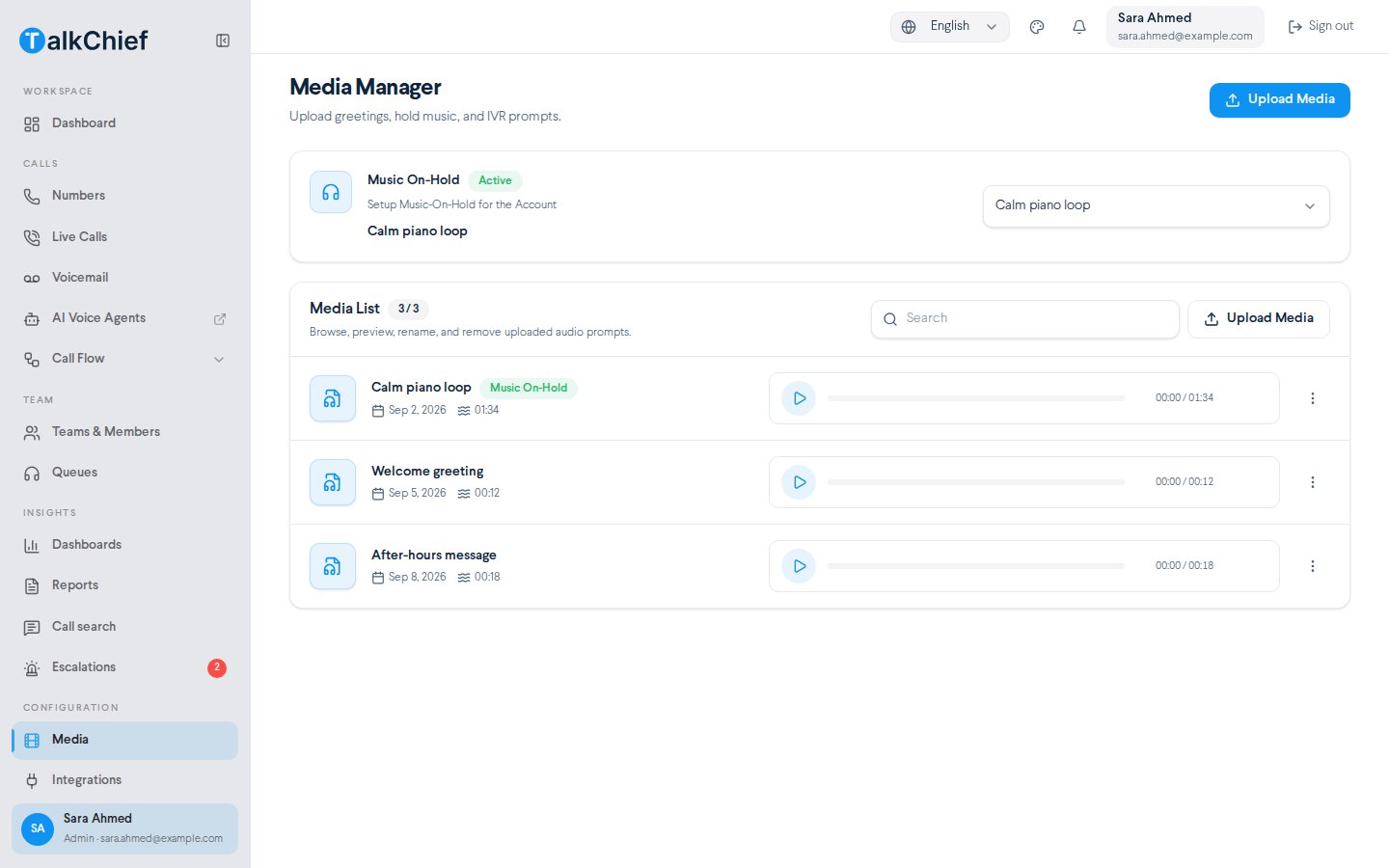
Media holds the audio files used across your phone system. Go to **Configuration** → **Media** to open the **Media Manager**.
### Upload a file
Select **Upload Media**.
Pick an MP3 file of up to 5 MB.
Enter a **Media Name** that says what the file is, such as "Main menu prompt". Select **upload**.
Only MP3 files are accepted. Convert WAV or other formats to MP3 before you upload them.
You can also upload a file while editing a **Play Media** step in a call flow. Select **Upload a new media**.
### Set music on hold
The **Music On-Hold** card sets the audio callers hear when they're on hold. Pick a file from the list. The card shows **Active** once a file is set.
### Fix overlapping rules
Two rules can't cover the same day and time. If they do, TalkChief highlights them and shows which rules overlap and when. Change the days or hours so only one rule applies at any time. You can't save until you fix it.
### Use working hours in a call flow
Add a **Time Condition** step and pick the team's working hours under **Search team working hours**. The flow then splits:
* **Open**: calls during working hours.
* **Closed**: calls at all other times.
For rules in a time zone you choose, use **Advance Time Condition** instead. See [Call flows](/phone/call-flows).
## Media
Media holds the audio files used across your phone system. Go to **Configuration** → **Media** to open the **Media Manager**.
### Upload a file
Select **Upload Media**.
Pick an MP3 file of up to 5 MB.
Enter a **Media Name** that says what the file is, such as "Main menu prompt". Select **upload**.
Only MP3 files are accepted. Convert WAV or other formats to MP3 before you upload them.
You can also upload a file while editing a **Play Media** step in a call flow. Select **Upload a new media**.
### Set music on hold
The **Music On-Hold** card sets the audio callers hear when they're on hold. Pick a file from the list. The card shows **Active** once a file is set.
 ### Manage your files
The **Media List** shows every file. Search by name, play a file to check it, and use **Actions** to:
* **Rename** a file.
* **Delete** a file. You type the media name to confirm.
Check that a file isn't used in a call flow, IVR, or queue before you delete it.
### Where media is used
| Where | Setting |
| - | - |
| Hold audio for the whole account | **Music On-Hold** on the **Media** page |
| Greetings in a call flow | **Play Media** step |
| IVR menu prompt | **Media** in **IVR settings** |
| Audio while a team rings | **Media** in the **Team** step |
| Queue hold audio | **Media** in the queue settings |
| Before a member's mailbox | **Play Media message before Mailbox** |
## Frequently asked questions
The file must be an MP3 and no larger than 5 MB. Check the file type and size, then try again.
Two rules probably overlap, a rule has no working day, or a start time is after its end time. Fix the highlighted rule and save again.
## Related pages
Use working hours and media in your routing.
Manage the teams that own working hours.
This documentation is built and hosted on [Mintlify](https://mintlify.com), a developer documentation platform.
### Manage your files
The **Media List** shows every file. Search by name, play a file to check it, and use **Actions** to:
* **Rename** a file.
* **Delete** a file. You type the media name to confirm.
Check that a file isn't used in a call flow, IVR, or queue before you delete it.
### Where media is used
| Where | Setting |
| - | - |
| Hold audio for the whole account | **Music On-Hold** on the **Media** page |
| Greetings in a call flow | **Play Media** step |
| IVR menu prompt | **Media** in **IVR settings** |
| Audio while a team rings | **Media** in the **Team** step |
| Queue hold audio | **Media** in the queue settings |
| Before a member's mailbox | **Play Media message before Mailbox** |
## Frequently asked questions
The file must be an MP3 and no larger than 5 MB. Check the file type and size, then try again.
Two rules probably overlap, a rule has no working day, or a start time is after its end time. Fix the highlighted rule and save again.
## Related pages
Use working hours and media in your routing.
Manage the teams that own working hours.
This documentation is built and hosted on [Mintlify](https://mintlify.com), a developer documentation platform.