> ## Documentation Index
> Fetch the complete documentation index at: https://docs.talkchief.io/llms.txt
> Use this file to discover all available pages before exploring further.
# Web Phone: Make and Take Calls in Your Browser
> Use the TalkChief Web Phone to dial, answer, hold, mute, and transfer calls from your browser, with recents, contacts, and clear connection status.
The Web Phone is the dialer built into the TalkChief web app. You can place and answer calls from any page without installing anything. Admins, supervisors, and agents all get it.
The Web Phone uses your own member line and extension. If it shows **Offline** right after you sign in, sign out and sign in again.
## Open the Web Phone
The Web Phone sits in the bottom-right corner of every page as a round phone button. A small dot on the button shows your line status, so you can check it without opening the panel.
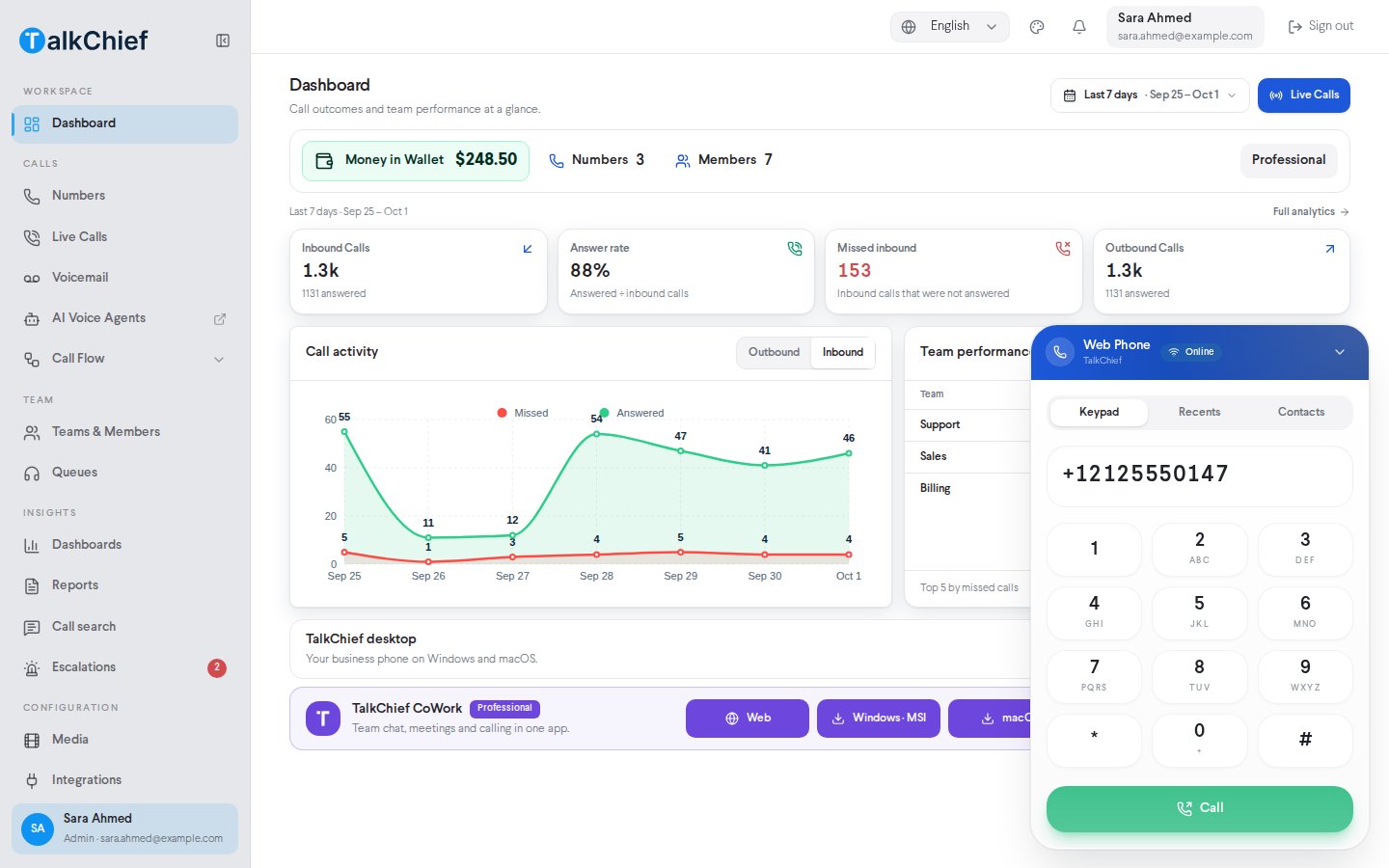
Select the phone button (**Open Web Phone**). The panel opens with three tabs: **Keypad**, **Recents**, and **Contacts**.
The badge next to **Web Phone** in the panel header shows your line status. You can make and receive calls when it says **Online**.
Select the arrow in the header (**Minimize Web Phone**) to collapse the panel back to the button. The panel opens again on its own when a call connects, so you can always reach the call controls.
 ### Line status
| Badge | What it means |
| - | - |
| **Online** | Your line is connected. You can make and receive calls. |
| **Connecting** | The Web Phone is connecting your line. |
| **Reconnecting** | The connection dropped and the Web Phone is trying again. |
| **Offline** | Calls are disabled. The Web Phone keeps retrying in the background. |
| **Other tab** | The Web Phone is active in another tab of this browser. |
| **Idle** | The Web Phone hasn't started connecting yet. |
## Allow microphone access
Your browser asks for microphone permission the first time you place or answer a call. Select **Allow** so the other person can hear you.
If you block the microphone, calls can't send your voice. Open your browser's site settings for TalkChief, set **Microphone** to **Allow**, and reload the page.
## Make a call
On the **Keypad** tab, type the number in the **Enter number** field or use the dial pad. The dial pad has the digits 0–9, `*`, and `#`. To call a teammate, enter their extension.
Select **Call** or press **Enter**. The button only works when your line is **Online** and the field isn't empty.
The panel shows **Dialing…**, then **Ringing…** while the other side rings. Once they answer, it shows **Answered** and a call timer.
Use the backspace button at the end of the number field to delete the last digit.
### Call from Recents
The **Recents** tab lists calls you made or received on the Web Phone in this browser. Each entry shows the number or name, the date and time, and either the call length or **Missed**, **Declined**, or **Not answered**.
* Select an entry to call that number again. If your line is offline, the number is copied to the keypad so it's ready when you reconnect.
* Select **Clear** to delete your call history from this browser.
The list keeps your 100 most recent calls. It belongs to your account, so another person who signs in on the same computer doesn't see it.
### Call from Contacts
The **Contacts** tab lists the members of your workspace who have an extension. Type in **Search name or extension** to filter the list, then select a contact to call their extension.
## Answer or decline a call
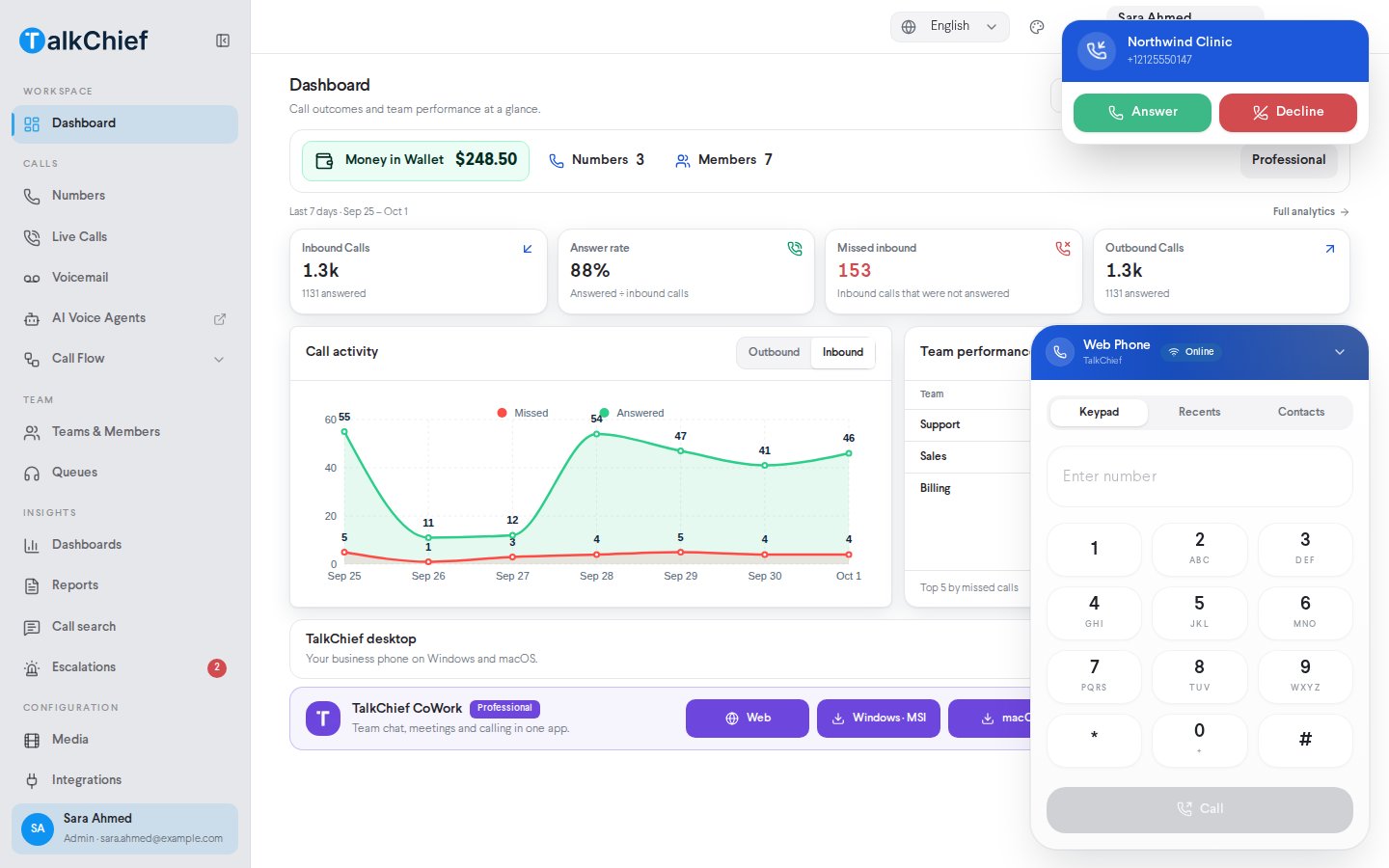
When a call comes in, an **Incoming call** alert appears in the top-right corner with the caller's name or number. The phone button also pulses.
* Select **Answer** to take the call.
* Select **Decline** to reject it.
An unanswered incoming call shows as **Missed** in **Recents**.
### Line status
| Badge | What it means |
| - | - |
| **Online** | Your line is connected. You can make and receive calls. |
| **Connecting** | The Web Phone is connecting your line. |
| **Reconnecting** | The connection dropped and the Web Phone is trying again. |
| **Offline** | Calls are disabled. The Web Phone keeps retrying in the background. |
| **Other tab** | The Web Phone is active in another tab of this browser. |
| **Idle** | The Web Phone hasn't started connecting yet. |
## Allow microphone access
Your browser asks for microphone permission the first time you place or answer a call. Select **Allow** so the other person can hear you.
If you block the microphone, calls can't send your voice. Open your browser's site settings for TalkChief, set **Microphone** to **Allow**, and reload the page.
## Make a call
On the **Keypad** tab, type the number in the **Enter number** field or use the dial pad. The dial pad has the digits 0–9, `*`, and `#`. To call a teammate, enter their extension.
Select **Call** or press **Enter**. The button only works when your line is **Online** and the field isn't empty.
The panel shows **Dialing…**, then **Ringing…** while the other side rings. Once they answer, it shows **Answered** and a call timer.
Use the backspace button at the end of the number field to delete the last digit.
### Call from Recents
The **Recents** tab lists calls you made or received on the Web Phone in this browser. Each entry shows the number or name, the date and time, and either the call length or **Missed**, **Declined**, or **Not answered**.
* Select an entry to call that number again. If your line is offline, the number is copied to the keypad so it's ready when you reconnect.
* Select **Clear** to delete your call history from this browser.
The list keeps your 100 most recent calls. It belongs to your account, so another person who signs in on the same computer doesn't see it.
### Call from Contacts
The **Contacts** tab lists the members of your workspace who have an extension. Type in **Search name or extension** to filter the list, then select a contact to call their extension.
## Answer or decline a call
When a call comes in, an **Incoming call** alert appears in the top-right corner with the caller's name or number. The phone button also pulses.
* Select **Answer** to take the call.
* Select **Decline** to reject it.
An unanswered incoming call shows as **Missed** in **Recents**.
 ## Use the in-call controls
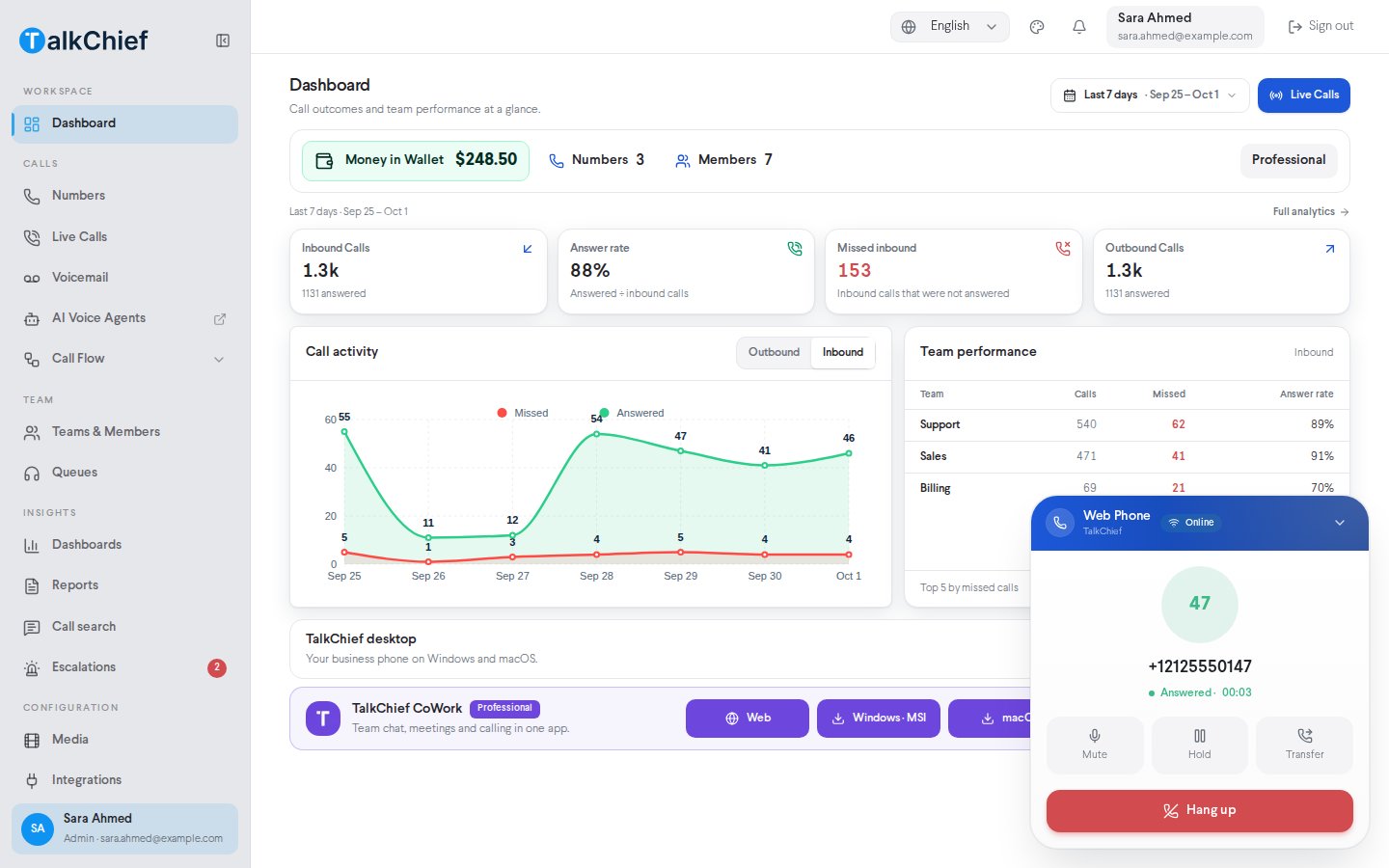
During a call, the panel shows the caller, the call status, and these controls:
| Control | What it does |
| - | - |
| **Mute** / **Unmute** | Turns your microphone off or on. The caller can still be heard. |
| **Hold** / **Resume** | Puts the call on hold, then takes it off hold. The status changes to **On hold**. |
| **Transfer** | Opens the transfer panel. Available once the call is answered. |
| **Hang up** | Ends the call. |
## Use the in-call controls
During a call, the panel shows the caller, the call status, and these controls:
| Control | What it does |
| - | - |
| **Mute** / **Unmute** | Turns your microphone off or on. The caller can still be heard. |
| **Hold** / **Resume** | Puts the call on hold, then takes it off hold. The status changes to **On hold**. |
| **Transfer** | Opens the transfer panel. Available once the call is answered. |
| **Hang up** | Ends the call. |
 ## Transfer a call
A transfer sends the caller straight to the new destination and ends the call for you.
During an answered call, select **Transfer**. The **Transfer call to** panel opens.
Pick a teammate from **Select a team member**. To transfer to another extension or an outside number, select **Enter number** and type it. Select **Pick from team** to go back to the list.
Select **Transfer**. Select **Cancel** to close the panel and stay on the call.
## Use one tab at a time
Only one tab per browser connects the Web Phone. If you open TalkChief in a second tab, that tab shows **Other tab** and the message **Web Phone is open in another tab**. Calls ring in the first tab.
* To move the Web Phone to the tab you're in, select **Use here**.
* If you close the active tab, another open TalkChief tab takes over on its own.
* If you select **Use here** during a call, the call continues in the first tab. The switch happens when that call ends.
## Troubleshooting
The message **Web Phone is offline — calls are disabled.** means your line isn't connected. The Web Phone retries on its own (**Retrying automatically…**) and reconnects when your network or the tab comes back. To try right away, select **Reconnect now**. If the problem continues, sign out and sign in again.
Your line has reached its limit of connected devices. Close the Web Phone on another device or in another browser, then select **Reconnect now**. Your desktop and mobile apps count as devices too.
Only one tab per browser connects the Web Phone. Go to the tab that rings, or select **Use here** in the tab you want to use.
Check that the browser has microphone permission for TalkChief and that you haven't selected **Mute**. Then check that the right microphone is selected in your computer's sound settings.
## Related pages
See everything you can set up for calling in TalkChief.
Choose which number your outbound calls show.
Learn what agents see when they sign in.
Manage extensions, roles, and call forwarding.
This documentation is built and hosted on [Mintlify](https://mintlify.com), a developer documentation platform.
## Transfer a call
A transfer sends the caller straight to the new destination and ends the call for you.
During an answered call, select **Transfer**. The **Transfer call to** panel opens.
Pick a teammate from **Select a team member**. To transfer to another extension or an outside number, select **Enter number** and type it. Select **Pick from team** to go back to the list.
Select **Transfer**. Select **Cancel** to close the panel and stay on the call.
## Use one tab at a time
Only one tab per browser connects the Web Phone. If you open TalkChief in a second tab, that tab shows **Other tab** and the message **Web Phone is open in another tab**. Calls ring in the first tab.
* To move the Web Phone to the tab you're in, select **Use here**.
* If you close the active tab, another open TalkChief tab takes over on its own.
* If you select **Use here** during a call, the call continues in the first tab. The switch happens when that call ends.
## Troubleshooting
The message **Web Phone is offline — calls are disabled.** means your line isn't connected. The Web Phone retries on its own (**Retrying automatically…**) and reconnects when your network or the tab comes back. To try right away, select **Reconnect now**. If the problem continues, sign out and sign in again.
Your line has reached its limit of connected devices. Close the Web Phone on another device or in another browser, then select **Reconnect now**. Your desktop and mobile apps count as devices too.
Only one tab per browser connects the Web Phone. Go to the tab that rings, or select **Use here** in the tab you want to use.
Check that the browser has microphone permission for TalkChief and that you haven't selected **Mute**. Then check that the right microphone is selected in your computer's sound settings.
## Related pages
See everything you can set up for calling in TalkChief.
Choose which number your outbound calls show.
Learn what agents see when they sign in.
Manage extensions, roles, and call forwarding.
This documentation is built and hosted on [Mintlify](https://mintlify.com), a developer documentation platform.