> ## Documentation Index
> Fetch the complete documentation index at: https://docs.talkchief.io/llms.txt
> Use this file to discover all available pages before exploring further.
# Voicemail: Listen, Filter, and Forward Messages
> Review TalkChief voicemail by date range, play or download each message, send voicemail to email, and set greeting options for each member's mailbox.
Voicemail catches the calls nobody answers. Callers reach a mailbox through a **Voicemail** step in a call flow. You listen to messages in **Calls** → **Voicemail**.
## Review your voicemail
In the sidebar, go to **Calls** → **Voicemail**.
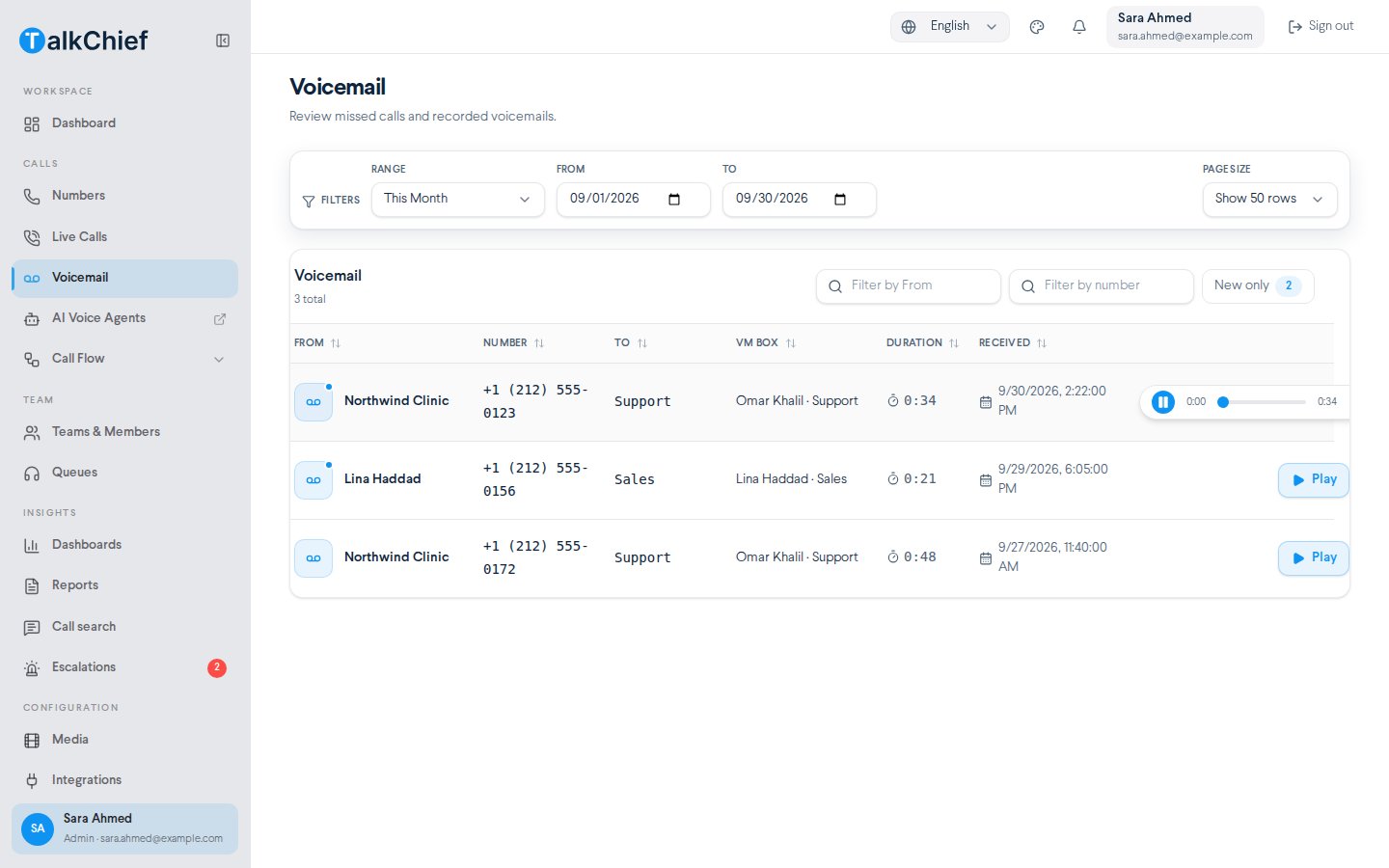
Under **Filters**, choose a **Range**: **Today**, **Yesterday**, **This Week**, **Last Week**, **This Month**, **Last Month**, **Last 7 days**, **Last 30 days**, or **Custom**. For **Custom**, set **From** and **To**. **This Month** is the default.
Type in **Filter by From** to search by caller name or **Filter by number** to search by phone number. Select **New only** to show only new messages. The badge shows how many are new.
Select play on a row to listen. Use the download button to save the recording.
 ### What each column shows
| Column | Meaning |
| - | - |
| **From** | The caller's name, or **Unknown**. A dot marks new messages. |
| **Number** | The caller's phone number. |
| **To** | The number or extension the caller dialed. |
| **VM Box** | The mailbox that took the message. The company mailbox shows as **Main voicemail box**. |
| **Duration** | The length of the message. |
| **Received** | The date and time the message arrived. |
Select a column header to sort by it. Select it again to reverse the order.
Use **Page size** to show 50, 100, 150, or 200 messages at a time.
## Send callers to voicemail
Add a **Voicemail** step to a number's call flow and pick the mailbox. A common setup puts it on the **Closed** branch of a **Time Condition** or after a **Team** step. See [Call flows](/phone/call-flows).
## Set up a member's mailbox
Admins set each member's mailbox options on their settings page.
Go to **Team** → **Teams & Members**, open the **Members** tab, and select **Settings** in the member's actions menu.
In the **Voicemail** section, turn the switch on.
Turn on the options you need, then select **Save changes**.
| Option | What it does |
| - | - |
| **Forward to member's email** | Sends each new message to the member's email. |
| **Skip Greeting Message** | Callers don't hear the mailbox greeting. |
| **Skip Instructions Message** | Callers don't hear the recording instructions. |
| **Play Media message before Mailbox** | Plays a file from **Media** before the caller leaves a message. |
## Clear a member's mailbox
On the member's settings page, open **Actions** and select **Clear Saved VMbox Messages**.
Clearing a mailbox deletes every saved message for that member. You can't undo it.
## Frequently asked questions
There are no messages in the selected range. Pick a wider **Range**, such as **Last 30 days**.
Yes. Turn on **Forward to member's email** in the member's **Voicemail** settings.
## Related pages
Add a Voicemail step to a number.
Upload the audio played before the mailbox.
This documentation is built and hosted on [Mintlify](https://mintlify.com), a developer documentation platform.
### What each column shows
| Column | Meaning |
| - | - |
| **From** | The caller's name, or **Unknown**. A dot marks new messages. |
| **Number** | The caller's phone number. |
| **To** | The number or extension the caller dialed. |
| **VM Box** | The mailbox that took the message. The company mailbox shows as **Main voicemail box**. |
| **Duration** | The length of the message. |
| **Received** | The date and time the message arrived. |
Select a column header to sort by it. Select it again to reverse the order.
Use **Page size** to show 50, 100, 150, or 200 messages at a time.
## Send callers to voicemail
Add a **Voicemail** step to a number's call flow and pick the mailbox. A common setup puts it on the **Closed** branch of a **Time Condition** or after a **Team** step. See [Call flows](/phone/call-flows).
## Set up a member's mailbox
Admins set each member's mailbox options on their settings page.
Go to **Team** → **Teams & Members**, open the **Members** tab, and select **Settings** in the member's actions menu.
In the **Voicemail** section, turn the switch on.
Turn on the options you need, then select **Save changes**.
| Option | What it does |
| - | - |
| **Forward to member's email** | Sends each new message to the member's email. |
| **Skip Greeting Message** | Callers don't hear the mailbox greeting. |
| **Skip Instructions Message** | Callers don't hear the recording instructions. |
| **Play Media message before Mailbox** | Plays a file from **Media** before the caller leaves a message. |
## Clear a member's mailbox
On the member's settings page, open **Actions** and select **Clear Saved VMbox Messages**.
Clearing a mailbox deletes every saved message for that member. You can't undo it.
## Frequently asked questions
There are no messages in the selected range. Pick a wider **Range**, such as **Last 30 days**.
Yes. Turn on **Forward to member's email** in the member's **Voicemail** settings.
## Related pages
Add a Voicemail step to a number.
Upload the audio played before the mailbox.
This documentation is built and hosted on [Mintlify](https://mintlify.com), a developer documentation platform.