> ## Documentation Index
> Fetch the complete documentation index at: https://docs.talkchief.io/llms.txt
> Use this file to discover all available pages before exploring further.
# Create Media: Record Audio or Generate AI Voice Clips
> Record greetings with your microphone or turn text into a natural AI voice clip in the TalkChief Media Manager, ready for call flows, IVR menus, and queues.
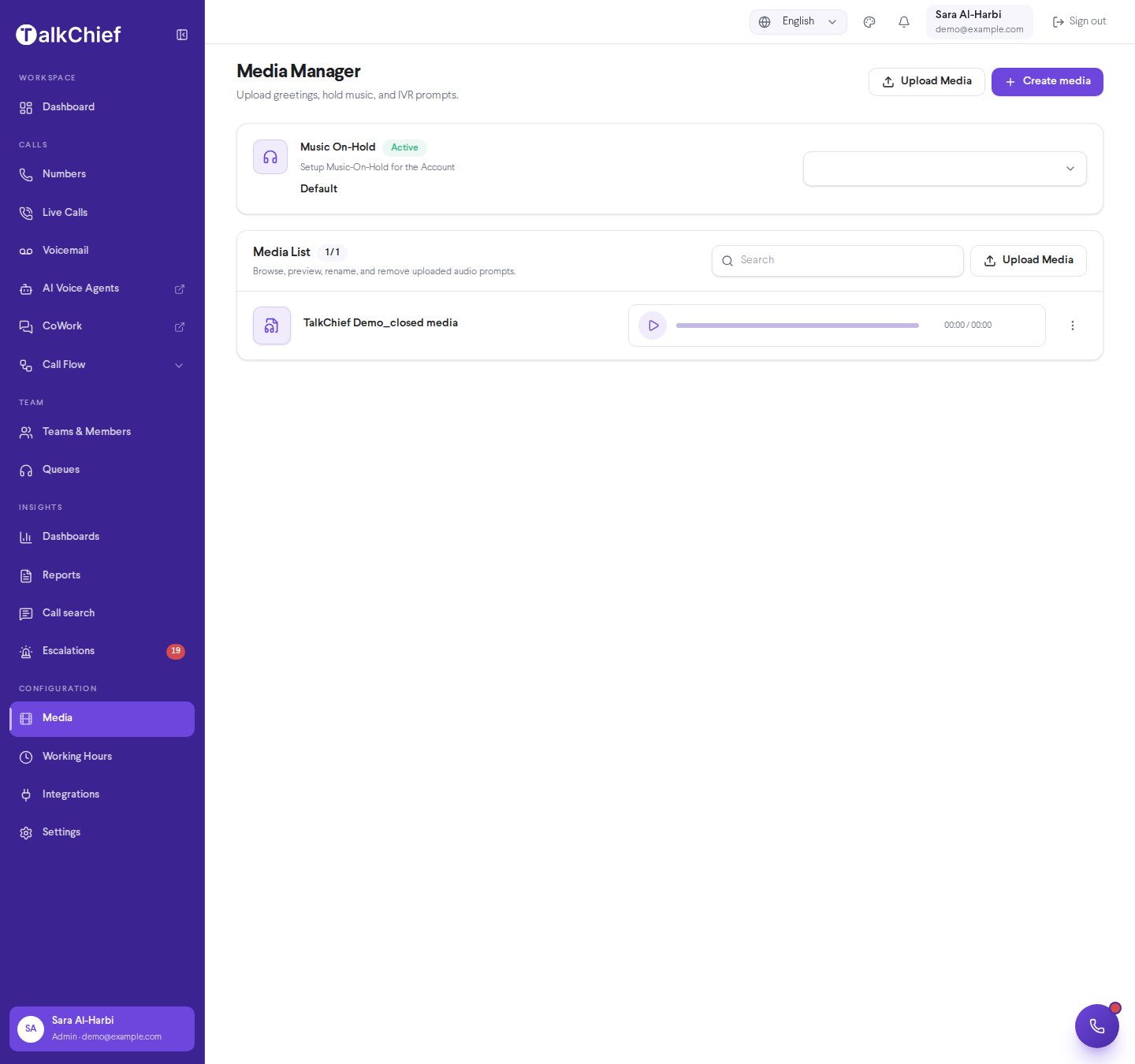
**Create media** lets you make new audio for your phone system without leaving TalkChief. Record a greeting with your own microphone, or type the words and let AI read them in a natural voice. Every clip is saved to the **Media Manager**, so you can use it in [call flows](/phone/call-flows), IVR menus, team steps, and queues like any uploaded file.
## Before you start
| | Record | AI voice |
| - | - | - |
| Who can use it | Anyone who can upload media | Account admins only |
| Cost | Free | **\$1.00 per clip** |
| Length | Up to 2 minutes 30 seconds | Up to 1,000 characters (about 1 minute of speech) |
| Saved as | MP3 | MP3 |
Go to **Configuration** → **Media** and select **Create media**. The window has two tabs: **Record** and **AI voice**.
 ## Record your own voice
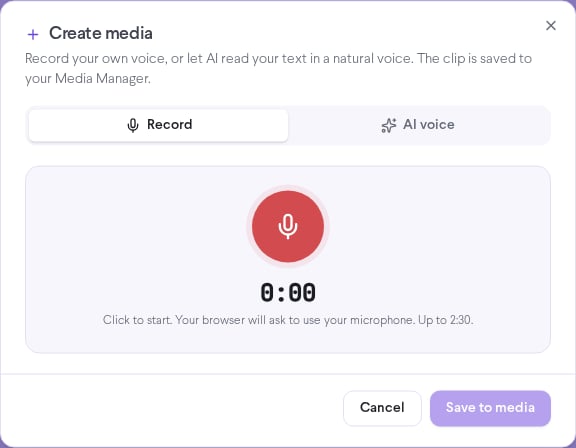
Open the **Record** tab and select the red record button. Your browser asks to use your microphone. Select **Allow**.
Speak your message. A level meter shows your voice is being picked up, and a timer shows the length. Select stop when you're done. Recording stops by itself at 2:30.
Play the recording to check it. Select **Record again** to start over.
Enter a **Media name**, such as "Closed hours message", and select **Save to media**.
## Record your own voice
Open the **Record** tab and select the red record button. Your browser asks to use your microphone. Select **Allow**.
Speak your message. A level meter shows your voice is being picked up, and a timer shows the length. Select stop when you're done. Recording stops by itself at 2:30.
Play the recording to check it. Select **Record again** to start over.
Enter a **Media name**, such as "Closed hours message", and select **Save to media**.
 Record in a quiet room and keep the microphone at the same distance throughout. Callers hear exactly what you record.
## Generate an AI voice clip
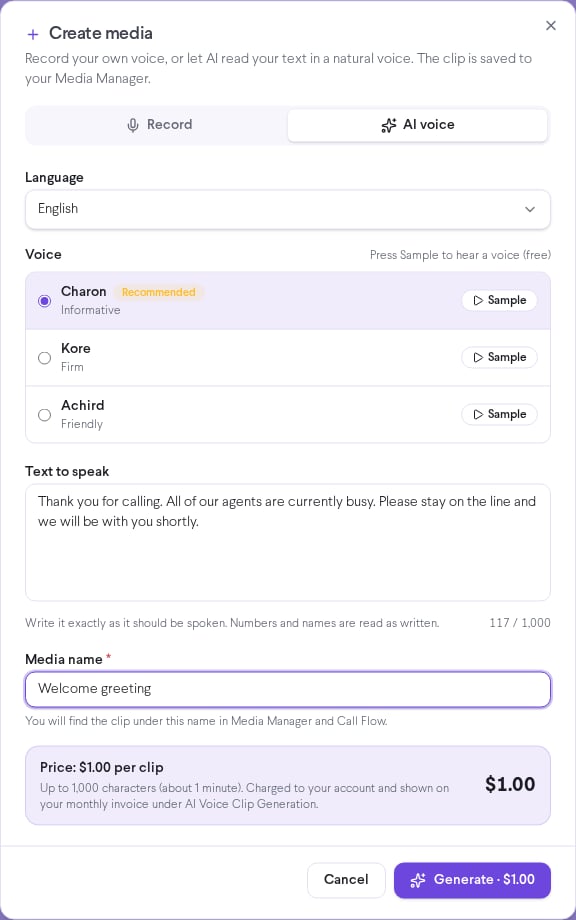
Open the **AI voice** tab and pick a **Language**. Arabic has four options: Levantine (Shami), Gulf, Egyptian, and Modern Standard (Fusha). Hebrew, English, and 25 other languages are also available.
The voice marked **Recommended** is the one we tested as the most natural for that language. Select **Sample** to hear a voice before you choose. Samples are free.
Type the words exactly as they should be spoken, up to 1,000 characters. Numbers and names are read as you write them.
Enter a **Media name** so you can find the clip later, such as "Welcome greeting – Arabic".
The form shows **Price: $1.00 per clip**. Select **Generate · $1.00**, check the summary, and select **Confirm & generate · \$1.00**. The clip is usually ready in 5 to 15 seconds and is saved to the Media Manager automatically.
Record in a quiet room and keep the microphone at the same distance throughout. Callers hear exactly what you record.
## Generate an AI voice clip
Open the **AI voice** tab and pick a **Language**. Arabic has four options: Levantine (Shami), Gulf, Egyptian, and Modern Standard (Fusha). Hebrew, English, and 25 other languages are also available.
The voice marked **Recommended** is the one we tested as the most natural for that language. Select **Sample** to hear a voice before you choose. Samples are free.
Type the words exactly as they should be spoken, up to 1,000 characters. Numbers and names are read as you write them.
Enter a **Media name** so you can find the clip later, such as "Welcome greeting – Arabic".
The form shows **Price: $1.00 per clip**. Select **Generate · $1.00**, check the summary, and select **Confirm & generate · \$1.00**. The clip is usually ready in 5 to 15 seconds and is saved to the Media Manager automatically.
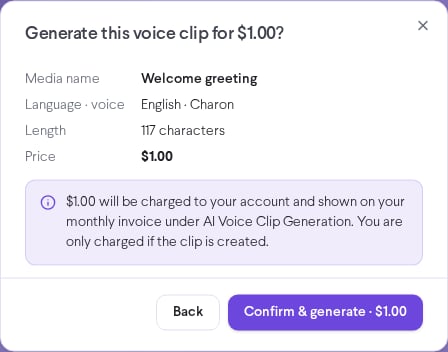 You're charged only when the clip is created. Generating again with new text or a different voice is a new clip and costs another \$1.00.
## Billing
Each AI voice clip costs **\$1.00**, charged to your account balance. Your monthly invoice lists the clips in their own section, **AI Voice Clip Generation**, with the number of clips and the total. Each charge in your account history shows the media name you gave the clip, so you can match every charge to a clip.
Recording your own voice is free.
## Use your new clip
New clips appear in the **Media List** right away. Pick them wherever media is used:
| Where | Setting |
| - | - |
| Hold audio for the whole account | **Music On-Hold** on the **Media** page |
| Greetings in a call flow | **Play Media** step |
| IVR menu prompt | **Media** in **IVR settings** |
| Audio while a team rings | **Media** in the **Team** step |
| Queue hold audio | **Media** in the queue settings |
## Frequently asked questions
Select the lock icon next to the address bar, set **Microphone** to **Allow**, and select **Try again**. You can also select **Upload a file instead** and upload an MP3.
Only account admins can generate AI voice clips, because each clip is charged to the account. Ask an admin, or use the **Record** tab.
You need at least \$1.00 in your balance to generate a clip. Nothing was charged. Top up your balance and try again.
Select **Retry save (no new charge)**. Retrying never charges you again. TalkChief also retries by itself, so the clip appears in the Media Manager within a few minutes.
No. Generate a new clip with the new text, then delete the old one from the **Media List**.
## Related pages
Upload files, set music on hold, and manage your media list.
Play your new clips to callers.
This documentation is built and hosted on [Mintlify](https://mintlify.com), a developer documentation platform.
You're charged only when the clip is created. Generating again with new text or a different voice is a new clip and costs another \$1.00.
## Billing
Each AI voice clip costs **\$1.00**, charged to your account balance. Your monthly invoice lists the clips in their own section, **AI Voice Clip Generation**, with the number of clips and the total. Each charge in your account history shows the media name you gave the clip, so you can match every charge to a clip.
Recording your own voice is free.
## Use your new clip
New clips appear in the **Media List** right away. Pick them wherever media is used:
| Where | Setting |
| - | - |
| Hold audio for the whole account | **Music On-Hold** on the **Media** page |
| Greetings in a call flow | **Play Media** step |
| IVR menu prompt | **Media** in **IVR settings** |
| Audio while a team rings | **Media** in the **Team** step |
| Queue hold audio | **Media** in the queue settings |
## Frequently asked questions
Select the lock icon next to the address bar, set **Microphone** to **Allow**, and select **Try again**. You can also select **Upload a file instead** and upload an MP3.
Only account admins can generate AI voice clips, because each clip is charged to the account. Ask an admin, or use the **Record** tab.
You need at least \$1.00 in your balance to generate a clip. Nothing was charged. Top up your balance and try again.
Select **Retry save (no new charge)**. Retrying never charges you again. TalkChief also retries by itself, so the clip appears in the Media Manager within a few minutes.
No. Generate a new clip with the new text, then delete the old one from the **Media List**.
## Related pages
Upload files, set music on hold, and manage your media list.
Play your new clips to callers.
This documentation is built and hosted on [Mintlify](https://mintlify.com), a developer documentation platform.