> ## Documentation Index
> Fetch the complete documentation index at: https://docs.talkchief.io/llms.txt
> Use this file to discover all available pages before exploring further.
# Manage Teams, Members, and Roles in TalkChief
> Create teams, invite members, set roles and extensions, assign numbers and supervisors, and control call recording and voicemail per member in TalkChief.
Teams group your members and numbers for routing, caller ID, and reporting. Manage both in **Team** → **Teams & Members**. The page has two tabs: **Teams** and **Members**.
Admins manage everything on this page. Supervisors can open it too, but some actions, such as **Assign to team** and **Delete Member**, are admin-only. Agents don't see this page.
## Roles
| Role | What they can do |
| - | - |
| Admin | Full access, including numbers, billing settings, and deleting members. |
| Supervisor | Works in the admin area with their teams, including escalations. A supervisor is set per team. |
| Agent | Uses the [agent workspace](/contact-center/agent-workspace): **Dashboard**, **Queues**, and **Settings**. |
## Create a team
On the **Teams** tab, select **+ Add Team**. The **Create Team** dialog opens.
Enter a **Name**, such as "Support", and a **Team Extension**, such as `100`. Calling the team extension reaches all team members.
Select **Create**. The team appears as a card.
On a team card you can select **Manage Team** to open it, or use **Actions** to **Change Team Color** or **Delete Team**.
## Manage a team
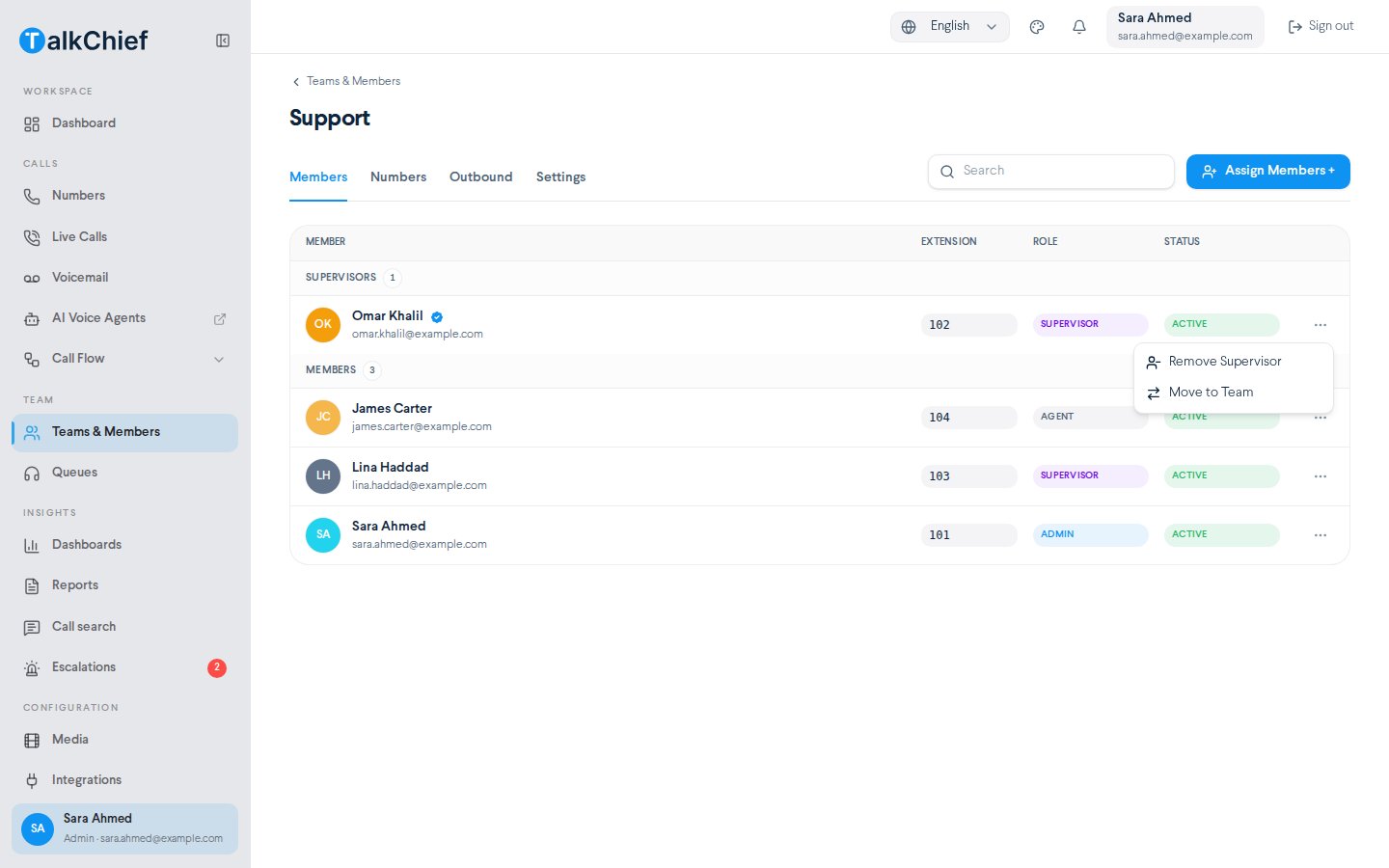
Select **Manage Team** to open the team. It has four tabs.
| Tab | What you do there |
| - | - |
| **Members** | See **Supervisors** and **Members**. Select **Assign Members +** to add members. In a member's **Actions** menu, choose **Make Supervisor**, **Remove Supervisor**, or **Move to Team**. |
| **Numbers** | Select **Assign Numbers** to add numbers. Use **Make Default** or **Remove from this Team**. |
| **Outbound** | Set the team's caller ID. See [Numbers and caller ID](/phone/numbers-and-caller-id). |
| **Settings** | Change the **Team Extension** (2–6 digits), view the **Time Zone**, and set **Working Hours**. Select **Delete Team** to remove it. |
Move every member to another team before you delete a team. Deleting a team can't be undone.
A member belongs to one team at a time. Use **Move to Team** to change it.
 ## Invite a member
On the **Members** tab, select **Invite member**.
Fill in **First name**, **Last name**, and **Work Email**. Choose the role under **User permissions**.
Under **Assign member to team**, pick the **Assigned Team**.
Turn **Call Recording** on to record **All Calls**, **Outbound Only**, or **Inbound Only**. Set the **Member extension**.
Review the summary and select **Pay and Invite**. The member gets an email to set up their account.
Each member adds a monthly seat cost. The invite summary shows the amount before you confirm.
## Manage members
The **Members** tab shows counts for **Total members**, **Active**, **Invite Sent**, and **Inactive**. Select a count to filter the list. Each row shows the **Member**, **Extension**, **Team**, **Role**, **Status**, **Devices**, and **Call Forward**.
The actions menu changes with the member's status:
| Status | Actions |
| - | - |
| **Active** | **Edit profile**, **Assign to team**, **Call Forward**, **Reset Password**, **Deactivate**, **Settings**, **Delete Member** |
| **Inactive** | **Assign to team**, **Reset Password**, **Activate**, **Delete Member** |
| **Invite Sent** | **Resend Invite**, **Get Invitation link**, **Cancel Invite** |
**Deactivate** blocks the member's sign-in but keeps all their settings. **Delete Member** removes the member and all related settings.
### Hand a seat to someone new
Use **Edit profile** to change a member's name. If you change the email, the seat goes to a new person. The extension, team, call flows, devices, and queues stay as they are. The old login stops working right away, and the new address gets an email to set a password. Select **Replace member** to confirm.
### Check a member's devices
The **Devices** column shows each registered phone or app as **Online**, **Offline**, or **Connectivity Issues**. Select a device to see its **Device Details**.
## Member settings
In a member's actions menu, select **Settings** to open their full settings page.
| Section | Settings |
| - | - |
| **Contact Info** | **First name**, **Last name**, **Email**, **Extension** (2–4 digits) |
| **Call Forward** | Forward to another number when unreachable. See [Call routing](/phone/call-routing). |
| **Role** | Change the role under **User permissions**. |
| **Team** | Change the **Assigned Team**. |
| **Call Recording** | **All Calls**, **Outbound Only**, or **Inbound Only**. Shows **Upgrade required** if your plan doesn't include it. |
| **Voicemail** | Mailbox options. See [Voicemail](/phone/voicemail). |
Select **Save changes** to apply, or **Discard** to undo. The **Actions** menu on this page also has **Clear Saved VMbox Messages**, **Reset Password**, **Resend invitation**, **Deactivate** or **Activate**, and **Remove from workspace**.
## Frequently asked questions
No. A member belongs to one team. Use **Move to Team** or **Assign to team** to change it.
Open the team with **Manage Team**, go to the **Members** tab, and select **Make Supervisor** in the member's **Actions** menu.
Select **Resend Invite**. You can also select **Get Invitation link** and send it to them yourself.
## Related pages
See what agents get when they sign in.
Assign numbers and set each team's caller ID.
Put members into queues.
Set each team's working hours.
This documentation is built and hosted on [Mintlify](https://mintlify.com), a developer documentation platform.
## Invite a member
On the **Members** tab, select **Invite member**.
Fill in **First name**, **Last name**, and **Work Email**. Choose the role under **User permissions**.
Under **Assign member to team**, pick the **Assigned Team**.
Turn **Call Recording** on to record **All Calls**, **Outbound Only**, or **Inbound Only**. Set the **Member extension**.
Review the summary and select **Pay and Invite**. The member gets an email to set up their account.
Each member adds a monthly seat cost. The invite summary shows the amount before you confirm.
## Manage members
The **Members** tab shows counts for **Total members**, **Active**, **Invite Sent**, and **Inactive**. Select a count to filter the list. Each row shows the **Member**, **Extension**, **Team**, **Role**, **Status**, **Devices**, and **Call Forward**.
The actions menu changes with the member's status:
| Status | Actions |
| - | - |
| **Active** | **Edit profile**, **Assign to team**, **Call Forward**, **Reset Password**, **Deactivate**, **Settings**, **Delete Member** |
| **Inactive** | **Assign to team**, **Reset Password**, **Activate**, **Delete Member** |
| **Invite Sent** | **Resend Invite**, **Get Invitation link**, **Cancel Invite** |
**Deactivate** blocks the member's sign-in but keeps all their settings. **Delete Member** removes the member and all related settings.
### Hand a seat to someone new
Use **Edit profile** to change a member's name. If you change the email, the seat goes to a new person. The extension, team, call flows, devices, and queues stay as they are. The old login stops working right away, and the new address gets an email to set a password. Select **Replace member** to confirm.
### Check a member's devices
The **Devices** column shows each registered phone or app as **Online**, **Offline**, or **Connectivity Issues**. Select a device to see its **Device Details**.
## Member settings
In a member's actions menu, select **Settings** to open their full settings page.
| Section | Settings |
| - | - |
| **Contact Info** | **First name**, **Last name**, **Email**, **Extension** (2–4 digits) |
| **Call Forward** | Forward to another number when unreachable. See [Call routing](/phone/call-routing). |
| **Role** | Change the role under **User permissions**. |
| **Team** | Change the **Assigned Team**. |
| **Call Recording** | **All Calls**, **Outbound Only**, or **Inbound Only**. Shows **Upgrade required** if your plan doesn't include it. |
| **Voicemail** | Mailbox options. See [Voicemail](/phone/voicemail). |
Select **Save changes** to apply, or **Discard** to undo. The **Actions** menu on this page also has **Clear Saved VMbox Messages**, **Reset Password**, **Resend invitation**, **Deactivate** or **Activate**, and **Remove from workspace**.
## Frequently asked questions
No. A member belongs to one team. Use **Move to Team** or **Assign to team** to change it.
Open the team with **Manage Team**, go to the **Members** tab, and select **Make Supervisor** in the member's **Actions** menu.
Select **Resend Invite**. You can also select **Get Invitation link** and send it to them yourself.
## Related pages
See what agents get when they sign in.
Assign numbers and set each team's caller ID.
Put members into queues.
Set each team's working hours.
This documentation is built and hosted on [Mintlify](https://mintlify.com), a developer documentation platform.