> ## Documentation Index
> Fetch the complete documentation index at: https://docs.talkchief.io/llms.txt
> Use this file to discover all available pages before exploring further.
# Agent Workspace: Dashboard, Queues, and Breaks
> See what TalkChief agents get when they sign in: a dashboard with status and breaks, their queues, their settings, and the Web Phone on every page.
Members with the agent role sign in to a simpler workspace built for taking calls. It has three pages and the Web Phone. Admins and supervisors use the full admin area instead.
## What agents see
When an agent signs in, TalkChief opens their **Dashboard**. The sidebar has:
| Group | Item | What it shows |
| - | - | - |
| **Workspace** | **Dashboard** | Your status, extension, break policy, and app downloads. |
| **Workspace** | **Queues** | The queues you belong to. |
| **Account** | **Settings** | Your device, extension, and follow-me preferences. |
The [Web Phone](/phone/web-phone) button sits in the bottom-right corner of every page.
 ## Agent dashboard
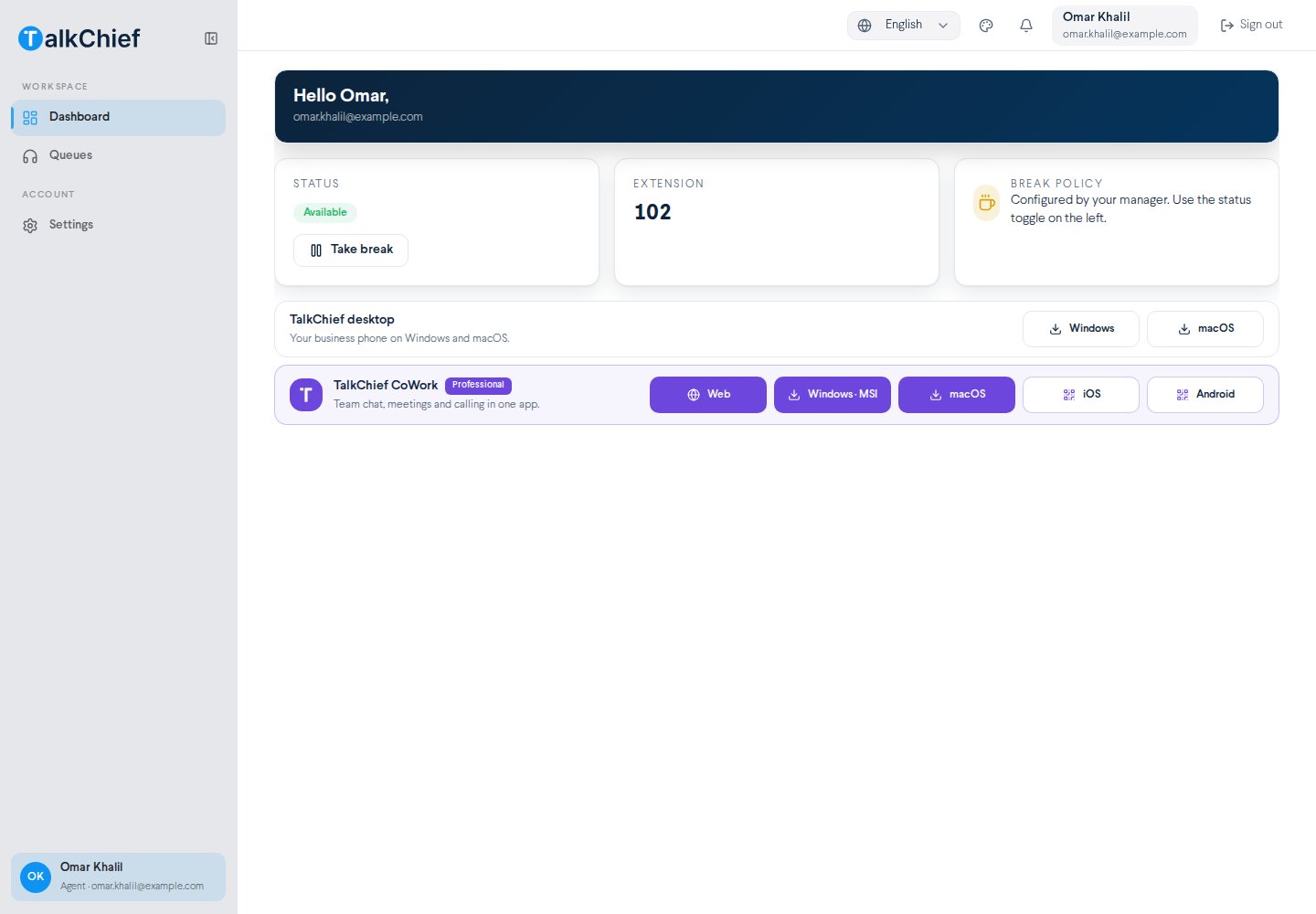
The dashboard greets you by name and shows your email. Below that are three cards:
* **Status**: shows **Available** or **On break**, with the button to change it.
* **Extension**: your own extension number. Teammates can dial it to reach you.
* **Break policy**: a reminder that your manager configures breaks.
The dashboard also links to the TalkChief desktop apps for Windows and macOS.
## Take a break
On the **Status** card, select **Take break**. The status changes to **On break** and you see **Break started**.
Select **Resume work**. The status changes back to **Available** and you see **Back online**.
Set yourself on a break before you step away. Your supervisor can then see why you aren't taking calls.
## Your queues
Go to **Workspace** → **Queues** to open **My queues**. It lists every queue you belong to, with its ring strategy. Each queue shows a **Logged in** badge. The badge is always shown, so it does not tell you whether you are on a break or currently receiving queue calls.
If the page says **Not in any queue**, ask your manager to add you. Admins and supervisors add agents with **Manage Agents** on the queue card in **Team** → **Queues**. See [Call routing](/phone/call-routing).
## Your settings
Go to **Account** → **Settings** to open **Agent settings**. It shows your device, extension, and follow-me preferences. You can't edit them here. Ask an admin to change your extension, call forwarding, or voicemail. Admins do this on your member settings page. See [Teams and members](/contact-center/teams-and-members).
## Set up break statuses (admins)
Admins define the break statuses agents can use on the **Agent breaks** page.
**Agent breaks** has no sidebar link. To open it, add `/breaks` to your TalkChief web app address.
Select **New break status**. Enter a **Name**, such as Lunch, Meeting, or Training, and an optional **Icon key**.
Select **Save**. The status appears in the list with its **Work break?** value and **Icon**.
Select **Delete** on its row and confirm.
## Frequently asked questions
Those pages are for admins and supervisors. Your sidebar shows only **Dashboard**, **Queues**, and **Settings**.
Open the Web Phone and check that the status badge says **Online**. If it says **Other tab**, select **Use here**. Also check that your **Status** isn't **On break**.
Yes. Download the desktop app for Windows or macOS from your dashboard.
## Related pages
Make, answer, and transfer calls in your browser.
How admins manage roles and member settings.
How queues send calls to agents.
This documentation is built and hosted on [Mintlify](https://mintlify.com), a developer documentation platform.
## Agent dashboard
The dashboard greets you by name and shows your email. Below that are three cards:
* **Status**: shows **Available** or **On break**, with the button to change it.
* **Extension**: your own extension number. Teammates can dial it to reach you.
* **Break policy**: a reminder that your manager configures breaks.
The dashboard also links to the TalkChief desktop apps for Windows and macOS.
## Take a break
On the **Status** card, select **Take break**. The status changes to **On break** and you see **Break started**.
Select **Resume work**. The status changes back to **Available** and you see **Back online**.
Set yourself on a break before you step away. Your supervisor can then see why you aren't taking calls.
## Your queues
Go to **Workspace** → **Queues** to open **My queues**. It lists every queue you belong to, with its ring strategy. Each queue shows a **Logged in** badge. The badge is always shown, so it does not tell you whether you are on a break or currently receiving queue calls.
If the page says **Not in any queue**, ask your manager to add you. Admins and supervisors add agents with **Manage Agents** on the queue card in **Team** → **Queues**. See [Call routing](/phone/call-routing).
## Your settings
Go to **Account** → **Settings** to open **Agent settings**. It shows your device, extension, and follow-me preferences. You can't edit them here. Ask an admin to change your extension, call forwarding, or voicemail. Admins do this on your member settings page. See [Teams and members](/contact-center/teams-and-members).
## Set up break statuses (admins)
Admins define the break statuses agents can use on the **Agent breaks** page.
**Agent breaks** has no sidebar link. To open it, add `/breaks` to your TalkChief web app address.
Select **New break status**. Enter a **Name**, such as Lunch, Meeting, or Training, and an optional **Icon key**.
Select **Save**. The status appears in the list with its **Work break?** value and **Icon**.
Select **Delete** on its row and confirm.
## Frequently asked questions
Those pages are for admins and supervisors. Your sidebar shows only **Dashboard**, **Queues**, and **Settings**.
Open the Web Phone and check that the status badge says **Online**. If it says **Other tab**, select **Use here**. Also check that your **Status** isn't **On break**.
Yes. Download the desktop app for Windows or macOS from your dashboard.
## Related pages
Make, answer, and transfer calls in your browser.
How admins manage roles and member settings.
How queues send calls to agents.
This documentation is built and hosted on [Mintlify](https://mintlify.com), a developer documentation platform.