> ## Documentation Index
> Fetch the complete documentation index at: https://docs.talkchief.io/llms.txt
> Use this file to discover all available pages before exploring further.
# Read AI call transcripts and summaries in TalkChief
> Open AI call transcripts from Reports, read them as a conversation, play the recording from any line, and generate summaries with action items.
Every transcribed call has a transcript you can read as a conversation. You can play the recording from any line and generate a summary with key points and action items. This page is for admins and supervisors who review calls.
Transcripts exist only for calls covered by [AI transcription](/ai/ai-transcription). Admins see every call in the company. Supervisors see calls from their own teams.
## Open a transcript
Go to **Insights** > **Reports** and pick the **Outbound**, **Inbound**, or **Queue** tab.
Use the filters to narrow the list, then select **Apply**.
In the **RECORDING** column, select the **Open transcript** icon next to the recording player. Calls without the icon have no transcript.
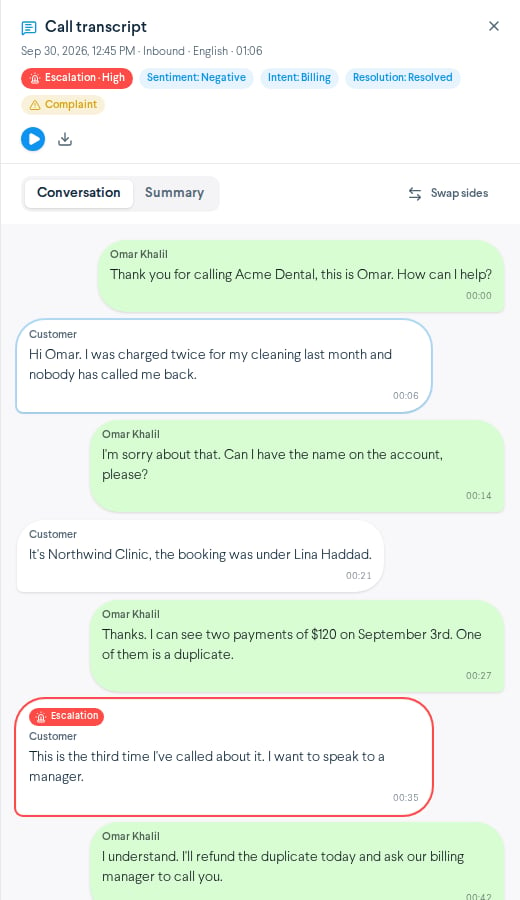
The **Call transcript** drawer opens at the side of the page. Its header shows the call date and time, the call type, the languages spoken, and the call length.
 You can also open transcripts from [Call search](/ai/call-search) and [Escalations](/ai/escalations).
## Read the conversation
The **Conversation** tab shows the call as chat bubbles, one per turn. Each bubble shows who spoke, what they said, and when.
Speaker labels work like this:
| Label | Meaning |
| - | - |
| The member's name | Your team member on the call. Their bubbles sit on the right. |
| **Customer** | The other party on the call. Their bubbles sit on the left. |
| **Speaker 1**, **Speaker 2** | Shown when TalkChief cannot tell which side is which |
* Select any bubble to play the recording from that point.
* Use the player at the top of the drawer to play or pause the recording.
If the member and the customer look reversed, select **Swap sides**. This only changes the view. It does not change the transcript.
You can also open transcripts from [Call search](/ai/call-search) and [Escalations](/ai/escalations).
## Read the conversation
The **Conversation** tab shows the call as chat bubbles, one per turn. Each bubble shows who spoke, what they said, and when.
Speaker labels work like this:
| Label | Meaning |
| - | - |
| The member's name | Your team member on the call. Their bubbles sit on the right. |
| **Customer** | The other party on the call. Their bubbles sit on the left. |
| **Speaker 1**, **Speaker 2** | Shown when TalkChief cannot tell which side is which |
* Select any bubble to play the recording from that point.
* Use the player at the top of the drawer to play or pause the recording.
If the member and the customer look reversed, select **Swap sides**. This only changes the view. It does not change the transcript.
 ## Insight chips
Chips at the top of the drawer summarize the call:
* **Sentiment**: the customer's overall mood, from **Very negative** to **Very positive**.
* **Intent**: why the customer called, for example **Support request**, **Billing**, or **Cancellation**.
* **Resolution**: **Resolved**, **Not resolved**, or **Unclear**.
* **Churn risk** and **Complaint** appear when the call shows those signals.
* **Uncertain** appears when the result is not reliable enough to show.
When a call is escalated, a red **Escalation** chip shows its severity. Select it to jump to the line where the customer asked to escalate. That line is highlighted. See [Escalations](/ai/escalations).
## Generate a summary
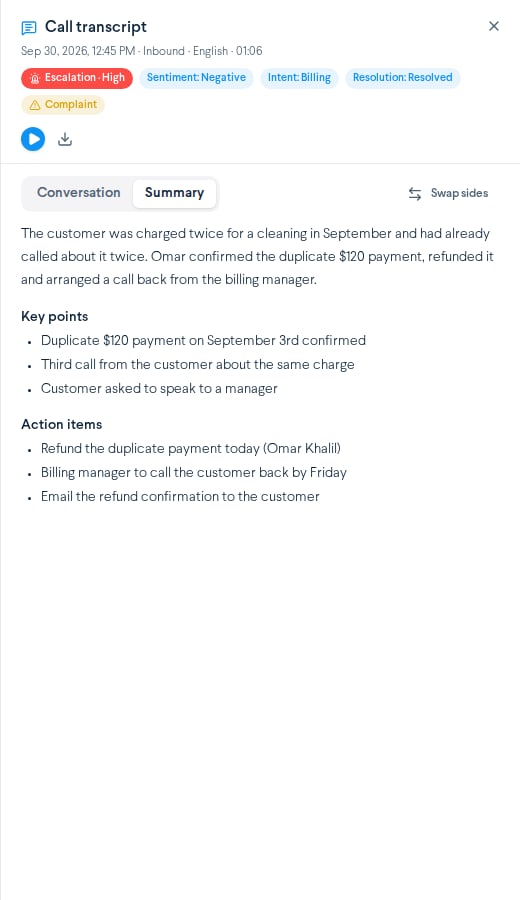
In the transcript drawer, select **Summary**.
If the call has no summary yet, select **Generate summary**. It takes a few seconds.
Read the short summary, then the **Key points** and **Action items**.
Escalated calls get a summary automatically, so it is ready when a supervisor opens the call.
## Insight chips
Chips at the top of the drawer summarize the call:
* **Sentiment**: the customer's overall mood, from **Very negative** to **Very positive**.
* **Intent**: why the customer called, for example **Support request**, **Billing**, or **Cancellation**.
* **Resolution**: **Resolved**, **Not resolved**, or **Unclear**.
* **Churn risk** and **Complaint** appear when the call shows those signals.
* **Uncertain** appears when the result is not reliable enough to show.
When a call is escalated, a red **Escalation** chip shows its severity. Select it to jump to the line where the customer asked to escalate. That line is highlighted. See [Escalations](/ai/escalations).
## Generate a summary
In the transcript drawer, select **Summary**.
If the call has no summary yet, select **Generate summary**. It takes a few seconds.
Read the short summary, then the **Key points** and **Action items**.
Escalated calls get a summary automatically, so it is ready when a supervisor opens the call.
 Transcripts, insights, and summaries are generated automatically and can contain mistakes. Check the recording before you use them for compliance, legal, or performance decisions.
## Troubleshooting
The call was not transcribed. It may be shorter than the minimum call duration, of a call type you did not select, internal, or from before AI transcription was turned on. Transcription also takes a few minutes after the call ends.
The recording had no speech to transcribe, for example a silent or very short call.
A failed summary can't be generated again from the drawer. Contact TalkChief support and include the call's date, time, and phone number.
## FAQ
Transcripts show each line in the language it was spoken. Calls that switch languages show more than one language in the drawer header.
No. Transcripts are available to admins and to supervisors for their own teams.
Escalated calls can be posted to CoWork channels with their summary. See [Escalations](/ai/escalations).
## Related
Turn on transcription and see pricing.
Find calls by what was said.
Review calls that need a supervisor.
Filter calls and play recordings.
This documentation is built and hosted on [Mintlify](https://mintlify.com), a developer documentation platform.
Transcripts, insights, and summaries are generated automatically and can contain mistakes. Check the recording before you use them for compliance, legal, or performance decisions.
## Troubleshooting
The call was not transcribed. It may be shorter than the minimum call duration, of a call type you did not select, internal, or from before AI transcription was turned on. Transcription also takes a few minutes after the call ends.
The recording had no speech to transcribe, for example a silent or very short call.
A failed summary can't be generated again from the drawer. Contact TalkChief support and include the call's date, time, and phone number.
## FAQ
Transcripts show each line in the language it was spoken. Calls that switch languages show more than one language in the drawer header.
No. Transcripts are available to admins and to supervisors for their own teams.
Escalated calls can be posted to CoWork channels with their summary. See [Escalations](/ai/escalations).
## Related
Turn on transcription and see pricing.
Find calls by what was said.
Review calls that need a supervisor.
Filter calls and play recordings.
This documentation is built and hosted on [Mintlify](https://mintlify.com), a developer documentation platform.