> ## Documentation Index
> Fetch the complete documentation index at: https://docs.talkchief.io/llms.txt
> Use this file to discover all available pages before exploring further.
# Transfer AI agent calls to people | TalkChief
> Use the TalkChief Transfer Directory to let AI voice agents hand callers to approved people and queues, and set each agent's default destination.
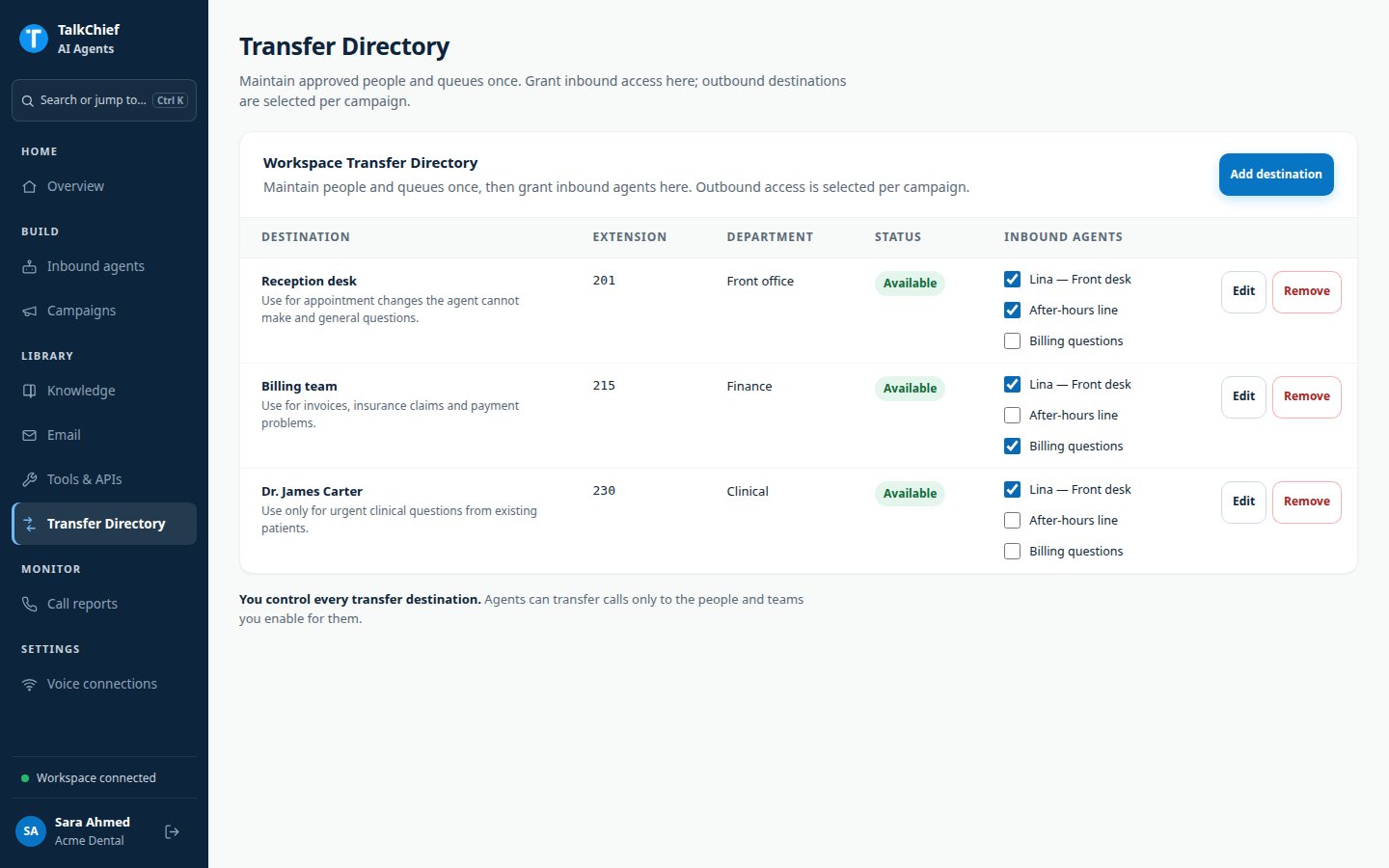
An agent can transfer a caller to a person or queue. It can only use destinations you approve in the **Transfer Directory**. A caller cannot make the agent dial any other number.
When a transfer completes, the AI part of the call ends. Charging stops at the transfer, so minutes with a person are not billed as AI time.
## Add destinations to the Transfer Directory
In the agents workspace sidebar, under **Library**, click **Transfer Directory**.
Click **Add destination** and fill in the form.
Click **Add destination** to save it.
| Field | What to enter |
| - | - |
| **Destination name** (required) | The name callers and the agent use, for example "Billing team" |
| **Extension or queue** (required) | The TalkChief extension or queue to transfer to |
| **Department** | Optional grouping, for example "Customer success" |
| **When should agents route calls here?** (required) | A clear routing note, for example "Use for refund requests or when the caller asks for a manager" |
| **Available for assigned agents** | Clear this to pause the destination without deleting it |
 Write routing notes the way you would brief a receptionist. The agent matches the caller's request against the name, department, and note.
## Grant destinations to an inbound agent
You can grant access from either place:
* **From the directory**: in the **Inbound agents** column, select each agent that may transfer to the destination.
* **From the agent**: open the agent, go to **Skills & tools**, then **Transfers**. Click **Assign to agent** on each destination.
## Set the default destination
Each agent has one default destination. The agent uses it only when a caller asks for "a person" without naming a team or role.
In the agent's **Transfers** tab, click **Use for generic requests** on the destination you want. It shows the **Generic-human fallback** badge.
If an agent has no assigned destination, it politely refuses every transfer request. Assign at least one destination to agents that should hand callers to people.
## Transfers in outbound campaigns
Campaigns choose their own destinations. Open the campaign, go to **Knowledge & actions**, and find **Live transfer directory**.
* Pick a directory entry in **Add workspace destination…** and click **Add destination**.
* Or enter a name and number, then click **Create & add**.
## Check a transfer
After a test call, open the call in **Call reports**. A transferred call shows **Transferred to a human** with the destination and time. The **AI time** shows where AI charging stopped.
## FAQ
All destinations share one transfer slot, so adding more destinations does not use more slots. See [Voice actions limit](/ai-agents/tools-and-integrations#voice-actions-limit).
No. The agent only transfers to destinations assigned to it.
Agents can no longer transfer to it. Removing it from one agent only affects that agent.
## Related pages
Turn on call controls and other tools.
Review transferred calls.
This documentation is built and hosted on [Mintlify](https://mintlify.com), a developer documentation platform.
Write routing notes the way you would brief a receptionist. The agent matches the caller's request against the name, department, and note.
## Grant destinations to an inbound agent
You can grant access from either place:
* **From the directory**: in the **Inbound agents** column, select each agent that may transfer to the destination.
* **From the agent**: open the agent, go to **Skills & tools**, then **Transfers**. Click **Assign to agent** on each destination.
## Set the default destination
Each agent has one default destination. The agent uses it only when a caller asks for "a person" without naming a team or role.
In the agent's **Transfers** tab, click **Use for generic requests** on the destination you want. It shows the **Generic-human fallback** badge.
If an agent has no assigned destination, it politely refuses every transfer request. Assign at least one destination to agents that should hand callers to people.
## Transfers in outbound campaigns
Campaigns choose their own destinations. Open the campaign, go to **Knowledge & actions**, and find **Live transfer directory**.
* Pick a directory entry in **Add workspace destination…** and click **Add destination**.
* Or enter a name and number, then click **Create & add**.
## Check a transfer
After a test call, open the call in **Call reports**. A transferred call shows **Transferred to a human** with the destination and time. The **AI time** shows where AI charging stopped.
## FAQ
All destinations share one transfer slot, so adding more destinations does not use more slots. See [Voice actions limit](/ai-agents/tools-and-integrations#voice-actions-limit).
No. The agent only transfers to destinations assigned to it.
Agents can no longer transfer to it. Removing it from one agent only affects that agent.
## Related pages
Turn on call controls and other tools.
Review transferred calls.
This documentation is built and hosted on [Mintlify](https://mintlify.com), a developer documentation platform.