> ## Documentation Index
> Fetch the complete documentation index at: https://docs.talkchief.io/llms.txt
> Use this file to discover all available pages before exploring further.
# AI outbound calling campaigns | TalkChief
> Create a TalkChief AI outbound campaign: write the call plan, set up a caller profile, import leads, set calling windows, rehearse, and launch.
A campaign calls a list of leads for you. The campaign holds the message, rules, audience, documents, and tools. A reusable **caller profile** supplies the identity, voice, and phone line.
You need a TalkChief phone user for the caller profile and at least \$10 in your wallet. Each campaign places up to 5 calls at a time.
## How a campaign works
| Part | What it holds |
| - | - |
| **Caller profile** | Who calls: name, introduction, role, language, voice, tone, and phone line. Reusable across campaigns |
| **Campaign setup** | What the calls are for: purpose, first spoken line, Goal playbook, guidelines, and rules |
| **Audience & pacing** | Who to call and when: leads, calling window, concurrency, retries, and do-not-call |
| **Knowledge & actions** | What the agent can use: documents, tools, and transfer destinations |
| **Test & launch** | Readiness checks, a rehearsal call, and launch |
| **Activity & results** | Live calls, outcomes, charges, and configuration history |
## Step 1: Create the campaign
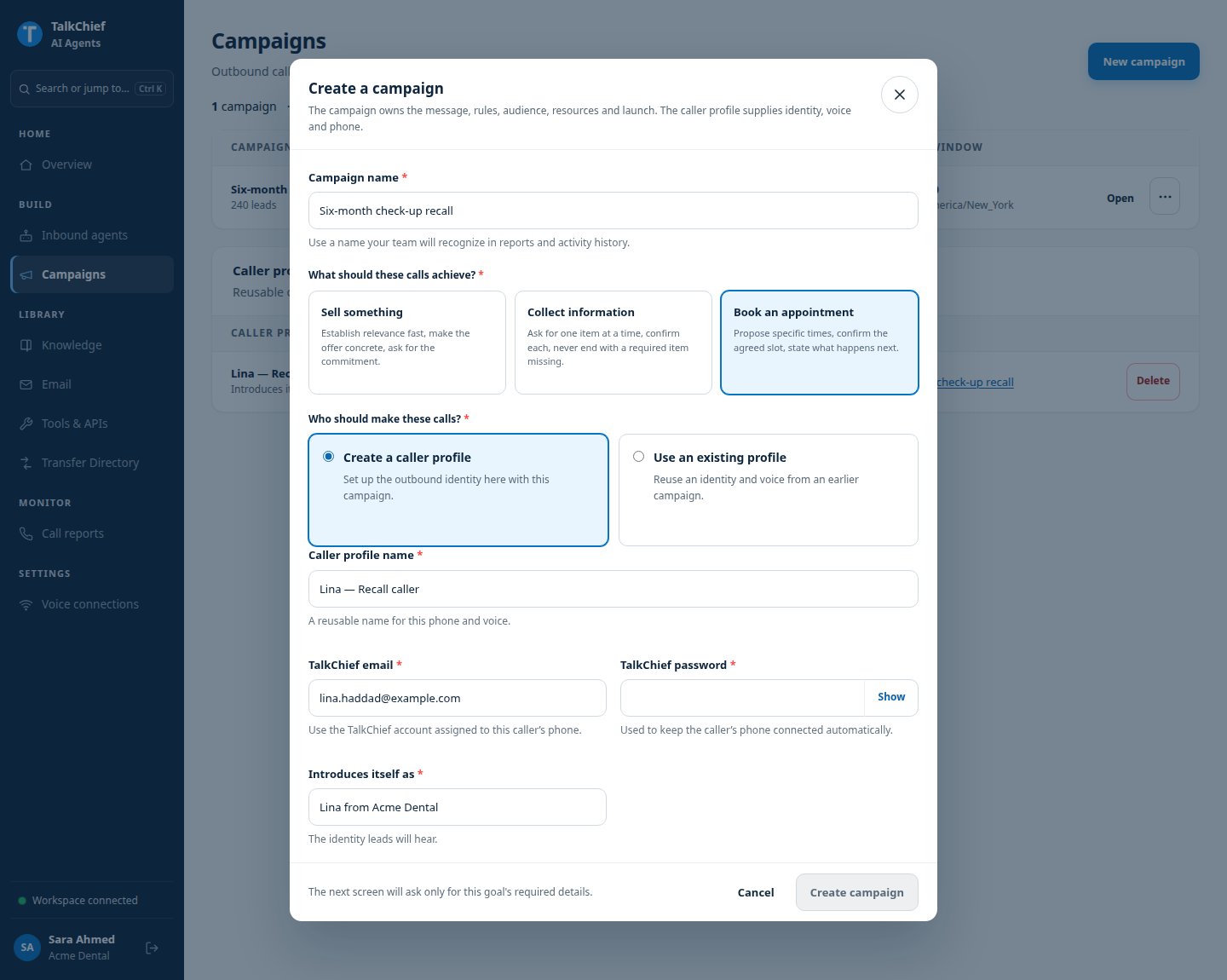
In the agents workspace sidebar, click **Campaigns**, then **New campaign**.
Enter a **Campaign name**. Under **What should these calls achieve?**, choose **Sell something**, **Collect information**, or **Book an appointment**.
Under **Who should make these calls?**, choose **Create a caller profile** or **Use an existing profile**.
Enter a **Caller profile name**, the **TalkChief email** and **TalkChief password** of the phone user it calls from, and **Introduces itself as**. TalkChief verifies the account and connects the phone. If verification fails, nothing is created.
Click **Create campaign**. The campaign opens on **Campaign setup**.
 One running or paused campaign holds a caller profile at a time. Create a second profile if you need two campaigns live at once.
## Step 2: Write the call plan
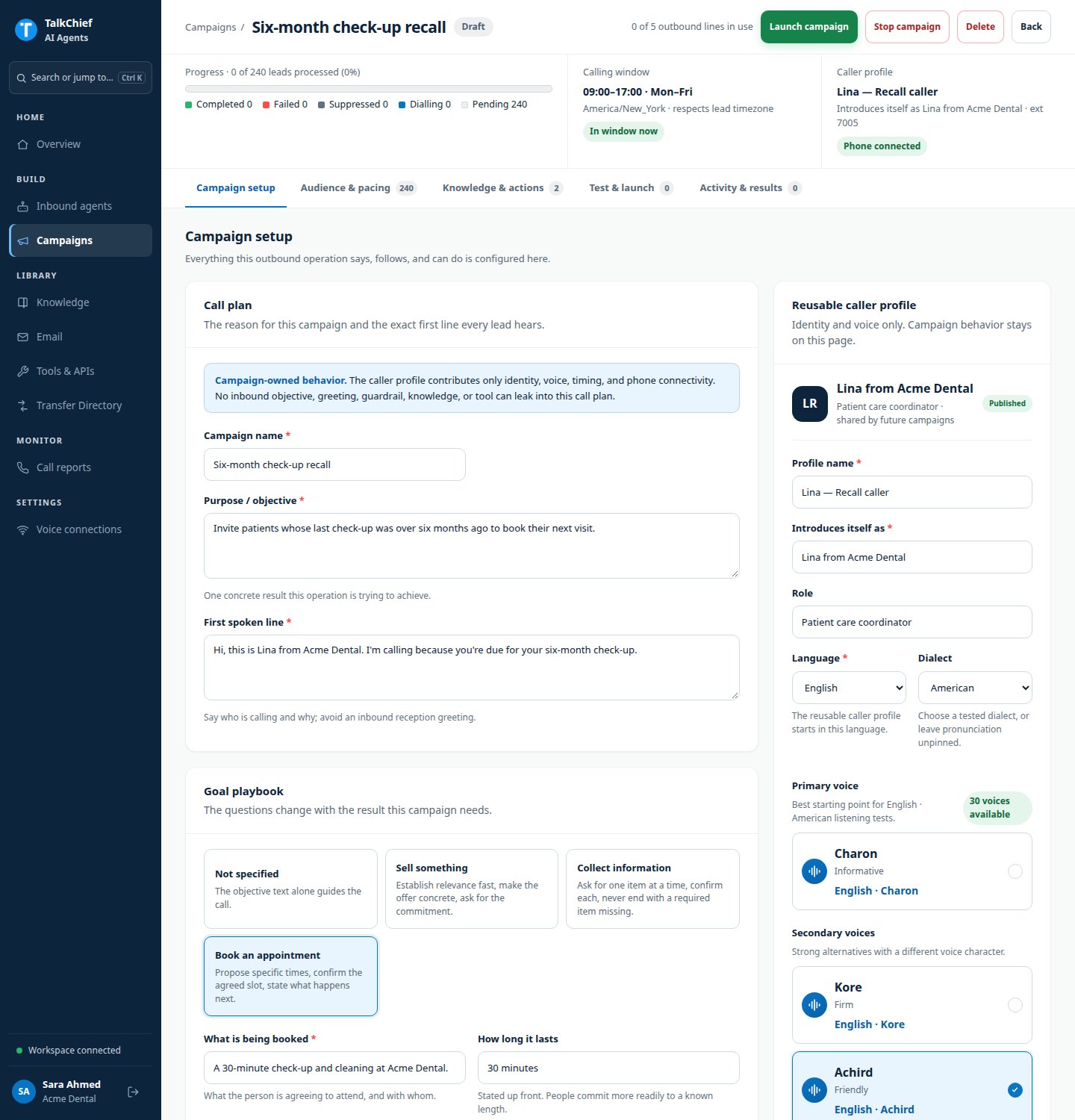
Open **Campaign setup**.
Fill in **Purpose / objective** and **First spoken line**. The first line should say who is calling and why.
Answer the required questions for your goal. For example, **Book an appointment** asks what is booked, how long it lasts, the times you can offer, and what counts as booked.
Add **General guidelines**, **Never do** rules, and **Additional context** as needed.
Choose **Allow brief small talk**, **Allow the agent to end calls**, and **Allow phone-menu keypresses**.
Click **Save campaign**.
Two rules always apply. The agent honors verbal opt-outs and ends the call. If a lead asks directly, the agent says it is an AI.
One running or paused campaign holds a caller profile at a time. Create a second profile if you need two campaigns live at once.
## Step 2: Write the call plan
Open **Campaign setup**.
Fill in **Purpose / objective** and **First spoken line**. The first line should say who is calling and why.
Answer the required questions for your goal. For example, **Book an appointment** asks what is booked, how long it lasts, the times you can offer, and what counts as booked.
Add **General guidelines**, **Never do** rules, and **Additional context** as needed.
Choose **Allow brief small talk**, **Allow the agent to end calls**, and **Allow phone-menu keypresses**.
Click **Save campaign**.
Two rules always apply. The agent honors verbal opt-outs and ends the call. If a lead asks directly, the agent says it is an AI.
 ## Step 3: Finish and publish the caller profile
The **Reusable caller profile** card on the same page controls how the caller sounds. It is separate from the campaign's instructions.
1. Check **Profile name**, **Introduces itself as**, and **Role**.
2. Choose the language, dialect, and **Voice**. Use **Voice sample** to listen.
3. Set **Tone**, **Pace**, **Response consistency**, **Let leads interrupt**, and **Listening pause**.
4. Click **Save caller profile**.
5. Check that **Outbound phone connection** shows a connected phone with outbound calls enabled.
6. Click **Publish caller profile**.
You cannot rehearse or launch until the caller profile is published and its outbound phone is connected.
## Step 4: Import leads
Open **Audience & pacing**.
Under **Import leads**, click **Choose or drop a lead CSV**. Files can be up to 10 MB. Click **Download template** for an example.
Map **Phone number** (required). **Contact name**, **Company**, and **Lead timezone** are optional.
Check the preview and click **Import**. The result shows how many leads were added and why any rows were skipped.
Phone numbers must be in international format, such as +14155550123, or a TalkChief extension. Duplicates and numbers on your do-not-call list are skipped.
## Step 5: Set the calling window and pacing
| Setting | What it does |
| - | - |
| Calling days | Days of the week the campaign may call |
| **Start time** and **End time** | The daily calling window |
| **Campaign timezone** | The timezone for the window, for example `Asia/Riyadh` |
| **Respect each lead's timezone** | Applies the window in each lead's local time when a timezone is mapped |
| **Concurrent calls** | 1 to 5 calls at a time |
| **Retry attempts** | 0 to 10 retries after a retryable outcome, such as no answer |
| **Retry gap (minutes)** | Minimum wait between attempts on the same lead |
| **Check workspace do-not-call list before every dial** | Skips numbers on your do-not-call list |
The campaign only dials inside the window, for leads not on the do-not-call list, with attempts left.
## Step 6: Add knowledge and actions
Open **Knowledge & actions** to choose what this campaign can use.
* **Knowledge**: add library documents, or upload up to 2 private campaign documents.
* **Live transfer directory**: add approved transfer destinations.
* **Actions**: attach workspace Business APIs, email, or MCP tools, or click **Add a tool** to create a private API for this campaign.
The **Voice actions** meter applies here too, with a limit of 25. See [Tools and integrations](/ai-agents/tools-and-integrations).
## Step 7: Rehearse and launch
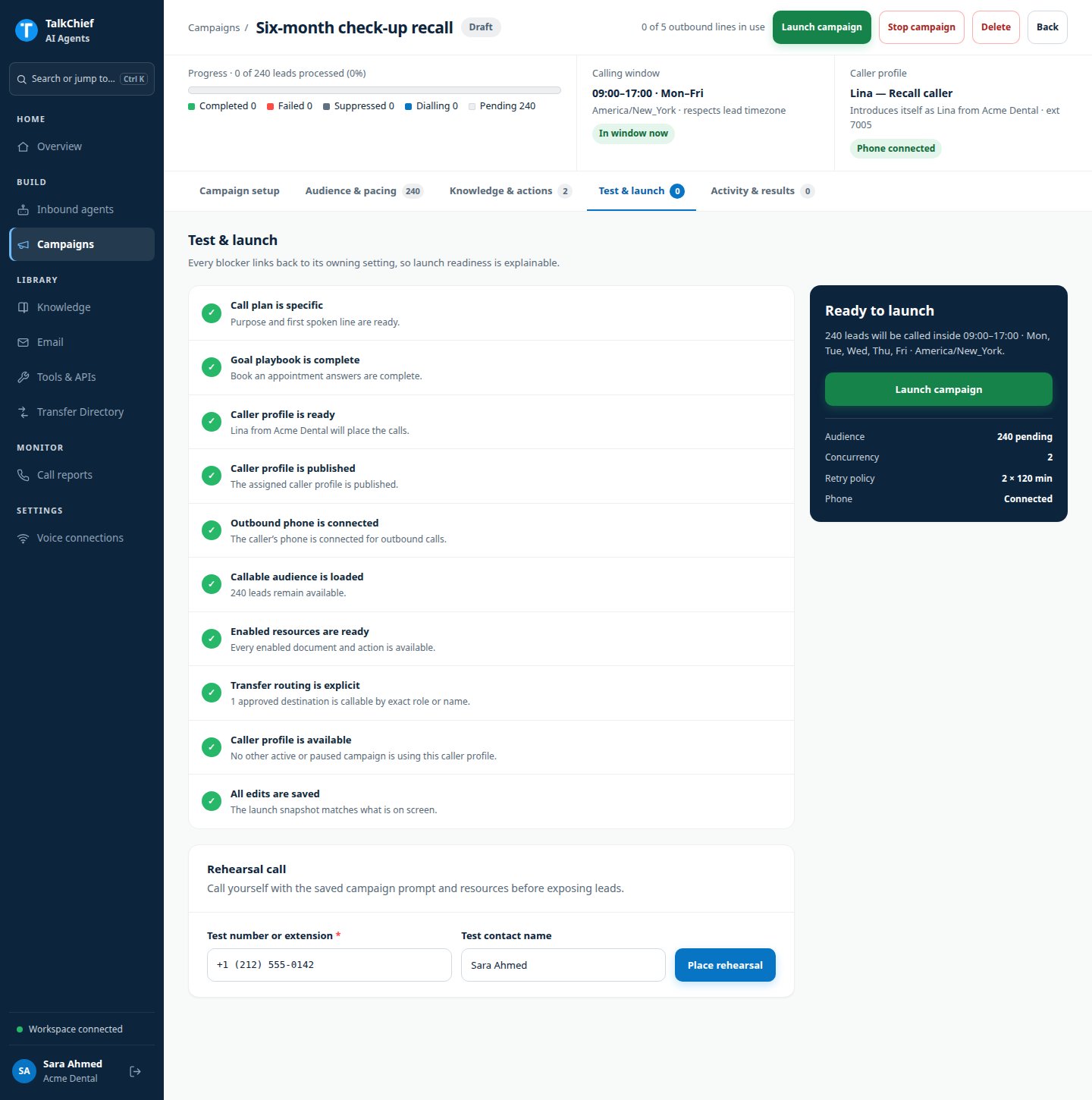
Open **Test & launch**. The checklist shows each requirement:
* **Call plan is specific**: a campaign purpose and an opening line.
* **Goal playbook is complete**.
* **Caller profile is ready** and **Caller profile is published**.
* **Outbound phone is connected**, with outbound calls enabled.
* **Callable audience is loaded**: at least one lead to call.
* **Enabled resources are ready**, **Caller profile is available**, and **All edits are saved**.
Click **Fix** next to any failed item to jump to the setting.
Under **Rehearsal call**, enter your **Test number or extension** and an optional **Test contact name**. Click **Place rehearsal**. The call uses the saved campaign, but does not touch your leads.
Click **Open rehearsal report**. Rehearsal calls carry the **Rehearsal** label in **Call reports**.
When every check passes, click **Launch campaign**.
## Step 3: Finish and publish the caller profile
The **Reusable caller profile** card on the same page controls how the caller sounds. It is separate from the campaign's instructions.
1. Check **Profile name**, **Introduces itself as**, and **Role**.
2. Choose the language, dialect, and **Voice**. Use **Voice sample** to listen.
3. Set **Tone**, **Pace**, **Response consistency**, **Let leads interrupt**, and **Listening pause**.
4. Click **Save caller profile**.
5. Check that **Outbound phone connection** shows a connected phone with outbound calls enabled.
6. Click **Publish caller profile**.
You cannot rehearse or launch until the caller profile is published and its outbound phone is connected.
## Step 4: Import leads
Open **Audience & pacing**.
Under **Import leads**, click **Choose or drop a lead CSV**. Files can be up to 10 MB. Click **Download template** for an example.
Map **Phone number** (required). **Contact name**, **Company**, and **Lead timezone** are optional.
Check the preview and click **Import**. The result shows how many leads were added and why any rows were skipped.
Phone numbers must be in international format, such as +14155550123, or a TalkChief extension. Duplicates and numbers on your do-not-call list are skipped.
## Step 5: Set the calling window and pacing
| Setting | What it does |
| - | - |
| Calling days | Days of the week the campaign may call |
| **Start time** and **End time** | The daily calling window |
| **Campaign timezone** | The timezone for the window, for example `Asia/Riyadh` |
| **Respect each lead's timezone** | Applies the window in each lead's local time when a timezone is mapped |
| **Concurrent calls** | 1 to 5 calls at a time |
| **Retry attempts** | 0 to 10 retries after a retryable outcome, such as no answer |
| **Retry gap (minutes)** | Minimum wait between attempts on the same lead |
| **Check workspace do-not-call list before every dial** | Skips numbers on your do-not-call list |
The campaign only dials inside the window, for leads not on the do-not-call list, with attempts left.
## Step 6: Add knowledge and actions
Open **Knowledge & actions** to choose what this campaign can use.
* **Knowledge**: add library documents, or upload up to 2 private campaign documents.
* **Live transfer directory**: add approved transfer destinations.
* **Actions**: attach workspace Business APIs, email, or MCP tools, or click **Add a tool** to create a private API for this campaign.
The **Voice actions** meter applies here too, with a limit of 25. See [Tools and integrations](/ai-agents/tools-and-integrations).
## Step 7: Rehearse and launch
Open **Test & launch**. The checklist shows each requirement:
* **Call plan is specific**: a campaign purpose and an opening line.
* **Goal playbook is complete**.
* **Caller profile is ready** and **Caller profile is published**.
* **Outbound phone is connected**, with outbound calls enabled.
* **Callable audience is loaded**: at least one lead to call.
* **Enabled resources are ready**, **Caller profile is available**, and **All edits are saved**.
Click **Fix** next to any failed item to jump to the setting.
Under **Rehearsal call**, enter your **Test number or extension** and an optional **Test contact name**. Click **Place rehearsal**. The call uses the saved campaign, but does not touch your leads.
Click **Open rehearsal report**. Rehearsal calls carry the **Rehearsal** label in **Call reports**.
When every check passes, click **Launch campaign**.
 ## Monitor and control the campaign
The header shows progress and the lead outcome bar. Lead states are:
| State | Meaning |
| - | - |
| **Pending** | Waiting to be called |
| **Dialling** | Being called now |
| **Completed** | Finished |
| **Failed** | The call attempt did not succeed |
| **Suppressed** | Skipped because of do-not-call or an invalid number |
**Activity & results** shows the live call transcript, each call's outcome, duration, and cost, and the configuration history. Click **Inspect** to open a call in **Call reports**.
* **Pause safely** stops new calls. Calls in progress can finish. Pause to edit the campaign.
* **Stop campaign** cancels the remaining leads. You cannot undo this.
* The campaign status changes to **Completed** when every lead is processed.
## FAQ
No. Click **Pause safely** or **Pause to edit**, make your changes, save, and launch again.
No. Automated answer detection is not available. If a mailbox answers, the call is treated as answered.
Yes. Choose **Use an existing profile** when you create the next campaign. The profile stays available after a campaign ends or is deleted.
Each connected call costs \$0.15 per minute, or the usage-based cost if higher. Unanswered and busy attempts have no per-minute charge.
## Related pages
Review campaign calls and charges.
Add documents for campaigns.
This documentation is built and hosted on [Mintlify](https://mintlify.com), a developer documentation platform.
## Monitor and control the campaign
The header shows progress and the lead outcome bar. Lead states are:
| State | Meaning |
| - | - |
| **Pending** | Waiting to be called |
| **Dialling** | Being called now |
| **Completed** | Finished |
| **Failed** | The call attempt did not succeed |
| **Suppressed** | Skipped because of do-not-call or an invalid number |
**Activity & results** shows the live call transcript, each call's outcome, duration, and cost, and the configuration history. Click **Inspect** to open a call in **Call reports**.
* **Pause safely** stops new calls. Calls in progress can finish. Pause to edit the campaign.
* **Stop campaign** cancels the remaining leads. You cannot undo this.
* The campaign status changes to **Completed** when every lead is processed.
## FAQ
No. Click **Pause safely** or **Pause to edit**, make your changes, save, and launch again.
No. Automated answer detection is not available. If a mailbox answers, the call is treated as answered.
Yes. Choose **Use an existing profile** when you create the next campaign. The profile stays available after a campaign ends or is deleted.
Each connected call costs \$0.15 per minute, or the usage-based cost if higher. Unanswered and busy attempts have no per-minute charge.
## Related pages
Review campaign calls and charges.
Add documents for campaigns.
This documentation is built and hosted on [Mintlify](https://mintlify.com), a developer documentation platform.