> ## Documentation Index
> Fetch the complete documentation index at: https://docs.talkchief.io/llms.txt
> Use this file to discover all available pages before exploring further.
# Create an inbound AI voice agent | TalkChief
> Create an inbound AI voice agent in TalkChief: set its persona, greeting, guardrails, language, dialect, voice, tone, and listening timing.
An inbound agent answers calls that reach your TalkChief numbers. This page covers the agent's identity and how it sounds. You add documents, tools, and routing after that.
You need a TalkChief admin or supervisor account and a free slot under your plan's AI agent limit. To place outbound calls, create a [campaign](/ai-agents/outbound-campaigns) instead.
## Create the agent
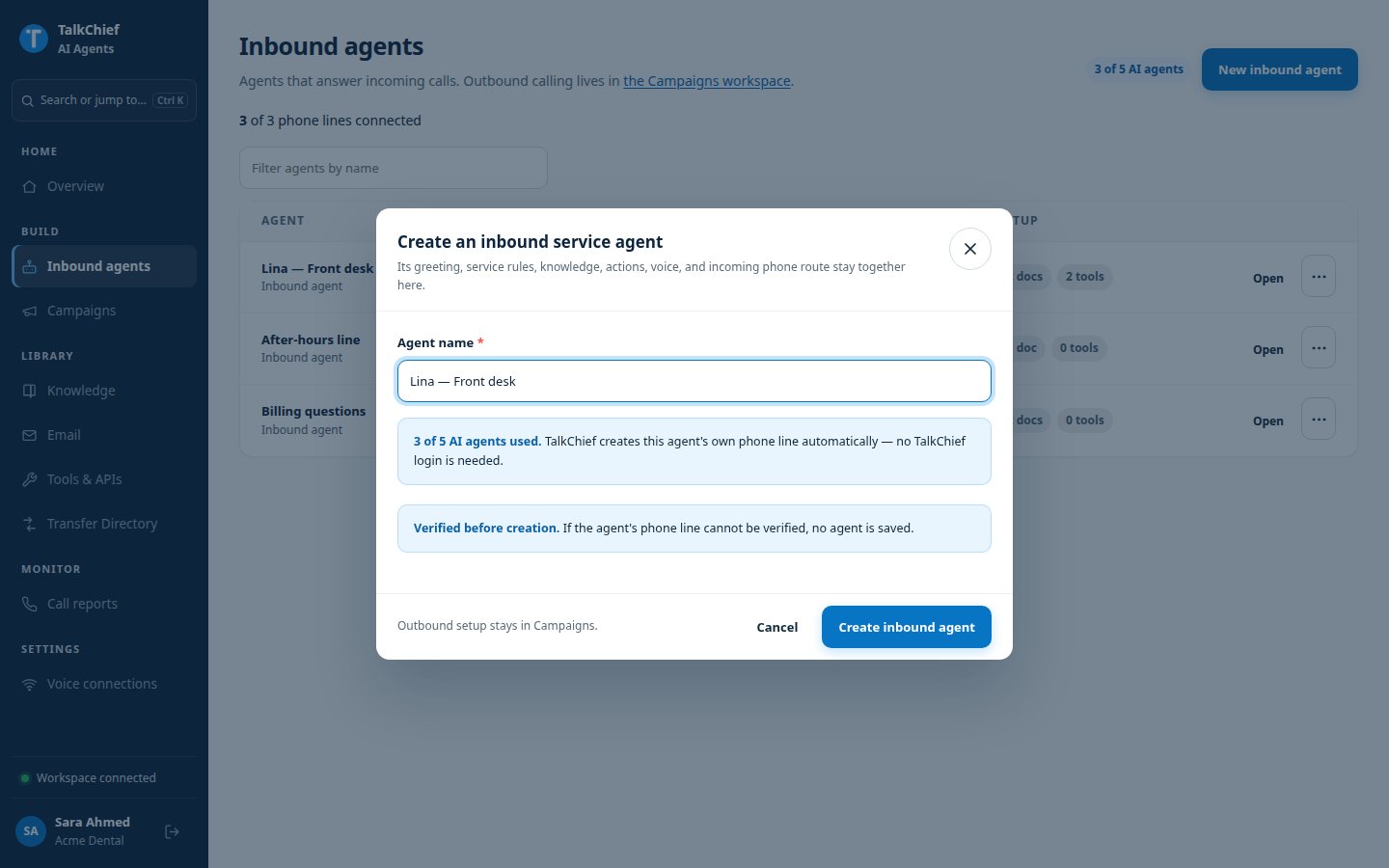
In the agents workspace, click **Inbound agents**, then **New inbound agent**.
In **Agent name**, enter a name your team will recognize, for example "Maya — customer care".
Click **Create inbound agent**. TalkChief creates the agent's own phone line and checks it. If the line cannot be verified, no agent is saved.
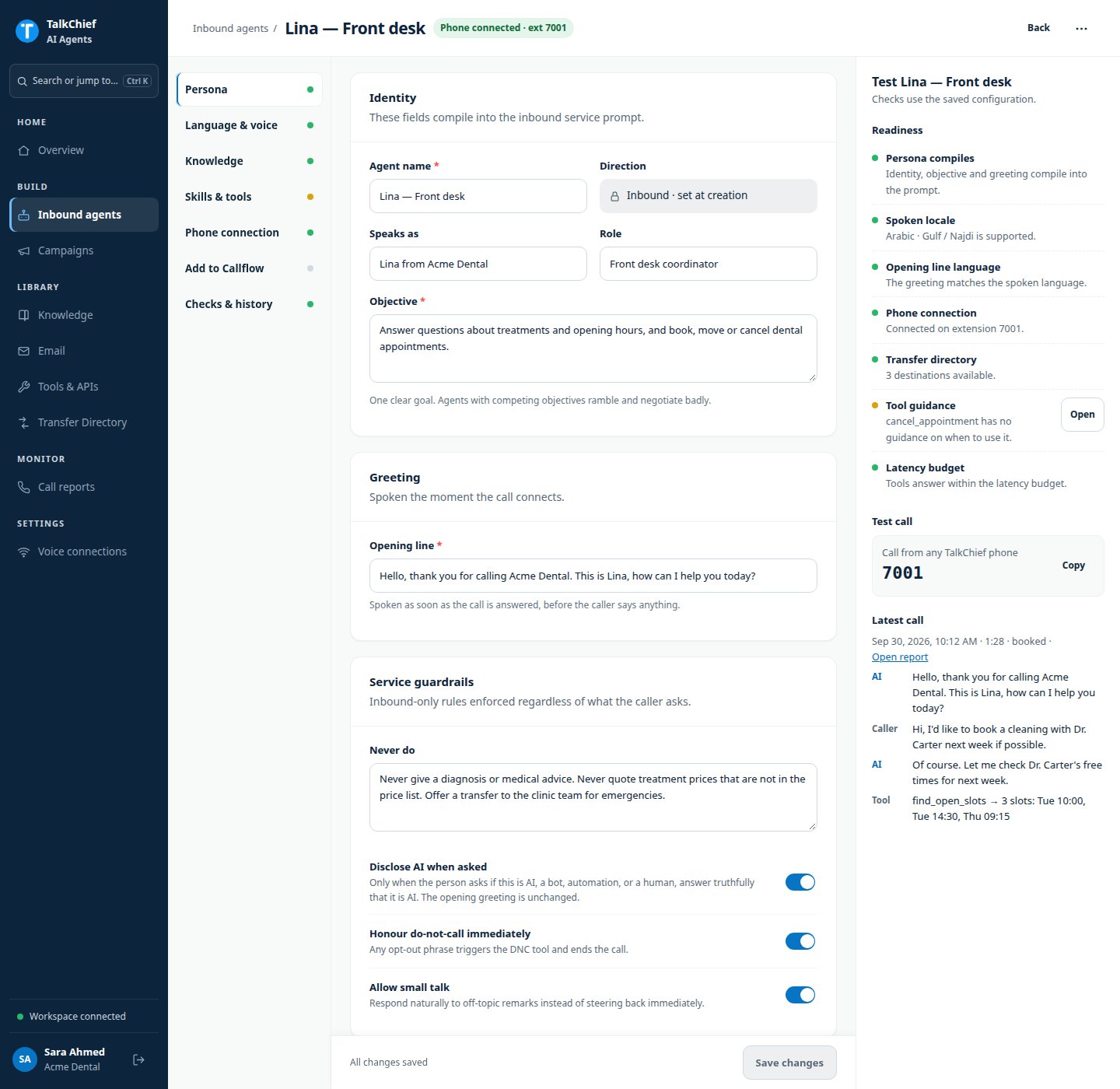
 The agent editor opens. Its sections are **Persona**, **Language & voice**, **Knowledge**, **Skills & tools**, **Phone connection**, **Add to Callflow**, and **Checks & history**. A colored dot beside each section shows whether it is complete or needs attention.
The direction is fixed when you create the agent. If the job changes from answering to calling out, create a campaign.
## Set the persona
Open **Persona**.
| Field | What to enter |
| - | - |
| **Agent name** | The name shown in your workspace |
| **Speaks as** | How the agent introduces itself, for example "Sara from Acme Dental" |
| **Role** | The job it does, for example "Front desk coordinator" |
| **Objective** (required) | One clear goal for every call |
| **Opening line** (required) | The first sentence the agent says when the call connects |
| **Never do** | Rules the agent must follow whatever the caller asks |
Then choose the service guardrails:
* **Disclose AI when asked**: if the caller asks whether this is AI or a person, the agent answers truthfully.
* **Honour do-not-call immediately**: an opt-out phrase records the request and ends the call.
* **Allow small talk**: the agent replies naturally to off-topic remarks before returning to the task.
Always set an **Opening line**. Without one, the caller hears silence until they speak, and many callers hang up.
The agent editor opens. Its sections are **Persona**, **Language & voice**, **Knowledge**, **Skills & tools**, **Phone connection**, **Add to Callflow**, and **Checks & history**. A colored dot beside each section shows whether it is complete or needs attention.
The direction is fixed when you create the agent. If the job changes from answering to calling out, create a campaign.
## Set the persona
Open **Persona**.
| Field | What to enter |
| - | - |
| **Agent name** | The name shown in your workspace |
| **Speaks as** | How the agent introduces itself, for example "Sara from Acme Dental" |
| **Role** | The job it does, for example "Front desk coordinator" |
| **Objective** (required) | One clear goal for every call |
| **Opening line** (required) | The first sentence the agent says when the call connects |
| **Never do** | Rules the agent must follow whatever the caller asks |
Then choose the service guardrails:
* **Disclose AI when asked**: if the caller asks whether this is AI or a person, the agent answers truthfully.
* **Honour do-not-call immediately**: an opt-out phrase records the request and ends the call.
* **Allow small talk**: the agent replies naturally to off-topic remarks before returning to the task.
Always set an **Opening line**. Without one, the caller hears silence until they speak, and many callers hang up.
 ## Choose language and voice
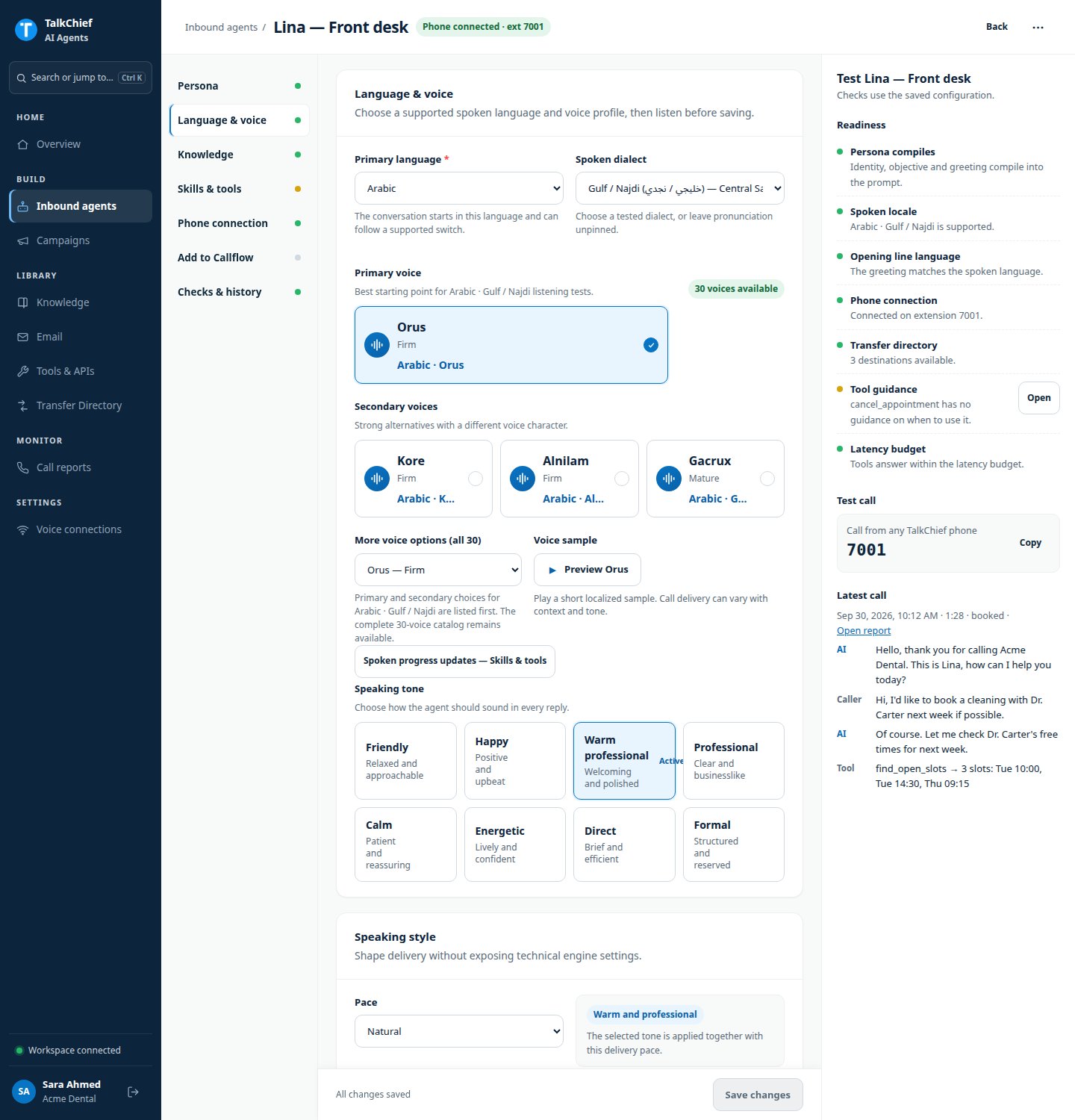
Open **Language & voice**.
In **Primary language**, choose **English**, **Arabic**, **Hebrew**, or **Auto-detect**.
In **Spoken dialect**, choose how the agent should sound. English offers American and British. Arabic offers Egyptian, Gulf / Najdi, Shami / Levantine, and Modern Standard. Hebrew offers Conversational Israeli.
Choose the **Primary voice** or one of the **Secondary voices**. To see all 30 voices, open **More voice options (all 30)**.
Use **Voice sample** to hear the selected voice in the selected language.
Choose one: **Friendly**, **Happy**, **Warm professional**, **Professional**, **Calm**, **Energetic**, **Direct**, or **Formal**.
## Choose language and voice
Open **Language & voice**.
In **Primary language**, choose **English**, **Arabic**, **Hebrew**, or **Auto-detect**.
In **Spoken dialect**, choose how the agent should sound. English offers American and British. Arabic offers Egyptian, Gulf / Najdi, Shami / Levantine, and Modern Standard. Hebrew offers Conversational Israeli.
Choose the **Primary voice** or one of the **Secondary voices**. To see all 30 voices, open **More voice options (all 30)**.
Use **Voice sample** to hear the selected voice in the selected language.
Choose one: **Friendly**, **Happy**, **Warm professional**, **Professional**, **Calm**, **Energetic**, **Direct**, or **Formal**.
 ### Speaking style and timing
| Setting | What it does |
| - | - |
| **Pace** | **Natural**, **Measured**, or **Brisk** delivery |
| **Response consistency** | Higher values stay closer to your wording; lower values vary the phrasing |
| **Let callers interrupt** | The caller can talk over the agent; short noises are ignored |
| **Listening pause** | How long the agent waits after the caller stops, from 350 ms to 1,500 ms. The default is 350 ms |
If the agent cuts callers off mid-thought, raise **Listening pause** a little at a time.
## Save your changes
Click **Save changes** at the bottom of the editor. New calls use the saved settings right away. There is no separate publish step for inbound agents.
To undo unsaved edits, click **Discard**.
## Next steps
After the persona and voice, finish the setup in this order:
1. Grant documents in [Knowledge](/ai-agents/knowledge-base).
2. Turn on tools in [Skills & tools](/ai-agents/tools-and-integrations).
3. Grant [transfer destinations](/ai-agents/transfers).
4. [Add the agent to a call flow](/ai-agents/add-to-call-flow) and place a test call.
## FAQ
Choose **Auto-detect** to let the agent follow the caller. Pick a fixed language if most callers use one, because some features, such as spoken progress updates, need a primary language.
Yes. Change it in **Language & voice** and click **Save changes**. The next call uses the new voice.
Open the agent, click the more actions menu (**⋯**), then **Delete agent…**. TalkChief disconnects its phone line first. Existing call reports and transcripts stay available. If a call flow still uses the agent, remove that step first.
## Related pages
Give the agent approved documents.
Let the agent look things up and take actions.
This documentation is built and hosted on [Mintlify](https://mintlify.com), a developer documentation platform.
### Speaking style and timing
| Setting | What it does |
| - | - |
| **Pace** | **Natural**, **Measured**, or **Brisk** delivery |
| **Response consistency** | Higher values stay closer to your wording; lower values vary the phrasing |
| **Let callers interrupt** | The caller can talk over the agent; short noises are ignored |
| **Listening pause** | How long the agent waits after the caller stops, from 350 ms to 1,500 ms. The default is 350 ms |
If the agent cuts callers off mid-thought, raise **Listening pause** a little at a time.
## Save your changes
Click **Save changes** at the bottom of the editor. New calls use the saved settings right away. There is no separate publish step for inbound agents.
To undo unsaved edits, click **Discard**.
## Next steps
After the persona and voice, finish the setup in this order:
1. Grant documents in [Knowledge](/ai-agents/knowledge-base).
2. Turn on tools in [Skills & tools](/ai-agents/tools-and-integrations).
3. Grant [transfer destinations](/ai-agents/transfers).
4. [Add the agent to a call flow](/ai-agents/add-to-call-flow) and place a test call.
## FAQ
Choose **Auto-detect** to let the agent follow the caller. Pick a fixed language if most callers use one, because some features, such as spoken progress updates, need a primary language.
Yes. Change it in **Language & voice** and click **Save changes**. The next call uses the new voice.
Open the agent, click the more actions menu (**⋯**), then **Delete agent…**. TalkChief disconnects its phone line first. Existing call reports and transcripts stay available. If a call flow still uses the agent, remove that step first.
## Related pages
Give the agent approved documents.
Let the agent look things up and take actions.
This documentation is built and hosted on [Mintlify](https://mintlify.com), a developer documentation platform.